Registering and managing your drinking water supply in Hinekōrako
Guidance to help you register your drinking water supply and manage or view information in Hinekōrako – our self-service portal.
Information on this page is for all types of drinking water supply that need to register with us, except water carrier services and temporary drinking water supplies for planned events.
Log in to Hinekōrakooutbound
Key steps in the registration process
- Once we’ve processed your application to register a water supply, we’ll email you instructions on how to log into Hinekōrako and add information.
- You’ll then need to add further details about your supply in Hinekōrako and submit it for registration (see guidance below).
- We’ll email you to confirm when your registration is approved. The email will show the date when your registration needs to be renewed and outline your key responsibilities.
- Once the registration is completed, details of your supply are included on the public register of drinking water supplies. You can request to withhold information from the public register under certain circumstances (see guidance further down this page).
Application to register a water supply
Public register of drinking water suppliesoutbound
Once your water supply is registered:
- You’ll need to renew your registration for each supply every 5 years, confirming that all your details and your drinking water safety plan (where required) are still current.
- If any information about your supply changes, you’ll need to let us know immediately by updating the relevant registration record.
Timeframe for processing your application to register
We’re required to process your registration within 20 working days of you submitting the application, unless we consider your application is incomplete or needs amending.
Where we require further information, the timeframe is put on hold until we receive the requested information.
We will advise you of the annual renewal date for the registered supply.
Roles and responsibilities
When you register your drinking water supply in Hinekōrako, you’ll be asked to identify a supply owner, supply operator, overall supply contact and registration contact.
Each water supply can have multiple contacts and each contact can have more than one role (e.g. a contact may also be an owner and operator of the supply).
Supply owner
There must be at least one owner for a supply. An owner can be an individual (and listed as a contact) or an organisation. Where multiple owner-organisations are identified for a supply, you’ll need to list a key contact for each owner-organisation. This is the person we’ll contact if there are issues with the water supply. The supply owner is published on the public register of drinking water supplies.
More information on the meaning of 'owner' - the person(s) with effective control of the water supply
Section 12 of the Water Services Act 2021 defines owner as the person who has effective control of the drinking water supply. A person may be an individual or an organisation or corporate body that is a legal entity.
Water Services Act 2021outbound
To help determine who has effective control, consider whether the person:
- owns the drinking water infrastructure (treatment plants, pipes, etc)
- owns or has long-term control of the land on which the drinking water infrastructure is based
- directs or has control over decisions about the funding or maintenance of the drinking water infrastructure, or collects fees, levies or other charges from consumers in relation to the infrastructure
- controls how the management of the supply is resourced (e.g. has the power to subcontract work).
No single factor has a higher priority than others. It is necessary to consider all the relevant factors and make a case by case assessment of who has effective control of your drinking water supply.
Note: Individuals or organisations that operate the supply on a daily basis can be different to the individuals or organisations listed as the owners.
The type of entity helps determine who has effective control
Types of legal entity include companies, government organisations, Māori incorporations, incorporated societies and charitable trust boards,. The entity may determine who has effective control.
- The entity may have direct control over 1 – 4 above. While an entity may seek input from others, the investment and decision-making rests with the entity. They generally own the infrastructure. If they do not own the land, the entity will have the right to use the land on which the supply infrastructure is based.
- Examples of drinking water supply owners in this category include: councils, government agencies, airports, community water supplies, camping grounds and education facilities.
- These entities will be listed as the owner in the registration record.
Examples of trusts include marae, iwi, hapū trusts, family/whānau trusts and community organisation trusts.
- The named trustees are the owners of any assets on behalf of the beneficiaries of the trust. This may include the drinking water supply infrastructure and land on which the drinking water supply is based.
- Are decisions on funding or maintenance, collection of fees, or control of how the supply is resourced made by all trustees (i.e. a collective decision) or by specific trustees?
-
-
If a collective decision, all trustees should be listed as owners in the registration record.
-
If by specific trustees, only these trustees should be listed as owners in the registration record.
-
-
If the land on which the drinking water infrastructure is based is owned by an individual who is not in the trust but contributes actively to decisions about the location of, or access to, the infrastructure, consider including them as an owner in the registration record.
-
The trust cannot be named as an owner as it is not a legal entity.
Are you an individual supplying water to consumers in other buildings on your property or to other properties?
- If you're the sole decision-maker on investment and maintenance issues, collection of fees or how the management of the supply is resourced, you're the owner who should be listed in the registration record.
- If you've paid for and installed the infrastructure that other buildings and properties can connect to, you're the owner who should be listed in the registration record.
- If some individuals pay a fee for access to the water supply but have no input into decision-making, they shouldn't be listed as owners as they don't have effective control over the supply.
Are multiple people involved in your water supply? For example, you might be an unincorporated group (e.g. Blue River Bach Owners) or a group of individuals without any structure. The multiple individuals will be consumers of the supply and/or have components of the supply on one or more parcels of land.
- Are decisions on funding or maintenance, collection of fees or supply control resourcing made by all individuals involved in the supply (i.e. a collective decision) or by specific individuals?
-
-
If a collective decision, all individuals should be listed as owners in the registration record.
-
If by specific individuals, those individuals should be listed as owners in the registration record.
-
-
If the land where the drinking water infrastructure is based is owned by an individual who is not a consumer of the supply but still plays a key role in decisions about location of, or access to, the supply, consider including them as an owner in the registration record.
-
If some individuals pay a fee to access the drinking water supply as consumers but have no input into decision-making, they should not be listed as an owner as they don't have effective control over the supply.
More information on supply owner registration responsibilities
As the owner of the water supply, you're responsible for ensuring the supply is registered. You or your organisation are accountable for ensuring the water supplied is compliant with the drinking water standards.
The Water Services Act 2021 defines an owner of a drinking water supply as the person who has the effective control of the drinking water supply. To determine this, you need to consider whether the person:
- owns the drinking water infrastructure (treatment plants, pipes, etc.)
- owns or has long-term control of the land on which the drinking water infrastructure is based
- directs or has control over decisions about the funding or maintenance of the drinking water infrastructure, or collects fees, levies or other charges from consumers in relation to the infrastructure
- controls how the management of the supply is resourced (e.g. has the power to subcontract work).
Water Services Act 2021outbound
Identifying the person(s) with effective control of the supply is important. If there's a failing in the duties associated with the supply, the courts may need to decide who is the owner and therefore responsible for ensuring the duties were undertaken.
Some supplies will have one clear owner, while others may have multiple owners. More detail on supplies with multiple owners, including examples, is available under the dropdown headings below.
A supply owner may opt to delegate the registration process. However, the owner remains responsible for the accuracy and currency of the registration and associated records in Hinekōrako. You'll also need to provide a registration contact (which can be you) and an overall supply contact (who is listed on the public register of drinking water supplies as the primary contact for consumer enquiries).
More information on managing multiple owner-organisations
Multiple owners may exist for the whole water supply or for components of it (e.g. treatment plants) . When you register, you can record all owners and key contacts and identify the appropriate key contact for each component and the supply as a whole.
Multiple owners might be organisations and/or individuals. For example:
- Several individuals have funded the establishment of a small water supply to provide drinking water for themselves and/or others. All of these individuals have input into investment decisions, maintenance, the appointment of the operator of the supply, etc. In this case, all the individuals should be listed as owners.
- Multiple councils own components of a water supply that they previously managed. The supply is now managed under a single local government arrangement (such as a council-controlled organisation),. Wellington Water and Watercare are examples. All councils must be listed as an owner.
More information on complex ownership of supply components
A water supply can be owned by multiple owners (e.g. a group of owners or businesses). There can also be situations where multiple owners exist for different components of the supply (usually the treatment plants and distribution system of pipes).
This situation is most likely to occur where separate supplies are being operated as an integrated network in a local government environment. Wellington Water is an example of this complex ownership of components of the water supply.
Multiple owners of components may occur for non-council water supplies where smaller suppliers collaborate to run multiple supplies as an integrated supply.
Details of the owners of individual components of the water supply can be recorded in Hinekōrako. This will not identify which components are owned.
The registration contact can upload a separate document outlining the ownership structure on the final page of the registration record.
Supply operator
The supply operator is the organisation or individual who operates the supply or supervises its operation. This contact is published on the public register.
Overall supply contact
An overall contact for the supply is required and this contact is published on the public register as the primary point of contact for consumers. It's up to the owners to agree on the overall supply contact. The overall supply contact will have comprehensive knowledge about the water supply and its operation. For a water supply with multiple owners, this is likely to be the operator or the primary operator.
Registration contact
Each water supply needs to have a registration contact. This person generally creates and maintains the registration record. The registration contact can be the owner, operator, employee, trustee, shareholder, director or agent. This person will be our primary contact if we have any questions or need to clarify registration information. The registration contact and all owners will receive confirmation emails when the supply is registered or if there are any changes to the registration.
Hinekōrako user guides
Getting started – registering a new supply
This guidance will help you understand the processes you'll follow and the supporting information you'll need to complete your drinking water supply registration in Hinekōrako.
This guidance is for all types of drinking water supply that need to register with us, other than water carrier services and temporary drinking water supplies for planned events.
Quick reference checklist of the information you will need to have with you when you register
How to load your supply details
The first step is to set up a RealMe® account. You'll use this each time you log in to Hinekōrako.
Establishing a RealMe® account and linking it to Hinekōrako
Download a pdf of this guidance: Establishing a RealMe® account and creating a user account in Hinekōrako
This guide takes you through the steps to create a user account in the Supplier Portal part of Hinekōrako. To access your Hinekōrako account you’ll need a RealMe® account. RealMe® is the New Zealand Government’s identity management service. Find out more hereoutbound.
If you don’t already have a RealMe® account, you’ll be able to create one during this process. Thereafter, you'll aways log in to Hinekōrako using your RealMe® account.
If you already have a RealMe® account that you use to access work and/or personal services, you can use it here. You don't need a new one. Your RealMe® account is only tied to your Hinekōrako account for the purposes of making sure it's really you who's logging in.
Email invitation
Establishment of your Hinekōrako user account begins when you receive an email from us with a link inviting you to create an account.
Step 1
Click on the link in the email.

Step 2
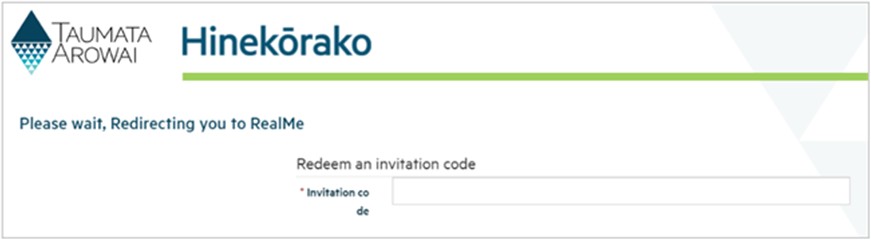
You’ll be taken to the Hinekōrako portal and from there transferred to RealMe®.
The transfer might take a moment. If it does, you may see this page. Please wait until you're redirected.
Step 3
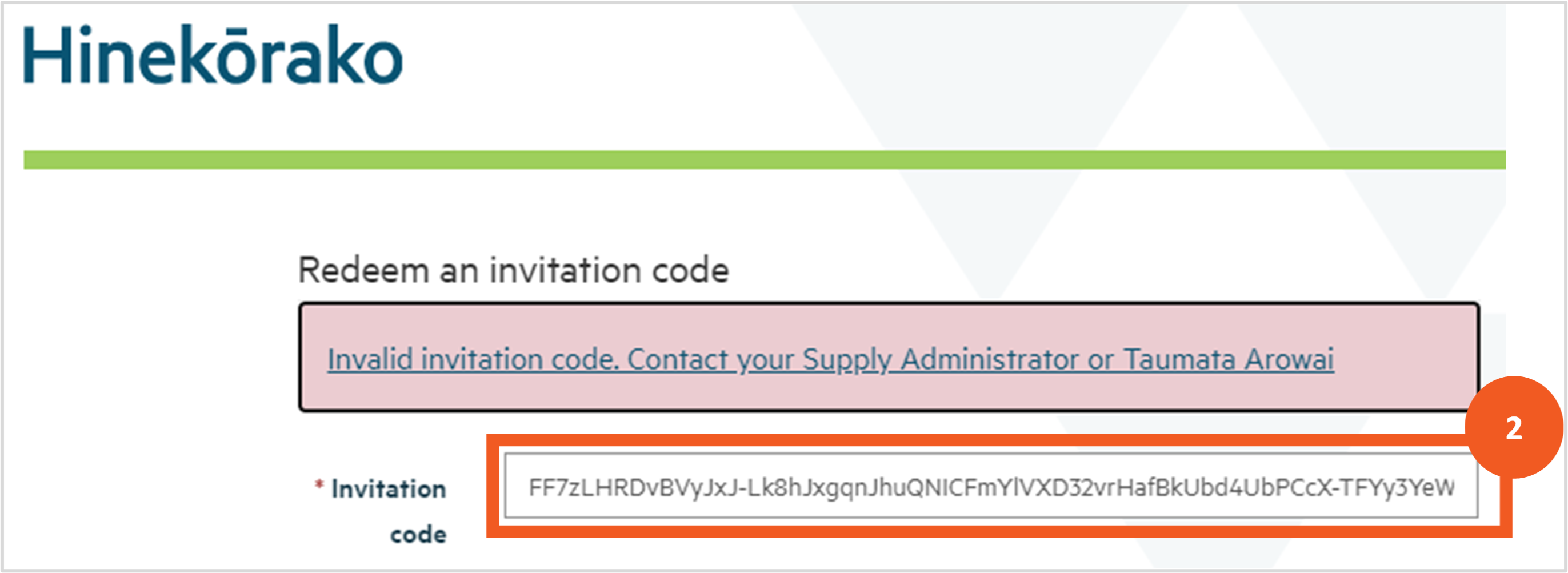
It's possible that, for your protection, your email platform may have encrypted the link in the email and then unencrypted it when you clicked on it, changing the invitation code in the link in the process. In this case you may receive an Incorrect Invitation Code error.
If you do:
- Go back to the invitation email and select and copy the invitation code included in it.
- In the Hinekōrako screen where the error is displayed, delete the current invitation code, paste in the invitation code copied from the email and hit Enter.
If you still experience an error, contact us at info@taumataarowai.govt.nz

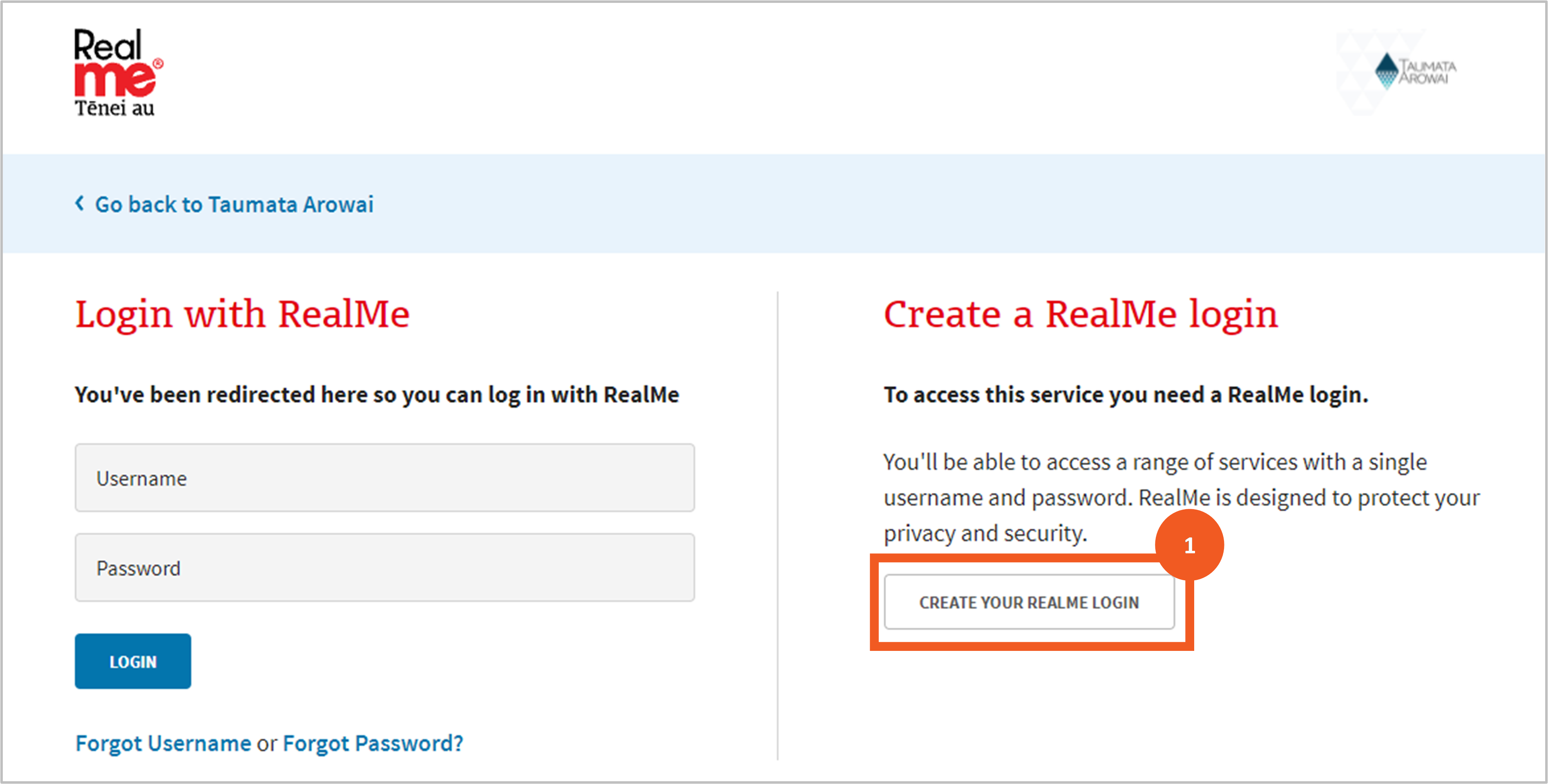
Once you're on the RealMe® page you have the following options:
- Create a RealMe® account. Go to Step 4.
- Retrieve your forgotten RealMe® username or password. Go to Step 9.
- Link an existing RealMe® account to your Hinekōrako account. Go to Step 10.
Creating a new RealMe® account
Step 4
Click on the Create Your RealMe® Login button.
Before you go further, we recommend you read the guidance for creating a new account on the RealMe®outbound website.
Step 5
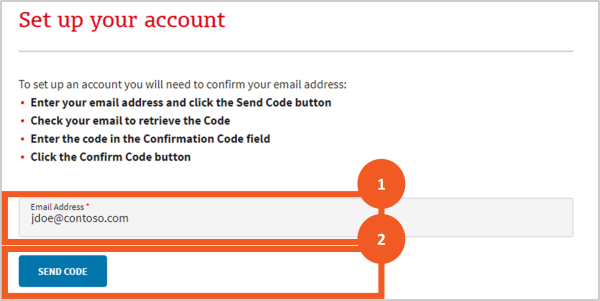
You'll be taken to a page where you can set up your RealMe® log in details.
- Enter your email address. This does not have to be the same as the one on your Hinekōrako account. It will be the email address RealMe® uses to send you emails relating to forgotten passwords or usernames.
- Start the process of confirming the email address is yours by clicking Send Code.
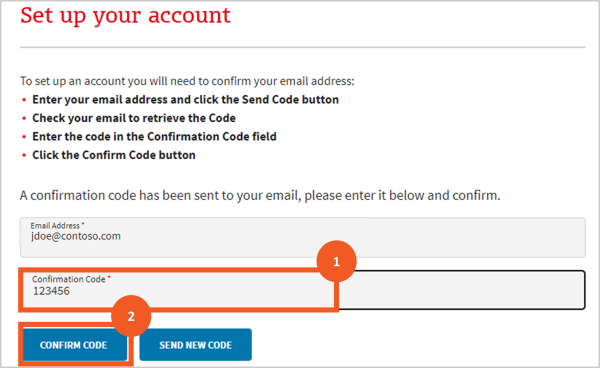
Step 6
A field will appear for entering the confirmation code sent to the email address you specified.
- Enter the code.
- Click Confirm Code.
Step 7
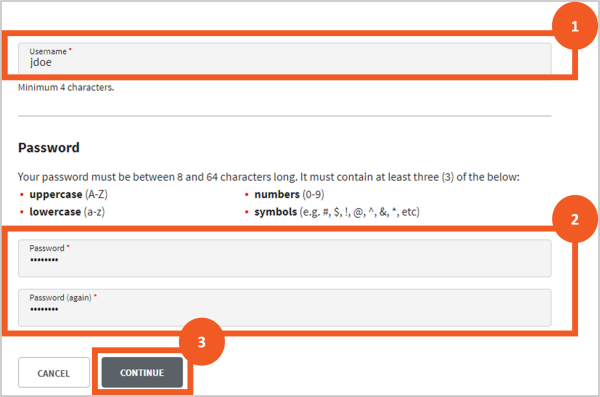
Once you have entered the correct code:
- Enter a unique username. RealMe® will tell you if the name you have selected is already in use.
- Enter a password and then confirm that password. The passwords must match and meet the security requirements listed on the page.
- Click Continue.
Step 8
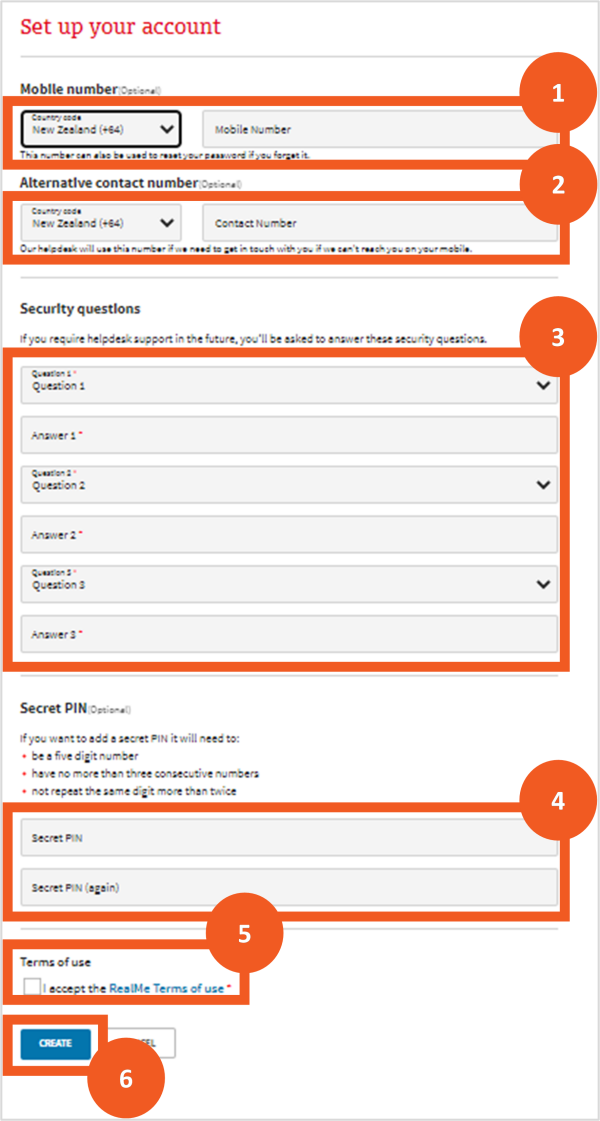
You’ll then be taken to a page where you can provide additional security details. You can complete your account by:
- Optionally providing your mobile number. As with the password, you’ll be asked to click on Send Code and then enter the code received by text message in the field that appears.
- Optionally provide an additional contact number for RealMe® ’s helpdesk.
- Select and provide the answers to three security questions, which RealMe® ’s helpdesk will use to confirm you are who you say you are if you contact them.
- Optionally set up a 5-digit PIN as another option to confirm your identity with the helpdesk or when resetting your password.
- Read and accept the RealMe® terms of use.
- Click Create to create your account.
Retrieve your RealMe® username or reset your password
Step 9
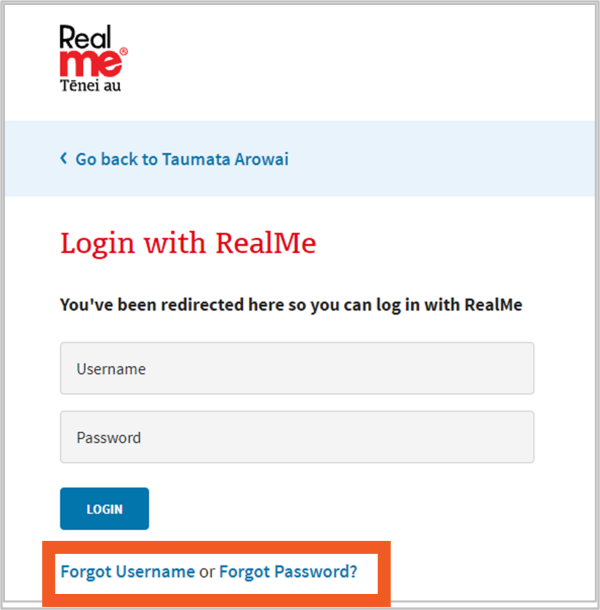
If you have an existing RealMe® account you can use the links on the login page:
- Retrieve your RealMe® username if you've forgotten it, or
- Reset your RealMe® password if you've forgotten that.
For further instruction on how to do either, please refer to the RealMe® websiteoutbound.
Link an existing RealMe® account to your Hinekōrako account
Step 10
To link your existing RealMe® account to your Hinekōrako account simply log in to RealMe® at this point by:
- entering your username and password
- clicking Login.
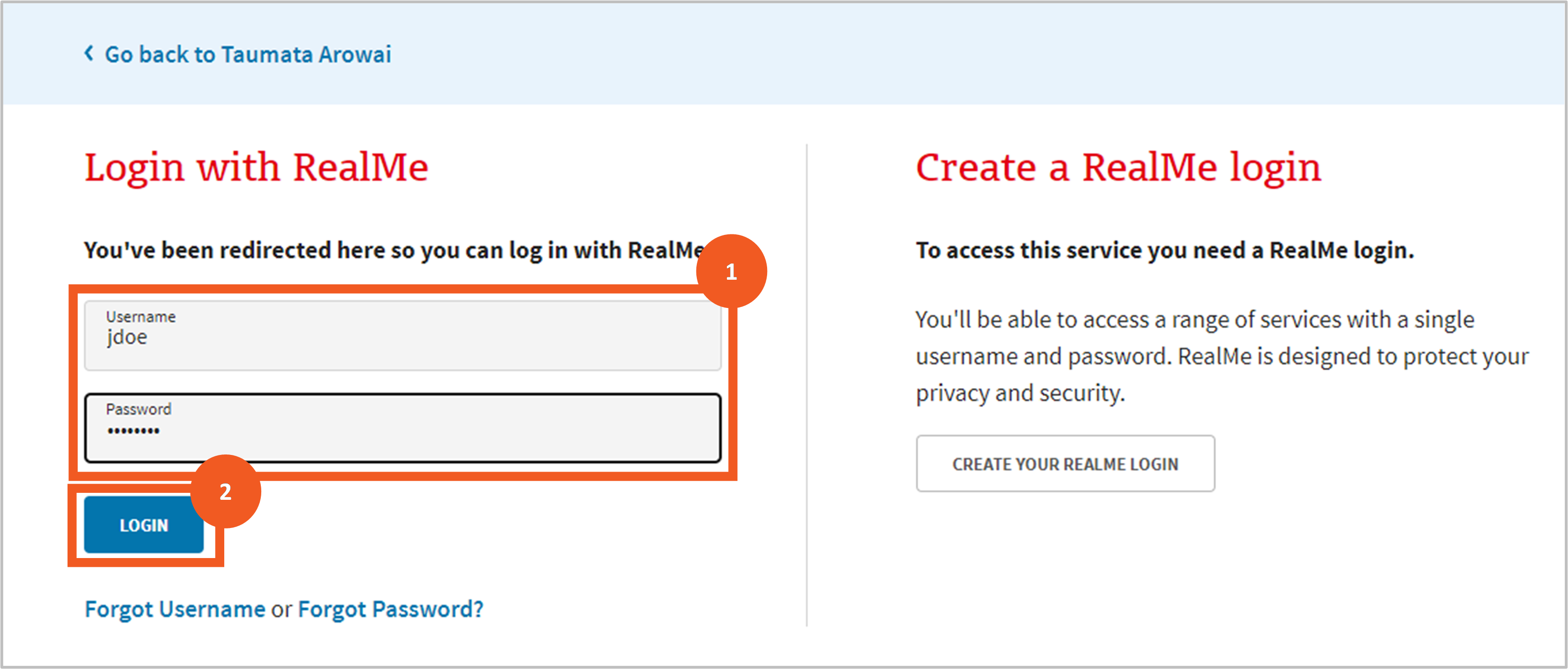
Read and accept the Hinekōrako terms of use and privacy statement
Step 11
Before you can access Hinekōrako you'll need to acknowledge that you've read and agree to comply with the Hinekōrako terms of access and privacy statement:
- Open and read the terms of access by clicking the Terms of Access link. The terms will open in a separate tab in your browser.
- Return to the acknowledgment page and open and read the privacy statement by clicking the Privacy Statement link. This also opens in a separate browser tab.
- Click in the acknowledgement checkbox.
- Click Continue.

Bookmark Hinekōrako for future logins
Step 12
After acknowledging the terms of access and privacy statements, you'll be taken to the My Supplies page. This is your home page for Hinekōrako.
We recommend that you add this page to your list of browser bookmarks so you can return to it easily in future. Alternatively, you can return to Hinekōrako and log in at this URL: hinekorako.taumataarowai.govt.nz.outbound
Be aware of Hinekōrako timeouts
Step 13
For your security, Hinekōrako will time out after 30 minutes of inactivity.
If you return to a Hinekōrako screen after it has timed out and attempt to move to another page, Hinekōrako will send you to RealMe® to log in again. If you were in the middle of completing a form and attempt to keep working on it, you may receive error messages relating to permissions or other system-related matters.
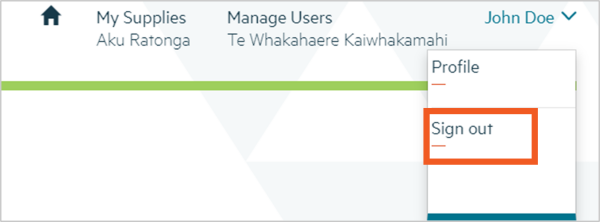
If you receive such messages, click Sign out on the dropdown menu by your name and then click on the RealMe® login button to log in again.
Familiarise yourself with the My Supplies page
Step 14
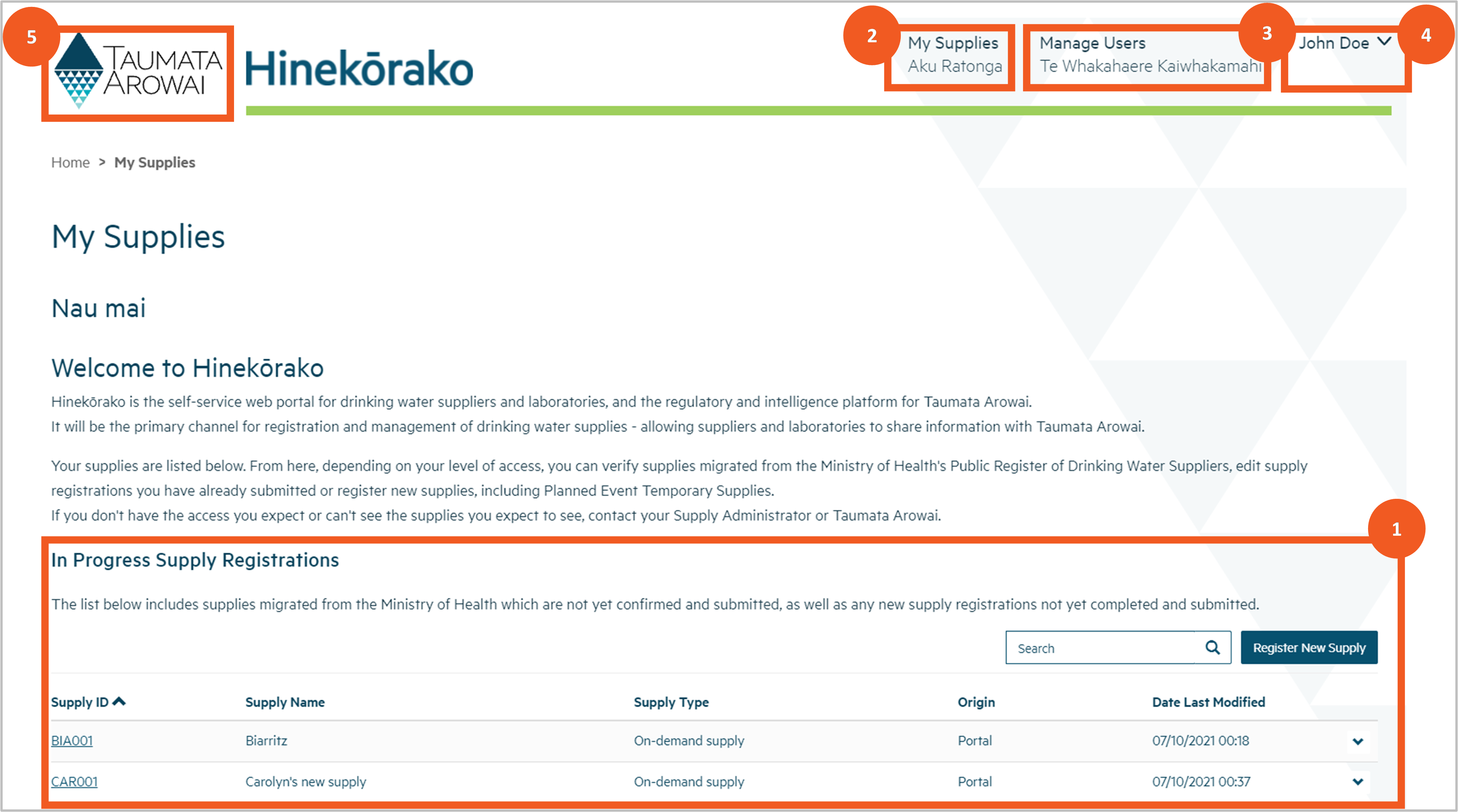
From the My Supplies page you can do a number of things:
- See your supplies and, depending on your level of access:
-
- click through to view the supply details, including all things related to the supply (e.g. any drinking water safety plans submitted to The Authority and any drinking water safety issues notified to The Authority)
- register a new supply or click through to an existing supply to view notifications related to the supply or submit a new notification. Previously unregistered supplies do not have to be registered for some time yet. Please ensure you have spoken to The Authority about your reasons for registering a new supply.
Exactly which supplies you see and what you can do with them will depend on the Hinekōrako user role you've been assigned. See the Understand supply groups and user roles (for Supply Group Administrators and Supply Administrators) guidance for more information.
The first time you log in as a supplier transferred from the Ministry of Health’s Register of Drinking Water Suppliers, you will see your supplies listed with the Origin of Migrated. These supply records are available for you to verify as complete and correct.
2. Return to this page, by clicking the My Supplies menu option at the top.
3. If you are a Supply Group Administrator or Supply Administrator, manage the supply portal access of other users to your supplies by clicking on Manage Users.
4. Sign out or update your own profile, including contact details, by selecting from the dropdown menu by your name at the top right of the screen.
5. Go to the Authority's website by clicking on the the Authority logo.
Information to help you complete your supply details
Understanding the data held about your supply in Hinekōrako
Download a pdf of this guidance: Supply data (for all supplies except water carrier services and temporary supplies for planned events)
Note: If you're a water carrier or are setting up a temporary drinking water supply for a planned event, we've prepared separate guidance on the data held about your supply. You can find that guidance here:
Registering and managing your water carrier service in Hinekōrako
Temporary drinking water supplies for planned events
Overview
This guide explains the data recorded in Hinekōrako about permanent, fixed, drinking water supplies. It explains the information required in each field that you'll be asked to complete when you register your supply.
Dependent field means that the field is dependent on your response to another field. The field it is linked to will be included in the explanation.
Mandatory field means you must provide data in that field. Mandatory fields in Hinekōrako are indicated by a red asterisk:

Supply details
The supply details section of the registration form records the following data:
Field |
Explanation |
| Supply Id |
System-generated unique identifier for the supply. This information will be visible on the public register if no suppression has been applied |
| Supply Name Mandatory field |
Your name for the supply. This information will be visible on the public register if no suppression has been applied |
| Supply Type Mandatory field |
Select which type of supply you have. If you’re unsure what type applies to your supply, use this quick decision tool. This information will be visible on the public register if no suppression has been applied |
| Ownership Type Mandatory field |
Choose the type of ownership. WhenOther is selected, you must describe the type of ownership. |
| Population Supplied Mandatory field |
Enter your estimate of the population you supply. Guidance on how to estimate population is available further down this page. |
| Community Name Mandatory field |
Record the name/s of the community or communities which are supplied by your drinking water supply. This is one of the fields that may be used to search for a supply on the public register. Please include all the names, separated by commas, which consumers might use when looking for your supply or supplies in your area. This information will be visible on the public register if no suppression has been applied |
| Hāpori Type Mandatory field |
Select the hāpori that is related to the supply. More than one hāpori can be selected, and if Other is chosen, there is an additional field provided for further detail. If hāpori is not relevant to the supply, N/A should be selected. |
| Community Type Mandatory field |
Select the community type that best describes the community you serve. If you serve multiple types of communities, select the community that is primarily served by your supply. When Other is selected, you must describe the type of community. |
| Region Mandatory field |
Select the region that your supply primarily serves. The Authority will also use this information to determine the regional council for the community your supply serves. This information will be visible on the public register if no suppression has been applied |
| Territorial Authority Mandatory field Dependent field |
Select the territorial authority whose boundary your supply is in. If there is more than one, select the territorial authority whose boundary your supply is primarily in. The list of territorial authorities is filtered to those that operate within the Region you have selected. Guidance on determining your local authority is available further down this page. This information will be visible on the public register if no suppression has been applied |
| Regional Public Health Service Mandatory field Dependent field |
Select the Regional Public Health Service that looks after the communities your supply serves. This information will be visible on the public register if no suppression has been applied |
| Supply Area |
Enter a link to a geospatial Web Feature Service showing the area serviced for this supply. |
| Supply Network |
Enter a link to a geospatial Web Feature Service showing the pipe network of this supply. |
Secondary supply relationships
This section will be visible only if the supply is a linked supply.
Field |
Explanation |
| Supply ID |
The unique identifier of the supply being used as a source by the supply. This information will be visible on the public register if no suppression has been applied |
| Lookup Supply Mandatory field |
The supply that you source your water from. If you can’t find the supply, tick I cannot find the supply and enter the name of the supply. The supply that you source your water from will be visible on the public register if no suppression has been applied |
| I cannot find the supply | Tick box if a supply cannot be found in the Lookup Supply. |
| Please enter the name of the supply Dependent field Mandatory field |
Only visible if I cannot find the supply is ticked. Enter the name of the supply you source your water from if you are not able to find it from the lookup.
|
Supply components
Supply components are the sources (abstraction points), treatment plants and distribution zones of the supply.
This data also describes which distribution zones are supplied from which treatment plants, and which treatment plants treat water from which sources.
Supply components do not apply if the supply is a linked supply. Refer to Secondary Source Relationships above.
Sources
Field |
Explanation |
| Source ID Read only field |
System-generated unique identifier for the point at which you abstract water from the source This information will be visible on the public register if no suppression has been applied |
| Abstraction Point Name Mandatory field | Your name for the point (intake, bore, well, roof) at which you abstract the water from the source. |
| Source Name |
The name of the source from which drinking water is abstracted (e.g. name of the river, lake etc.). |
| Source Type Mandatory field |
The type of source water that is being abstracted from. Note that the type artificial lake / reservoir / off-river storage doesn’t include covered raw water reservoirs. Some suppliers had asked for this classification specifically, and the supplier is best placed to determine whether they register abstraction from these artificial sources. This information will be visible on the public register if no suppression has been applied |
| Bore depth (meters) Mandatory field Dependent field |
This is a mandatory field if you selected bore as the source type. This measurement is the length of the casing to the top of the uppermost screen (see guidance further down this page). |
| Sanitary Bore Head Mandatory field |
Records the presence of a sanitary bore head. |
| Abstraction only used for Emergency Supply Mandatory field |
If the abstraction is for unplanned, emergency use only, select Yes. An emergency supply is not a back-up source. If you are not sure if the source is for emergency supply or back-up, please contact us at opssupport@taumataarowai.govt.nz. |
| Surrounding Catchment Mandatory field |
The field describes the catchment area surrounding the source. |
| Description of Surrounding Catchment Mandatory field Dependent field |
Enter a description of the surrounding catchment area Only visible if Other is selected in the Surrounding Catchment options |
| Protozoa Log Requirement Mandatory field |
For supplies which follow the level 3 source/treatment rules, record the protozoa requirements of your source water as follows:
For all other supplies, select N/A. |
| Cyanobacteria Risk Assessment Mandatory field |
Identify the level of risk of cyanobacteria at the abstraction point. |
| Regional Council Source ID |
Your system ID for the source, e.g. Consent ID or Well ID |
| Has Source Water Risk Management Plan Mandatory field |
Select Yes if you have a source water risk management plan which includes risk management of the source being abstracted from. Select No if:
|
| Last Source Water Risk Assessment Date Mandatory field Dependent field |
Visible when Has Source Water Risk Management Plan is Yes. This is the date of the most recent Source Water Risk Management Plan. |
| Geocode Location – Coordinates Type |
The location of the abstraction point. Choose the format from:
|
| Map Latitude Dependent field |
Visible when Map is selected as the coordinates type. |
| Map Longitude Dependent field |
Visible when Map is selected as the coordinates type. |
| Latitude Dependent field |
Visible when Latitude/Longitude is selected as the coordinates type. |
| Longitude Dependent field |
Visible when Latitude/Longitude is selected as the coordinates type. |
| Easting Dependent field |
Visible when NZTM is selected as the coordinates type. |
| Northing Dependent field |
Visible when NZTM is selected as the coordinates type. |
| Location Description |
If geocode location coordinates are not provided for the location of the abstraction point, you may provide a detailed description of the location instead. |
Treatment plants
A supply must have at least one water treatment plant (unless it is a linked supply).
Field |
Explanation |
| Treatment Plant ID Read only field |
System-generated unique identifier for the water treatment plant. This information will be visible on the public register if no suppression has been applied. |
| Name Mandatory field |
Your name for the water treatment plant. This information will be visible on the public register if no suppression has been applied. |
| Physical Address Optional field |
You can either start typing an address and then select it from the NZ Post lookup list or, if the address is not found, you can enter each of the address lines. |
| Geocode Location Mandatory field |
We need map coordinates for the treatment plant. Choose the format from:
|
| Map Latitude Mandatory field Dependent field |
Visible when Map is selected as the coordinates type. Auto-completes when a location is selected on the map. |
| Map Longitude Mandatory field Dependent field |
Visible when Map is selected as the coordinates type. Auto-completes when a location is selected on the map. |
| Latitude Mandatory field Dependent field |
Visible when Latitude/Longitude is selected as the coordinates type. Enter the latitude (between -34.0 and -51.0). |
| Longitude Dependent field |
Visible when Latitude/Longitude is selected as the coordinates type. Enter the longitude (between -177.0 and 179.0). |
| Easting Mandatory field Dependent field |
Visible when NZTM is selected as the coordinates type. Enter the NZTM Easting (between 1087000 and 2974000). |
| Northing Mandatory field Dependent field |
Visible when NZTM is selected as the coordinates type. Enter the NZTM Northing (between 4737000 and 6214000). |
| Treatment Processes |
You can indicate which treatment processes are used in the plant to treat drinking water, including one or more of Filtration, Disinfection or Other Methods, or indicate that No Treatment processes are used. At least one treatment process, or No Treatment, must be chosen. |
| Plant used for Emergency Supply only Mandatory field |
If the treatment plant is for unplanned, emergency use only, select Yes. An emergency supply is not a back-up plant. If you are not sure if the plant is for emergency supply or back-up, please contact us at opssupport@taumataarowai.govt.nz. |
| Origin Read only field |
This is read only field which indicates how the treatment plant record was added.
|
Distribution zones
Self-supplied building supply types do not record distribution zones. For all other supply types: when you add or update a distribution zone, you are able to record the following data:
Field |
Explanation |
| Zone ID Read only field |
Unique identifier for the distribution zone, comprising of the zone ID suffix and the supply ID. This information will be visible on the public register if no suppression has been applied. |
| Zone ID Suffix Mandatory field |
Enter any two characters as a short code for the zone. The short code must be unique to zones within this supply. It will be added as a suffix to the Supply ID to create the Zone ID. You cannot change the suffix once you have created the zone. |
| Name Mandatory field |
The name you wish to call the distribution zone. This information will be visible on the public register if no suppression has been applied. |
| Population Mandatory field |
This is the population for the distribution zone. For guidance on how to estimate population see further down this page. This information will be visible on the public register if no suppression has been applied. |
| Location – Urban / Rural Mandatory field |
Classify the distribution zone as urban or rural. There is also an option to identify where a rural zone is mixed-use rural. There is no international definition for urban or rural areas. Urban usually refers to a human settlement with high population density and infrastructure of built environment and we take rural to refer to spaces that have human presence/settlement, but at comparatively low density. (Stats NZ website) We leave it to the supplier to determine the best choice for each of their distribution zones. |
| Location - Description Optional field |
We do not capture geocode data for distribution zones, but you may record a description of the location here and upload geocode data files for the zone before you submit the form, if you wish. |
| Distribution Zone Barriers – Backflow Programme Implemented Mandatory field |
This field confirms if there is a backflow programme implemented. |
| Distribution Zone Barriers – New and Repaired Watermains Hygiene Procedures Implemented Mandatory field |
This field confirms if there are new and repaired watermains hygiene procedures implemented. If Level 3 distribution rules do not apply to your supply, enter No. |
| Distribution Zone Barriers – Water Storage Rules Implemented Mandatory field |
This field confirms if there are water storage rules implemented. If Level 3 distribution rules do not apply to your supply, enter No. |
| Distribution Zone Barriers – Residual Disinfection Implemented Mandatory field |
This field confirms if there is residual disinfection implemented. |
| Distribution Zone Barriers – Microbiological and Metal Monitoring Implemented Mandatory field |
This field confirms if there is microbiological and metal monitoring implemented. |
Plant/source relationships
Where a supply has one source and one treatment plant, the relationship between source and plant will be automatically created and hidden by default. Supplies with more than one plant or source will need to have the relationship between each source and treatment plant identified manually by adding one or more plant/source relationships.
Field |
Explanation |
| Source Lookup Mandatory field |
Select the source/abstraction point for one of your supplies. |
| Treatment Plant Lookup Mandatory field |
Select the treatment plant that treats the water from the source/abstraction point selected in the previous field. |
Plant/zone relationships
Where a supply has one treatment plant and one distribution zone, the relationship between plant and zone will be automatically created and hidden by default. Supplies with more than one plant or zone will need to have the relationship between each treatment plant and zone identified manually by adding one or more plant/zone relationships.
Field |
Explanation |
| Treatment Plant Lookup Mandatory field | Select a treatment plant. |
| Distribution Zone Lookup Mandatory field | Select a distribution zone served by the treatment plant. |
Supply relationships
In this section you'll provide details of the individuals and organisation/s that have a relationship with your supply.
It's a requirement under S 55 (2)(a) of the Water Services Act 2021 that you include all supply owners and operators, an overall supply contact and a registration contact.
You may include other organisations and individuals (e.g. agents or trustees) and assign multiple roles to an individual, if it better reflects the management of the supply.
See the information further up this page for guidance on supply relationships.
We also use the supply relationships to
- make sure we send communications to the correct person (e.g. the supply owner, or registration contact)
- provide access to supply information for portal users.
The following relationship details will be visible on the public register if no suppression has been applied:
Owner and operator – Name, trading name (if it is an organisation), relationship type (owner, operator, and overall supply contact only) contact email address.
Overall supply contact – Name, trading name (if it is an organisation), relationship type (owner, operator, and/or overall supply contact only), contact email address, contact phone number.
Field |
Explanation |
| Organisation or Individual Mandatory field |
Select either Organisation or Individual. |
| Relationship Type Mandatory field Dependent field |
The options will differ depending on whether you selected Organisation or Individual in the previous field. All types are available for individual relationships, and four types available for organisation and individual relationships:
|
| Organisation Mandatory field Dependent field |
Only available if the relationship type is Organisation. Find and select the organisation by:
Once you have chosen the organisation, the details of the organisation will be displayed. If you're editing an existing organisation relationship or have selected an existing organisation, you can choose to edit the organisation details. If a record of the organisation does not exist, you can create one by clicking Create Organisation. See the section below on the data you can capture for an organisation. |
| Owner Key Contact Mandatory field Dependent field |
Only available if the relationship type is Organisation. This field is only visible if the selected organisation relationship types include Supply Owner. This is the person at the organisation who will be our key contact when liaising with the organisation about the supply. If a record of the individual has already been created for your supplies, you can find and select that person by:
If a record of the individual does not exist, you can create one by clicking Create Contact. See the section below for data you can capture for an individual. |
| Individual Mandatory field Dependent field |
Only available if the relationship type is Individual. Find and select the Individual by:
Once you have chosen the individual, the details will be displayed. If a record of the individual does not exist, you can create one by selecting Create New Contact in the dropdown options. |
Create or edit an organisation
Field |
Explanation |
| Organisation Name Mandatory field |
Start typing the organisation name. Hinekōrako will display a list of organisations on the NZBN register that match the text you have entered. Select the organisation from the list. If the organisation isn’t NZBN registered, the organisation name can be manually entered. Note: The name cannot be edited once it has been created. Please contact us at opssupport@Taumataarowai.govt.nz if you need to update this field. |
| Trading Name Optional field |
Automatically populated if you select an organisation from the NZBN look up. Note: The name cannot be edited once it has been created. Please contact us at opssupport@Taumataarowai.govt.nz if you need to update this field. |
| NZBN Read only field |
Automatically populated if you select an organisation from the NZBN look up. |
| Email Optional field |
The general email address of the organisation. |
| Phone number Mandatory field |
Must start with + and then the country code (e.g. +64 for New Zealand). |
| Physical Address Search Mandatory field |
Start typing the address. Hinekōrako will display a list of addresses on the NZ postal address register that match the text you have entered. Select the address from the list. If the address doesn’t show on the list, it can be manually entered in the address fields below. |
| Physical Address Fields Mandatory fields (some) |
Street, City and Country are mandatory. Automatically populated if you select an address from the Physical Address Search look up results. |
| Postal Address is Different Optional field | Tick this box if the postal address is different from the physical address. |
| Postal Address Search Mandatory field Dependent field |
Visible if you tick the Postal Address is Different box. Start typing the address. Hinekōrako will display a list of addresses on the NZ postal address register that match the text you have entered. Select the address from the list. If the address doesn’t show on the list, it can be manually entered in the address fields below. |
| Postal Address Fields Mandatory fields (some) |
Visible if you tick it the Postal Address is Different box. Street, City and Country are mandatory.. Automatically populated if you select an address from the Postal Address Search look up results. |
Create or edit an individual
Field |
Explanation |
| First Name Mandatory field |
The first name of the person. The first name cannot be edited once it has been created. Please contact us at opssupport@taumataarowai.govt.nz if you need to update this field. |
| Last Name Mandatory field |
The last name of the person. The last name cannot be edited once it has been created. Please contact us at opssupport@taumataarowai.govt.nz if you need to update this field. |
| Organisation Name Optional field |
If the person is part of an organisation and that organisation has a relationship with the supply, you can find and select that organisation by:
|
| Organisation Role Optional field |
The role the contact has within the organisation. |
| Email Mandatory field |
The email address for the individual. |
| Business Phone Mandatory field |
It’s mandatory to provide either the business phone number or the mobile number in the field below. The number must start with + followed by the country code (e.g. +64 for New Zealand). |
| Mobile Phone Mandatory field |
It’s mandatory to provide either a mobile phone number or the business phone number in the field above. The number must start with + followed by the country code (e.g. +64 for New Zealand). |
| Physical Address Search |
Start typing the address. Hinekōrako will display a list of addresses on the NZ postal address register that match the text you have entered. Select the address from the list. If the address doesn’t show on the list, it can be manually entered in the following address fields. |
| Physical Address Fields Mandatory fields (some) |
Street, City and Country are mandatory. These fields are automatically populated if you select an address from the Physical Address Search look up results. If the address wasn’t found in the address search, these fields can be completed manually. |
| Postal Address is Different Optional field |
Tick this box if the postal address is different from the physical address. |
| Postal Address Search Mandatory field Dependent field |
Visible if you tick it the Postal Address is Different box. Start typing the address. Hinekōrako will display a list of addresses on the NZ postal address register that match the text you have entered. Select the address from the list. If the address doesn’t show on the list, it can be manually entered in the following address fields. |
| Postal Address Fields Mandatory fields (some) |
Visible if you tick the Postal Address is Different box. Street, City and Country are mandatory. These fields are automatically populated if you select an address from the Postal Address Search look up results. If the address wasn’t found in the address search, these fields can be completed manually. |
Drinking water safety plan (DWSP)
In this section you can:
- upload one or more documents related to your supply registration
- provide us with information about any Acceptable Solutions you have in place
- request suppression of details of your supply from the public register.
Field |
Explanation |
| Key Changes Since Previous Lodgment Mandatory field |
Describe the key changes to the plan since the previous lodgment. If you're uploading your first DWSP you should write "First lodgment" or similar in this field. |
| Confirmation of Correct and Accurate Details Mandatory field |
Tick to confirm the following statement: “I confirm that my drinking water supply registration details are accurate and up to date. I acknowledge that I am required to update content if there are material changes.” |
Upload document
Field |
Explanation |
| Document Type Mandatory field |
Select the type of supporting document that you will be uploading. |
| Document Description Optional field |
You can provide a description of the file to help us understand what is in it and its relevance to your supply. |
| Choose File Mandatory field |
Clicking Choose File will allow you to browse your folders to find the file you wish to upload. |
| Confirmation that the Drinking Water Safety Plan is Accurate, Up-to-date and Complete Mandatory field |
Tick to confirm the following statement: “I confirm that my Drinking Water Safety Plan details are accurate, up-to-date and complete” |
Other final details
Field |
Explanation |
| Acceptable Solution Mandatory field |
It's mandatory to select one option if you have indicated Yes for Acceptable Solution. The list of Acceptable Solutions displayed will depend on the source types you have indicated. |
| Request Withholding of Details from the Public Register Optional field |
If you indicate the need to withholds details, we will not automatically add your new supply registration to the public register of supplies. We will place the application on hold until we receive, and make a decision on, a formal request from you for withholding supply details. Guidance on requesting to withhold information from the public register can be found further down this page. |
Allocation of unique identifiers
You don’t need to complete the identifier field. It will be populated automatically by the system. The only exception is when a new distribution zone is added to an existing supply, which is explained below.
The identifier field contains a unique identifier code allocated to each water supply and its components:
- Water supply.
- Source abstraction point(s).
- Treatment plant(s).
- Distribution zone(s).
Please use the unique identification codes on all communications to us to ensure we know which supply or parts of the supply you're referring to.
Adding a new distribution zone
When a new distribution zone is added to an existing registered supply or when a new supply is registered, you'll be prompted to complete the last two characters of the identifier. You may select any two characters. This will create a unique identifier for the distribution zone in the registration record.
Once allocated, the identifier can’t be updated. The system will not accept duplicates of existing identifiers and you'll be prompted to make a change if this occurs.
Determining the Supply Category
The Supply Category field is used to segment supplies by ownership. Please note that this field is not for identifying the business type. A business type field is located on the supply owner’s account record.
The supply categories are:
- Territorial Authority
- Government
- Water Organisation – includes Council Controlled Organisations
- Māori Authority – could be operating on behalf of a trust, company or landowner
- Private Company
- Community – these supplies are operated within the community and by the community, e.g. societies, charities, iwi/hapu, tertiary education providers, community associations.
- Individual – includes sole traders and self-employed people.
- Other – when Other is selected, you must describe the supply category.
Determining your local authority
In most cases the territorial authority for the community served by your water supply will be readily identifiable.
Hinekōrako will ask you to select your region first. The territorial authorities within that region will then be presented.
Hinekōrako allows only one region and territorial authority to be selected per supply. If the supply serves communities that are spread across multiple regions and territorial authority boundaries, you should select the primary one - i.e. where most of the consumers are located. At the end of the registration process you can upload a document that details the other regional councils and territorial authorities your supply covers , if needed.
All the individual communities served by your supply should be included in the Community field. These are shown on the public register of drinking water suppliesoutbound and allow consumers to identify supplies they may be connected to.
Determining your Public Health Unit (PHU)
For many water supplies, the PHU will be known or easy to identify.
There's a list of PHUs and contact details on the Ministry of Health websiteoutbound. The area covered by each PHU doesn’t necessarily correspond exactly to the district health board (DHB) areas. For example, Regional Public Health covers Capital and Coast, Hutt and Wairarapa DHB areas.
Hinekōrako allows only one PHU to be selected. If you believe that multiple PHUs cover the area served by your supply, contact us at opssupport@taumataarowia.govt.nz. You can upload a document on the last page of the registration record that details the multiple PHUs across your water supplies.
If you're unsure about which PHU you would primarily interact with in an emergency, contact each possible PHU to determine if your water supply is within their boundary.
Providing information about abstraction points, treatment plants and distribution zones
We collect information about the abstraction points, treatment plants and distribution zones associated with your supply so we can:
- accurately identify the location of your source abstraction point(s) so resource consent applications for activity on or near the water source can account for your abstraction point
- enable the use of geographical information software that can accurately identify the location of abstraction points, treatment plants and distribution zones and analyse how they relate to other layers of information used by the water supplier, local authorities and others
- in the future, enable members of the public to identify which water supply covers a specific address.
Location information can be supplied using the following methods:
-
Geocodes: for example, the latitude and longitude of a specific point can be pinpointed on an electronic map. Geocodes are preferred for source abstraction points. They will be required by the first renewal and may be made mandatory earlier. Geocodes are required for treatment plant locations.
-
- You can use latitude and longitude or NZTM (New Zealand Transverse Mercator 2000outbound) .
- You'll be able to access a map when you're in the registration record and move the displayed pin to the exact location of your abstraction point(s). The appropriate geocodes will be transferred into the record.
-
Shape files or pipe network diagram: these are used to map an area, such as distribution zones in a water supply or distribution network. Shape files will enable the public to search and identify which water supply services a particular area.
-
Description of the location: this will be an address, if available. It could also be supported by other details such as:
-
-
the stream on the property at this address
-
location, e.g. 100 metres down the driveway
-
distribution zone boundaries, e.g. Apple St in the north, Pear St in the east, Banana St in the south and Grape St in the west.
-
We encourage the use of shape files for distribution zones and these can be uploaded during registration.
Information on the location of source abstraction points and treatment plants will not be displayed on the public register.
Information on source abstraction points shared with local authorities
The Water Services Act 2021outbound requires us to share the information you provide on each abstraction point for each supply with the relevant territorial authority, unitary council and regional council. This is to ensure the information can be verified and an accurate picture of locations is built.
We'll share information with local authorities once you've completed the registration process. If the local authority holds different information, we'll let you know so the discrepancy can be resolved.
The transfer of information will happen progressively for new water supply registrations. Information will also be verified if a new source abstraction point is established for an existing supply.
Verifying abstraction point data with local authorities will not delay completion of the registration process.
Estimating your supply population for each distribution zone
Hinekōrako requires population data for each distribution zone in a water supply. Use this guidance to help you work out your distribution zone population(s).
You'll be required to calculate the population served across the whole water supply by combining the total of each distribution zone (automatic calculation will be available in the future).
Self-supplied buildings don’t have a distribution zone so you can provide the ordinary population served for the building.
Community drinking water stations don’t have a distribution zone. You won't need to provide a population in the registration application.
Small water supplies may not have multiple distribution zones. In this case, the area covered by the community served is the distribution zone and you'll still calculate the population and enter the total in the distribution zone field.
Measuring the depth of a bore
The depth of the bore is measured from ground level to the top of the uppermost screen – as indicated by the red line in this diagram.
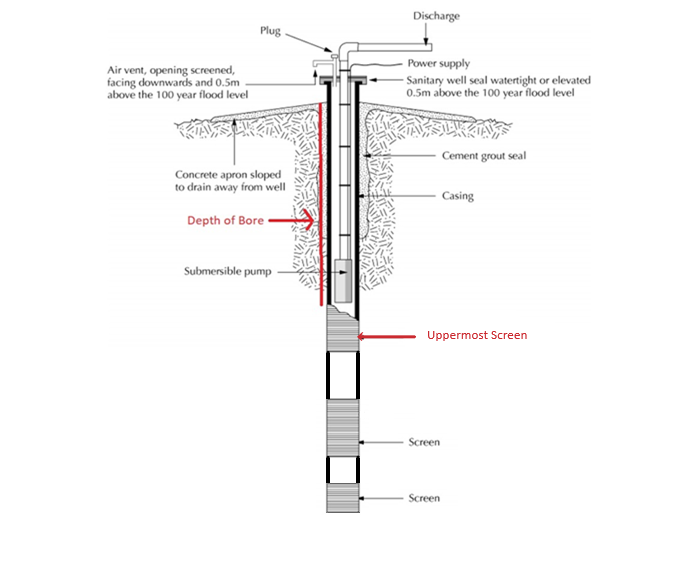
Based on diagram in Guidelines for Drinking-water Quality Management for New Zealand, Chapter 3: Water Sources. Ministry of Health, May 2019.
Uploading your drinking water safety plan
Download a pdf of this guidance: Uploading your drinking water safety plan in Hinekōrako
This guidance shows you how to upload a new drinking water safety plan to Hinekōrako and confirm that it has been submitted successfully.
Step 1
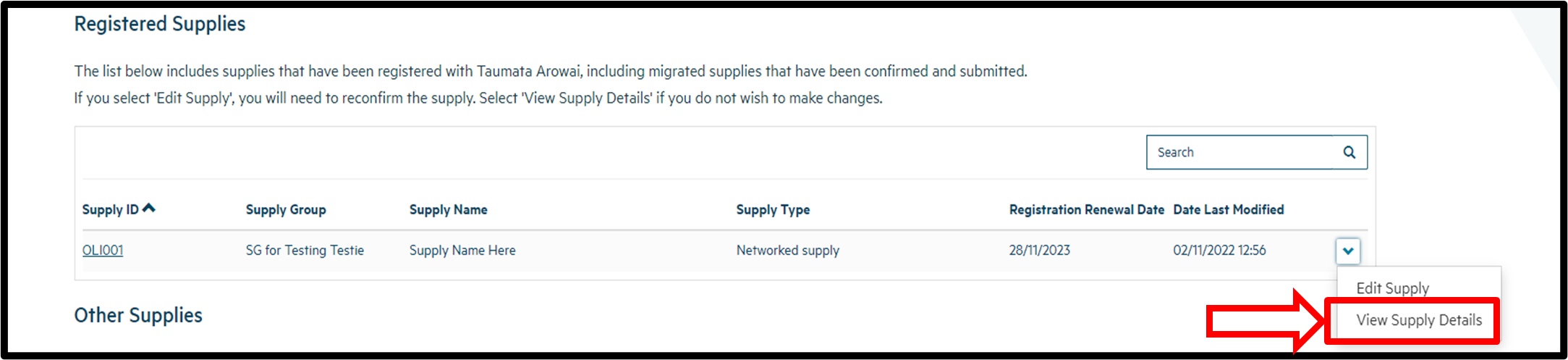
Log in to Hinekōrakooutbound and from the front page select View Supply Details from the dropdown menu on the right-hand side.
Step 2
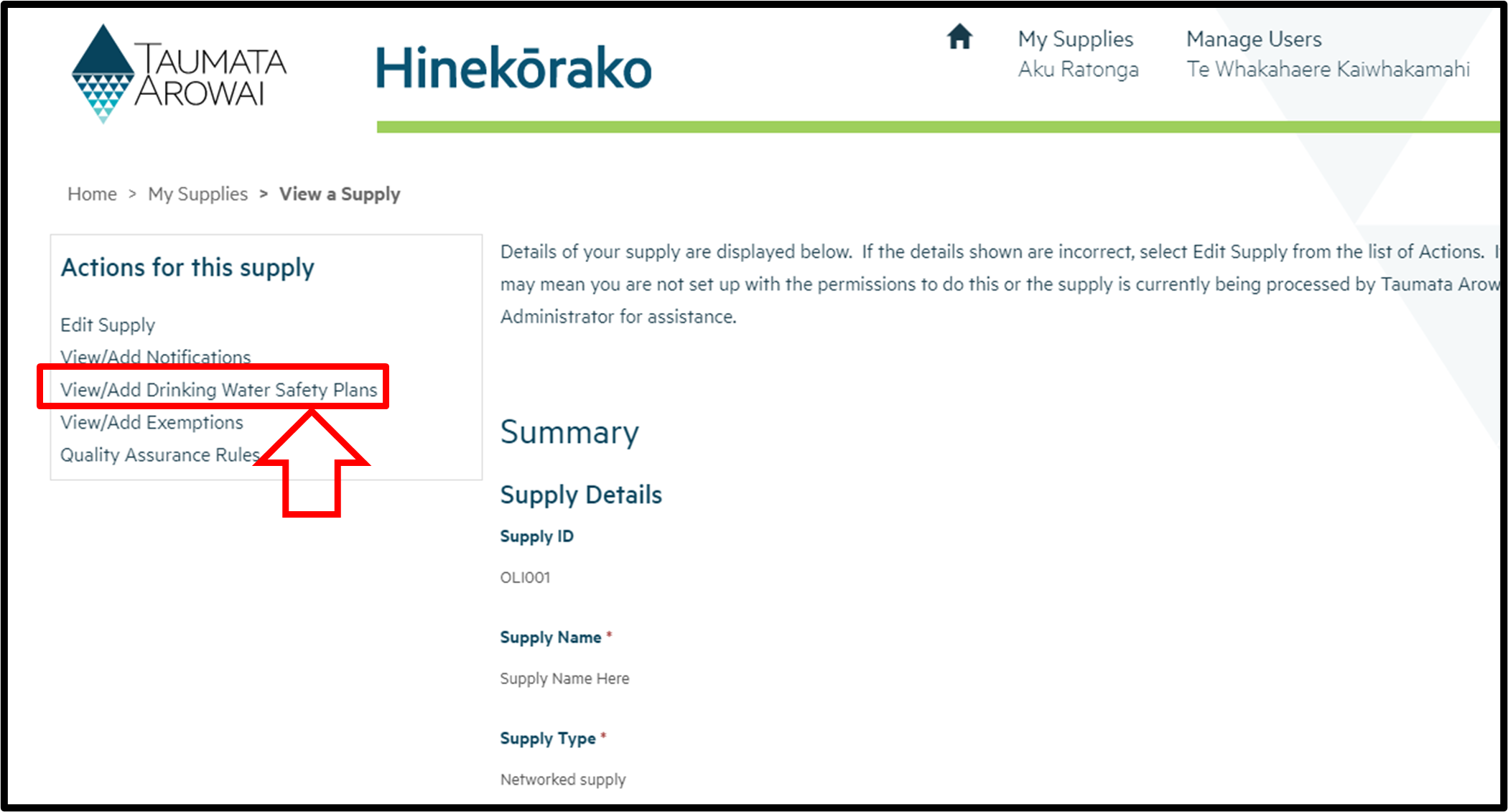
On the left side of this page there's a menu headed Actions for this supply. From this menu, select View/Add Drinking Water Safety Plans.
Step 3
On the Drinking Water Safety Plans page, select Add New Drinking Water Safety Plan. In the table, you'll be able to see drinking water safety plans that have already been submitted.

Step 4
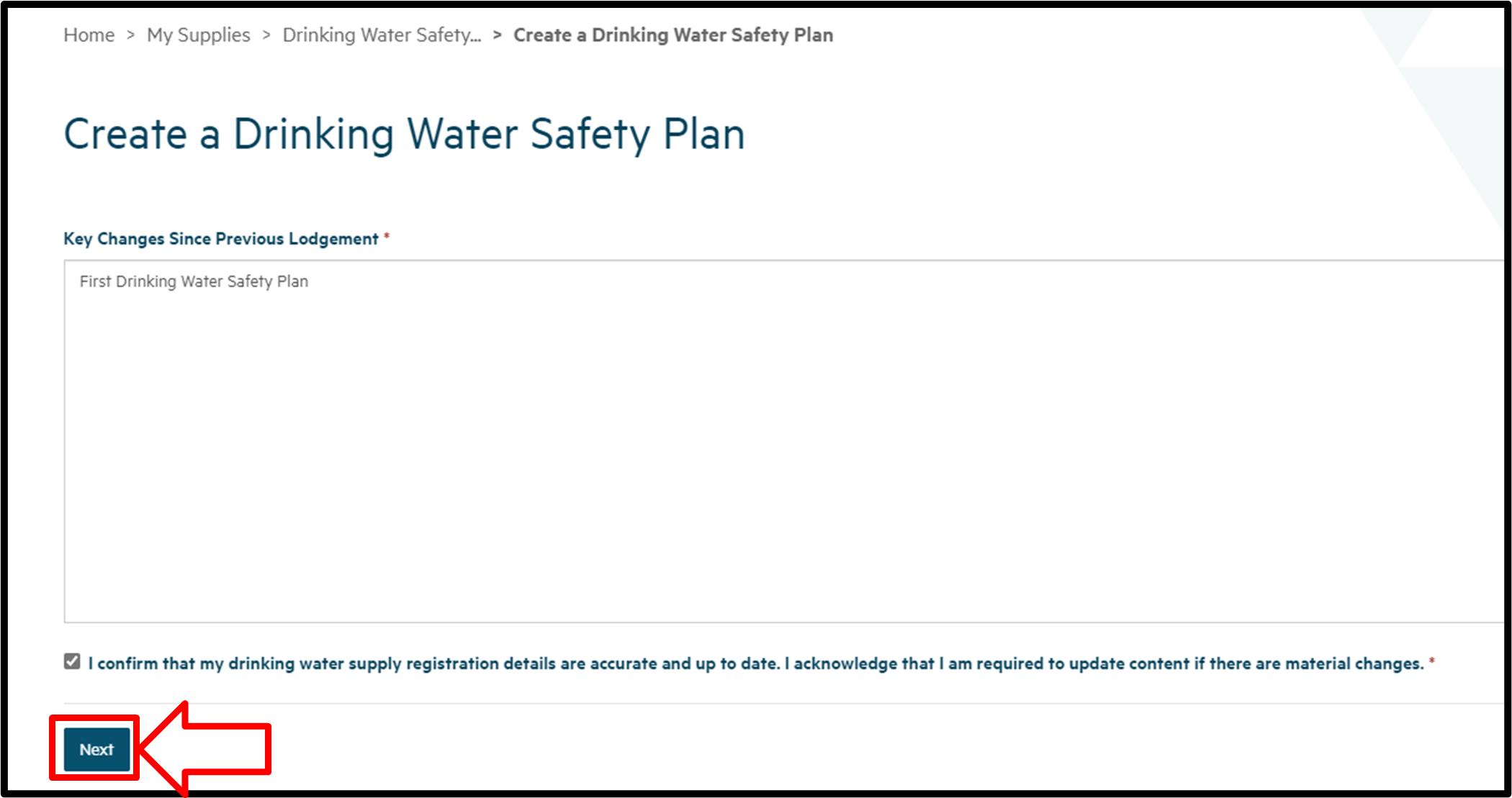
If this is the first plan to be uploaded for this supply, you can add a short description in the text field (e.g. "supply name, drinking water safety plan, date").
Confirm that your registration details are correct by checking the box, then click Next.
Step 5
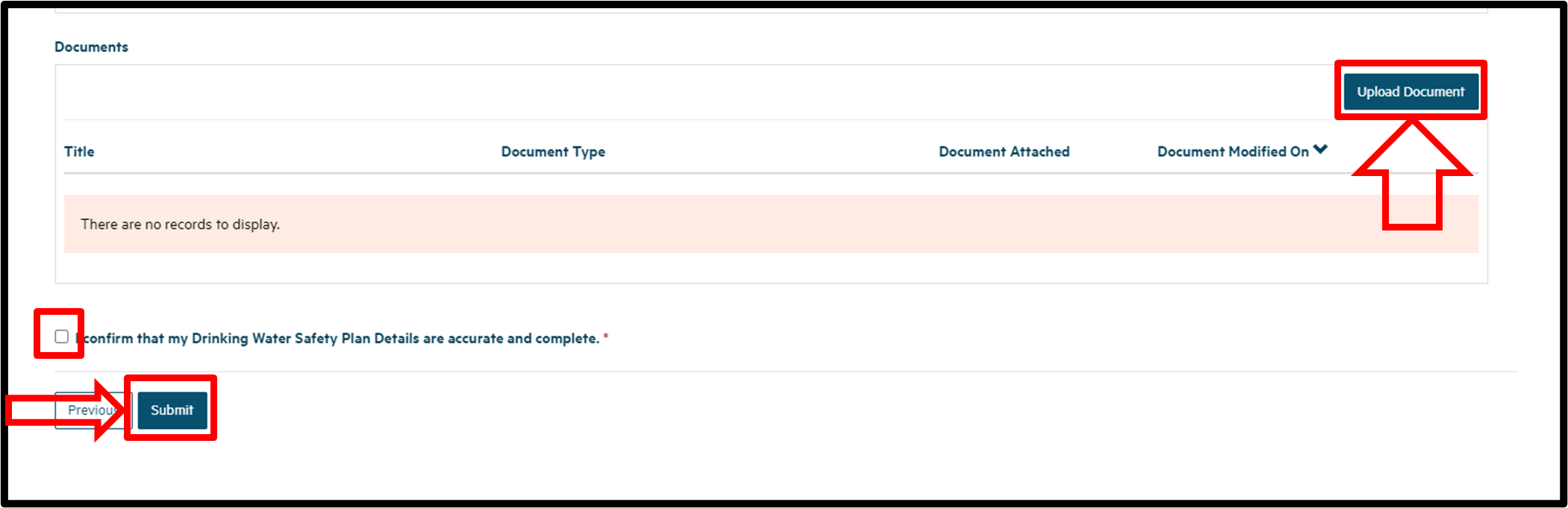
Upload your drinking water safety plan on this same page by clicking Upload Document. The Document Description field is optional but is a useful place to note information that supports your plan. Once you've uploaded your document, confirm that the plan is accurate and complete by checking the box, then click Submit.
Step 6
To check that your drinking water safety plan has been submitted successfully, follow steps 1 to 3 of this guidance again. You plan should now be showing in the table of submitted documents.
Requesting to withhold information from the public register of drinking water supplies
Download this guidance as a pdf: Requesting to withhold information from the public register of drinking water supplies
This guidance explains how to request for information to be withheld from the public register of drinking water supplies, and the factors we consider when assessing such requests. It also clarifies the interface with the registration process for drinking water supplies.
Under the Water Services Act 2021outbound, we're required to maintain a publicly available version of the register of drinking water supplies containing information specified in the Act. This is referred to as the ‘public register’. There are two key purposes for having a public register:
- To enable consumers, the public and organisations such as local authorities to find out about the water supplies in their local areas.
- To enable consumers to contact the people responsible for their water supply if there is a problem.
The public register includes some of the information provided by water suppliers when they register their water supplies with the Authority.
Information in the public register
The public register must include the following information:
- Legal name and contact details of the owner, including the trading name if applicable.
- Area the drinking water supply supplies (referred to as community on the public register).
- Number of persons expected to be using the drinking water supply.
- Legal name and contacts details of the drinking water supply operator, if different from the owner, and the operator’s trading name if applicable.
- Information that relates to the authorisation of the operator of the supply (if any). Note: there is not an authorisation framework at this time.
- Any other information the Authority considers is in the public interest to disclose.
The following additional information will also be displayed on the public register:
- Supply name, identifier, supply type, registration status.
- Local authority: region and territorial authority.
- Regional Public Health Service.
- Acceptable solution: type of acceptable solution being used, if applicable.
- Supply components: active source type and identifier, treatment plant(s) name(s) and identifier(s), distribution zone(s) name(s,) identifier and population(s).
- Overall supply contact: contact name, contact organisation if applicable, relationship type (supply contact, owner, operator), contact email and phone number.
- Supply operator(s): organisation or contact name, trading name if applicable, relationship type (owner, operator, agent), contact email.
- Gazette notice link: This is displayed if the supply has been granted a general exemption from complying with a range of legislative requirements, or are within the description of a class of water supplier that is exempt from complying with a range of legislative requirements.
Reasons for withholding information from the public register
Section 55(3) of the Water Services Act gives the Authority discretion to withhold information from the public register:
(3) The Authority may withhold any information from the publicly available version of the register if it considers it is in the public interest to do so, which may include the protection of—
(a) the privacy of natural persons; or
(b) the security of a drinking water supply.
The Authority is not required to withhold any information, but may do so where it considers it is in the public interest, including to protect the privacy of the natural persons or the security of a drinking water supply.
Authorised Hinekōrako portal users for the water supply record and Authority staff will still be able to view the suppressed information in the registration record in Hinekōrako. The supporting information for a suppression is held separately from the registration record and is available only to people within the Authority with appropriate access authority. It is not available to the water supply portal users or the public generally.
Considering the public interest
The public interest test is whether it is in the public interest to withhold information from the public register. This includes considering two competing aspects:
a. The public interest of enabling consumers and the general public to find out about their own water supplier and water supply, or the water supplies in their local areas ,and to access the information that enables them to contact the water supplier, and
b. The public interest of protecting the:
i. privacy of natural persons who are involved in operating a water supply that supplies drinking water to other consumers
ii. security of a drinking water supply (e.g. to minimise the risk of malicious actions being taken that could create public health risks for consumers)
iii. other interests identified and advanced by the person seeking the suppression of public register details.
The default statutory position that certain details will be available on the public register – unless a decision is made to withhold those details – is also a factor when assessing public interest considerations.
When considering a request and supporting reasons or information, the Authority will take into account whether the information that the request relates to is already publicly available (e.g. on the companies, charities, or incorporated societies registers).
Submitting a request to withhold information during the registration process
During the registration application process, the registration contact (the person responsible for maintaining the registration record) can indicate that they intend to submit a request to withhold information from the public register.
The registration process will be completed as per normal within the 20 working days timeframe. No information about the supply will be included on the public register until an assessment of the withholding request has been completed.
The registration contact will receive an acknowledgement email from us that outlines the process and the email address to use to provide further information about the request to withhold.
Where the request relates to personal information about an individual (i.e. as owner, operator or overall supply contact) the supporting information for the suppression request can be provided directly to us by the individual concerned or their authorised agent/representative in a separate email to protect the individual’s privacy.
Submitting a request to withhold information once a drinking water supply is registered
The registration contact may email the Authority directly requesting that information is withheld after the supply has been registered.
The request should be sent to OpsSupport@taumataarowai.govt.nz and include:
- requestor’s name, contact details and role in the supply (e.g. owner, operator)
- supply name, supply ID (to ensure the correct supply is identified by the Authority)
- list of the information items that are requested to be withheld
- reasons for the request and where appropriate, provide information in support of the request.
Where the request relates to withholding personal information about an individual included in the public register (i.e. as owner, operator or overall supply contact), the supporting information for the request can be provided directly to the Authority by the individual concerned in a separate email to protect the individual’s privacy.
The Authority will amend the registration record to withhold the information on the public register on an interim basis, pending the completion of the assessment process.
Requests to protect the privacy of natural persons
As the Water Services Act 2021 envisages that the name and contact details of the owner and operator are ordinarily displayed on the public register, there usually needs to be persuasive grounds for withholding such details.
Reasons that may justify the withholding of personal details include where the individual who is the subject of the request has reasonable cause for concerns about:
- their own safety and security
- the safety and security of their family or other contacts
- harassment of themselves or their family or other contacts.
Requests to withhold personal contact details that are also used for domestic purposes, such as a personal cell phone number, residential landline number or domestic email address may be granted without requiring further justification or supporting evidence on the basis of the asserted privacy interest in that information.
Alternatively, individuals who are owners, operators or overall supply contacts could consider establishing an incorporated society and using generic email addresses. An unincorporated group cannot be used as an owner.
For requests to withhold non-domestic personal details, supporting information must be provided. Information can include:
- a restraining order that is in force under the Harassment Act 1997
- a non-contact order under the Victims’ Orders Against Violent Offenders Act 2014
- a protection order under the Family Violence Act 2018 for the individual
- a declaration by a constable that he or she believes the publication of information that discloses, or is likely to disclose, the whereabouts of the applicant may prejudice the safety of the individual or their family, and that the circumstances that lead to this risk are still active
- other circumstances not included above where the individual’s safety or privacy (or their family’s) would be unreasonably prejudiced if the personal information was displayed, supported by evidence and a declaration that the information is accurate and provided in good faith.
The information submitted in support of a request will only be reviewed by the Authority staff involved in the processing of or decision on the request, and where necessary, by the Privacy Officer and authorising manager. The information will be stored in a restricted access location.
Reasons that are unlikely to justify the withholding of personal information – other than domestic contact details – on the public register include:
- not wanting the information to be publicly available
- a belief that the public register is unfair or unreasonable
- a belief that it is not necessary for the information to be available.
If a request to withhold the personal details of an individual is approved, it will be applied to all water supplies that the individual is connected within Hinekōrako at the time of the request. If the individual has a later connection to a different water supply, a new request must be submitted.
Requests to protect the security of the water supply
The location of the drinking water supply source and the abstraction points are not included on the public register. The Act doesn’t include this in the categories of information that must be displayed on the public register.
If a request is received to withhold the supply name or treatment plant name to protect the security of the water supply, sufficient information must be provided to explain the security concern. The physical addresses are not included on the register. This will be considered against the public interest of consumers and the public being able to find out about their own water supply or water supplies in the area.
Other reasons for requests to withhold
The Water Services Act 2021 provides that the Authority may withhold any information about a water supply on the public register for any reason, if considered in the public interest to do so, not just personal information or security of the water supply.
The Authority will consider all relevant aspects of the public interest when assessing withholding requests made on grounds not discussed above.
Processing the request to withhold
The Authority will process a request to withhold information as quickly as possible. Generally, we will endeavour to do this within 20 working days, but it may take longer. The actual timeframe will depend on the nature of the withholding request.
The request must be confirmed at each renewal of the registration record for the relevant supply. A reminder email will be sent to the registration contact and the individual concerned (if the withheld information relates to personal information).
The Authority will take reasonable steps to confirm that the information needs to continue to be withheld before making the information available on the public register.
If a withholding request is approved, we will advise the requester/individual concerned by email:
- what information will be withheld
- if the approval results in no contact information for the water supply on the public register, a member of the public will be able to email the Authority and this will be forwarded to the water supply contacts (or the supply contacts will be contacted by the Authority)
- that owners and operators remain responsible for all duties and obligations for a supply, including responding to complaints or questions on the water supply from consumers or the public
- a reminder email will be sent 4 weeks prior to the registration renewal date advising that confirmation of the request to withhold is required, along with relevant supporting information.
If the provisional decision is that the request will not be approved, we will advise the requester by email:
- of the reasons for declining the request to withhold.
- that we will reconsider the request in light of any additional information the requestor chooses to provide within 10 working days (or any longer period the Authority may allow)
- that, if no further information is received, the Authority will remove the temporary withholding of the information after five working days from the date of notification of the final decision to decline, and the information will be displayed on the public register and an email will be sent at that time to the individual/requestor
- of their ability to make a complaint to the Ombudsman (requestor or affected individual) or the Privacy Commissioner (affected individual only)
- to tell the Authority if a complaint is made to the Ombudsman or the Privacy Commissioner, so the temporary withholding continues, pending the resolution of the complaint.
Once your supply is set up – managing your supply details
This guidance shows you how to manage details of your drinking water supply in Hinekōrako. You can also manage who in your organisation can access the portal and view or edit supply details.
Managing your users
Understanding supply groups, supply relationships and Hinekōrako user roles
This guide explains what supply groups and supply relationships are in Hinekōrako, what the supply user roles are and how these things are related.
This is fundamental information because it explains:
- for all users: why certain supplies can be seen but not others, and why certain actions can be taken in relation to those supplies but not others.
- for supply group administrators and supply administrators: how access to supplies works, informing decisions when managing user access.
Supply groups
Hinekōrako enables multiple supplies to be administered by one person by grouping those supplies together into supply groups. Every supply is in a supply group and every supply group must have one Hinekōrako supply group administrator who maintains the registration details of the supplies and manages the access of other Hinekōrako users to the supplies in the group.
In simple supply set ups, the supply group may consist of a single supply and a single user who is the supply group administrator. In complex supply set ups, the supply group may consist of multiple supplies and multiple users who have different levels of access to some or all of the supplies.
Supply relationships
The responsibilities and statuses of the people and organisations that have a relationship with the supply are captured on the registration record as supply relationships.
When creating a record of a supply relationship you can add a person as a contact, or an organisation, then indicate the nature of their relationship with the supply. For example, the person or organisation might be an owner, operator or agent and the person might be the overall supply contact and/or registration contact.
Supply relationship records serve three purposes:
- They inform us of the people and organisations related to the supply and their responsibilities with respect to the supply.
- Some of the information is used to display on the public register of supplies for the benefit of consumers.
- They can be used to limit Hinekōrako user access to supplies.
Hinekōrako user roles
Often, when there are multiple supplies in a supply group, everyone connected with that supply group will have access to all supplies in it. In such cases, everyone will have one of the following Hinekōrako user roles:
|
User Role |
Explanation |
|
Supply Group Administrator |
The Supply Group Administrator is able to:
The Supply Group Administrator is also able to:
|
|
Supply Group User |
A Supply Group User can do all of the things that a Supply Group Administrator can do, except invite new users and manage existing user roles and access. |
|
Supply Group Read Only |
A Supply Group Read Only User can view the registration details of all supplies in the Supply Group and the details of all further information submitted to The Authority regarding those supplies, e.g. supplier notifications, but cannot register new supplies, update existing supply registrations, or submit further information and cannot invite or manage users. |
In some circumstances you may need to provide someone with access to your supply group but restrict which supplies they can see (e.g. if a person works for an operator of only one supply in your supply group or if you are an agent for multiple supplies and want to provide the owner of one of those supplies with access to only their supply).
In those cases you should give that person one of the following non-supply group roles:
|
User Role |
Explanation |
|
Supply Administrator |
The Supply Administrator is able to do everything a Supply Group Administrator can do, but only for those supplies the person has a Supply Relationship with. Supply Administrators can invite people to set up user accounts, but only those people that have a Supply Relationship with a supply that the Supply Administrator has a Supply Relationship with. When inviting or managing users, the Supply Administrator cannot allocate them any of the Supply Group roles. |
|
Supply User |
A Supply User can do all of the things that a Supply Group User can do, but only for those supplies the person has a Supply Relationship with. |
|
Supply Read Only |
A Supply Read Only User can do all of the things that a Supply Group Read Only User can do, but only for those supplies the person has a Supply Relationship with. |
Managing an individual user profile
This guidance explains how to manage the details of your user profile in Hinekōrako.
Overview
To access the profile screen, sign in to Hinekōrakooutbound, click on your name at the top right corner of the screen and click Profile.
The following explains the data that's recorded on the profile screen, including the allowable values for each entry and any other requirements.
A mandatory field (indicated by a red asterisk) means you must provide data in that field.

There are different types of fields that allow different ways of recording data.
If you attempt to move on from the profile screen and have not provided all mandatory data or there's a problem with the data you've provided, one or more error messages will be displayed indicating the problem. If the problem is with a particular field, you can click on the link in the error message to go to that field.
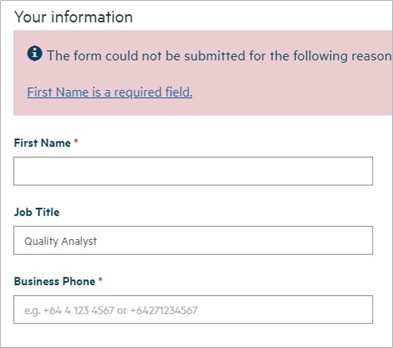
Profile screen

The profile screen records the following details about you. Once you've entered the information, click Update to save the details.
|
Field |
Mandatory Field |
Explanation |
|
First Name |
Yes |
Your first name. |
|
Last Name |
Yes |
Your last name. |
|
Job Title |
No |
Your job title |
|
|
Yes |
Your email address. Must be in a valid email format. |
|
Business Phone |
One of Business or Mobile Phone is mandatory |
It’s mandatory to provide either a business phone number or a mobile number, as described in the field below. The number must start with + and then the country code (e.g. +64 for New Zealand). |
|
Mobile Phone |
It’s mandatory to provide either a mobile phone number or a business phone number, as described in the field above. The number must start with + and then the country code (e.g. +64 for New Zealand). |
|
|
Physical Address Search |
No |
You can use this field to find your physical address in the database of NZ Post addresses. As you start typing the address, Hinekōrako will look up the database as you type, giving you a list of addresses it has found. When your address appears in the list you can click on it to select it and populate the address fields below: |
|
Physical Address fields |
Some |
These fields are automatically populated if you select an address from the Physical Address Search look up results. If the address is not found, you can record it in the fields yourself. |
|
Postal address is different |
No |
Click on this if the postal address is different from the physical address. If you click on it, Postal Address fields appear. |
|
Postal Address Search |
No |
You can use this field to find your postal address in the database of NZ Post addresses. As you start typing the address, Hinekōrako will look up the database as you type, giving you a list of addresses it has found. When your address appears in the list you can click on it to select it and populate the address fields below: |
|
Postal Address fields |
Some |
These fields are automatically populated if you select an address from the Postal Address Search look up results. If the address is not found, you can record it in the fields yourself. |
Managing supply portal users (for Supply Administrators)
Download a pdf of this guidance: Managing supply portal users (for supply administrators)
This guidance explains how, as a Supply Administrator, you can provide others with access to the supplies you administer and manage what they can and cannot do with respect to those supplies.
As a Supply Administrator, you have administrator permissions within Hinekōrako, but only for the supplies that you have a supply relationship with. If you are a Supply Group Administrator, use the guidance under the next expandable heading.
Step 1
Log into Hinekōrakooutbound and click on Manage Users at the top of the page. If you can't see that link it means you're not a Supply Administrator and don't have permission to manage users.
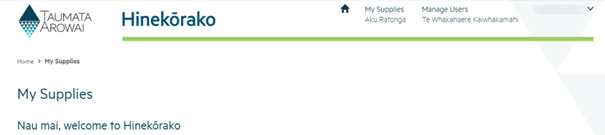
The Manage Users screen shows three lists:
- Pending Portal Users: a list of people who have been emailed an invitation to set up their portal user account, but who have not yet done so.
- Manage Existing Portal Users: a list of people who currently have a portal account.
- Invite New Portal Users: a list of the people who have a relationship with one or more of the supplies you administer, but who have not yet been sent an invitation email.
If you cannot see a person you expect to see in one of these lists, it's likely because they don't have a relationship with one of the supplies you administer.
From here you can do one of three things:
- Send an invitation to a person who has not yet been sent one. Go to Step 2.
- Resend an invitation to a person who has been sent an invitation but has lost it or it has expired. Go to Step 4.
- Manage which supplies an existing user can see and what they can do with those supplies. You can also grant or remove Supply Administrator rights, controlling who can and cannot manage users. Go to Step 6.
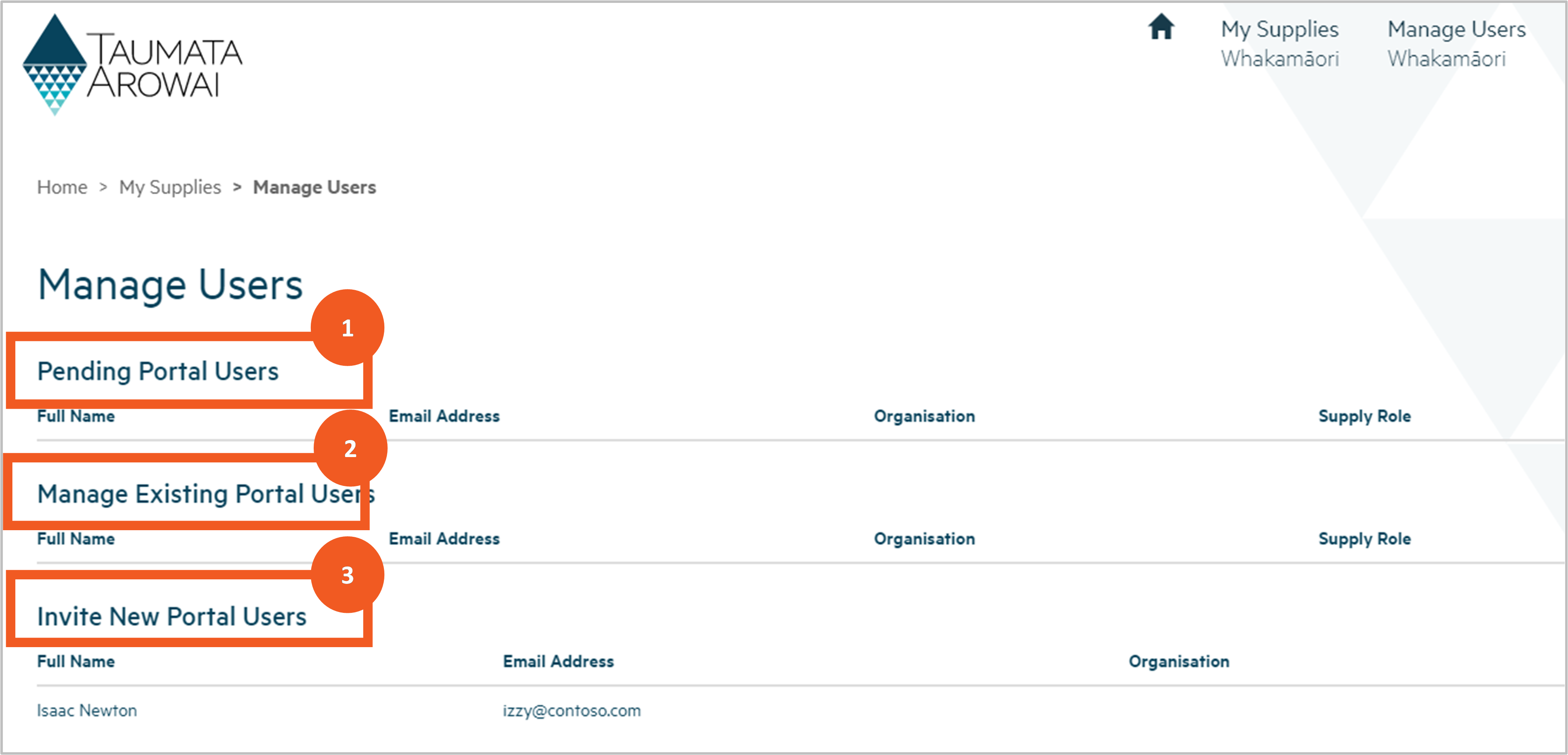
Invite a new portal user
Step 2
Find the person you wish to invite to become a portal user and then click Invite User using the dropdown arrow at the end of their row in the Invite New Portal Users list.

Step 3
You’ll be taken to a screen where you can see the contact details of the person and a list of the supplies with which they have a relationship in the registration records. You can grant them access by:
1. Selecting the role you want the user to have:
- Supply Administrator will give them the same rights you have: being able to update any data or submit any records to the Authority for supplies they have a supply relationship with, and invite and manage other users that have supply relationships with those supplies.
- Supply User will give them the rights to update data and submit records to the Authority for supplies they have a supply relationship with, but not manage users.
- Supply Read Only will allow them to view data but not update it.
2. Selecting which supplies you want them to have access to in the portal by checking the Provide Access box for the supply.
3. Clicking the Invite and Assert Identity checkbox. In doing so you're asserting that the person whose email the invitation is being sent to is the person you want to grant access to. This means the person will not need to confirm their identity when they set up their user account, which is a step that will be added to Hinekōrako in the future.
4. Clicking Submit.
This will send an invitation email to the person’s email address, including a link that, when clicked, will start the process through which they will create their user account.
You'll be returned to the Manage Users page, where you should now see the new user in the Pending Portal Users list.

Resend an invitation
Step 4
If a person you've invited to create a portal account has lost their email invitation or has been unable to set up the account because the invitation has expired, you can resend the invitation by choosing Resend Invite from the dropdown arrow at the end of their row in the Pending Portal Users list. Invitations expire after 14 days.

Step 5
You’ll be taken to a page where you can:
- check and change the role you want to give them
- check and change the supplies they will have access to.
- click Submit to send the new invitation email.
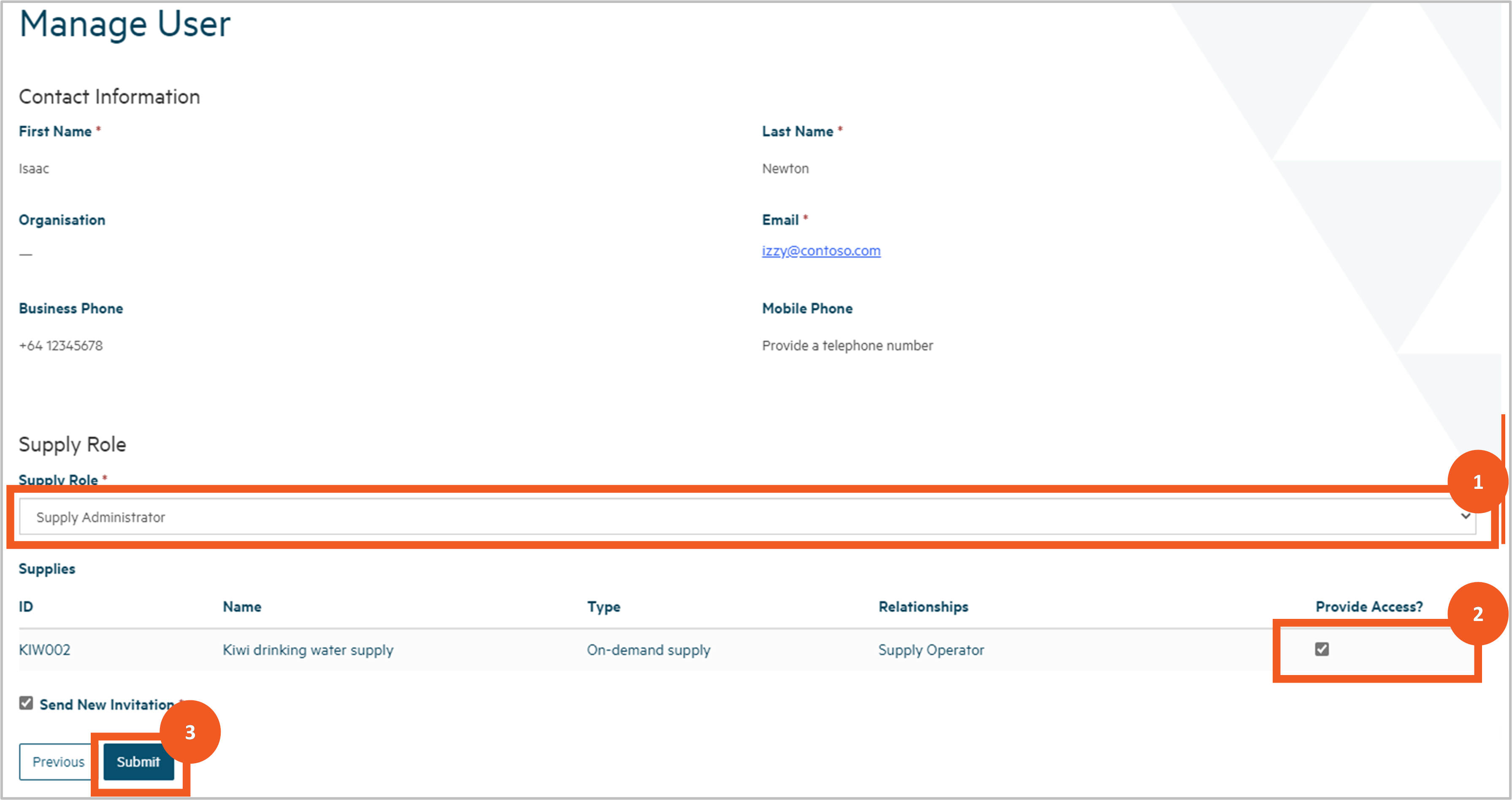
Manage existing users
Step 6
To manage the access of an existing portal user, on the Manage Users page click on the dropdown arrow at the end of that user’s row in the Manage Existing Portal Users section and choose Edit Access.
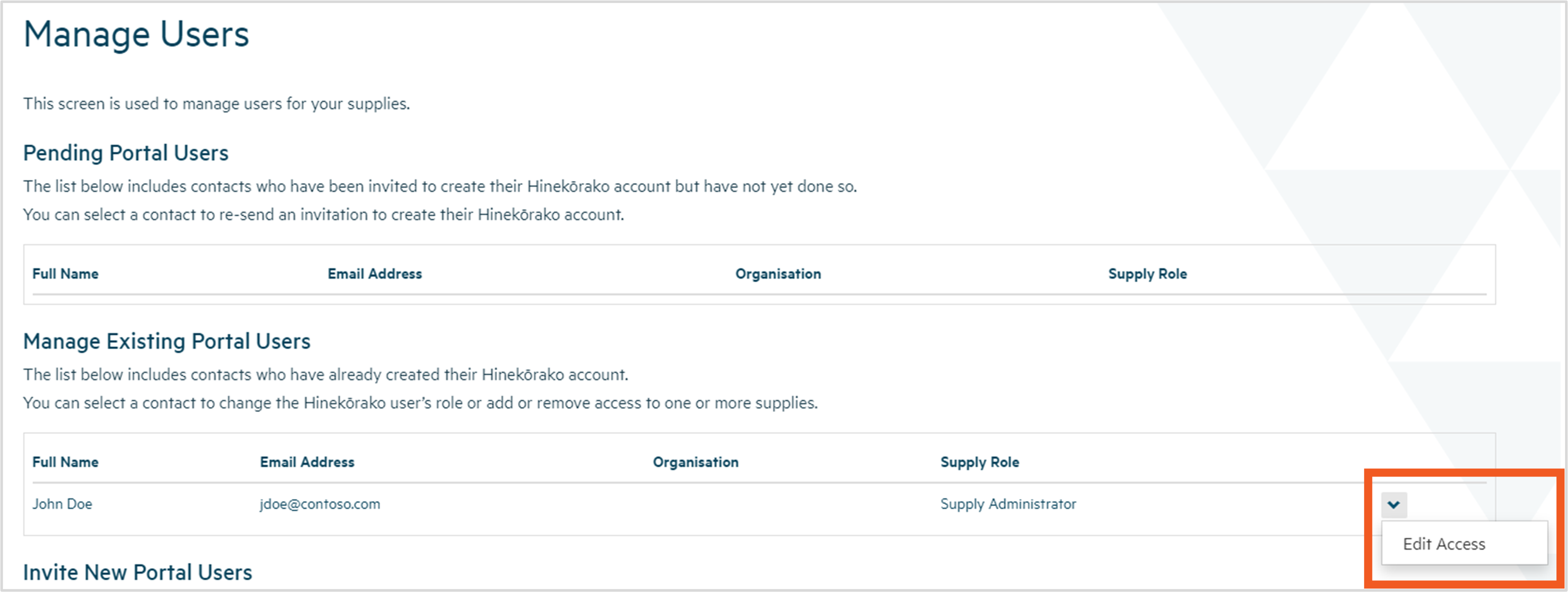
Step 7
You’ll be taken to a page where you can:
- view the contact details for the person. You cannot change their details. Only they can update their profile.
- change the supply role for the user (see Step 3 for an explanation of each role).
- change which supplies the user has access to. They can only access supplies they have a supply relationship with.
Make the required changes and click Submit. To remove the user's access entirely, uncheck the Has Supply Access box for all supplies.

Managing supply portal users (for Supply Group Administrators)
Download a pdf of this guidance: Managing supply portal users (for Supply Group Administrators)
This guidance explains how to provide others with access to the supplies you administer and to manage what they can and cannot do with respect to those supplies. This guide is for Hinekōrako users with the role of Supply Group Administrator. This means you have administrator powers within Hinekōrako across all supplies in your supply group.
You can invite people to create a user account for the Hinekōrako supply portal, regardless of whether they have a supply relationship with a supply in your supply group. This includes creating the contact record of a person not currently connected to your supply.
Step 1
Log in to Hinekōrakooutbound then click on the Manage Users link at the top of the page. If you cannot see that link it means you are not a Supply Group Administrator and don’t have permission to manage users.
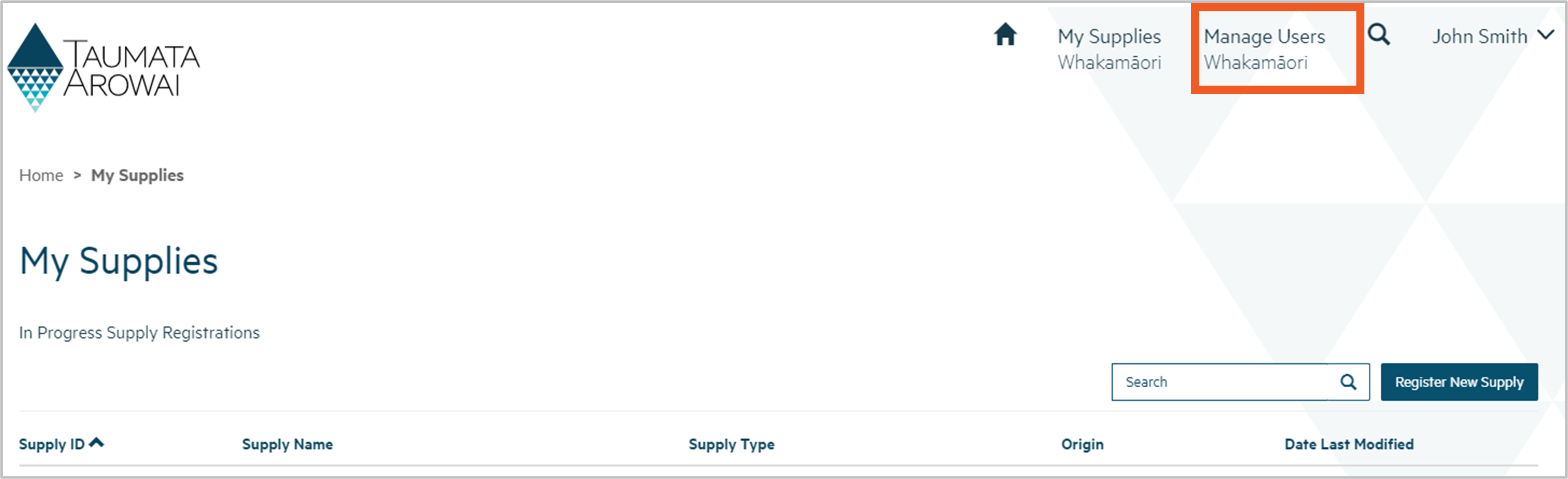
The Manage Users screen has three lists:
- Pending Portal Users - a list of people who have been emailed an invitation to set up their portal user account, but who have not yet done so.
- Manage Existing Portal Users - a list of people that currently have a portal account.
- Invite New Portal Users - a list of the people who are connected with the supply group, either because they have a relationship with one or more of the supplies in the group or have been created as a contact in this Manage Users section, but who have not yet been sent an invitation email.
From here you can do one of four things:
- Create a new contact record for a person you wish to invite by clicking Add New Contact. Go to Step 2.
- Send an invitation to a person who has not yet been sent one. Go to Step 5.
- Resend an invitation to a person who has been sent an invitation but has lost it or it has expired. Go to Step 7.
- Manage which supplies an existing user can see and what they can do with those supplies. You can also grant or remove administrator rights, allowing them to manage users or not. Go to Step 9.
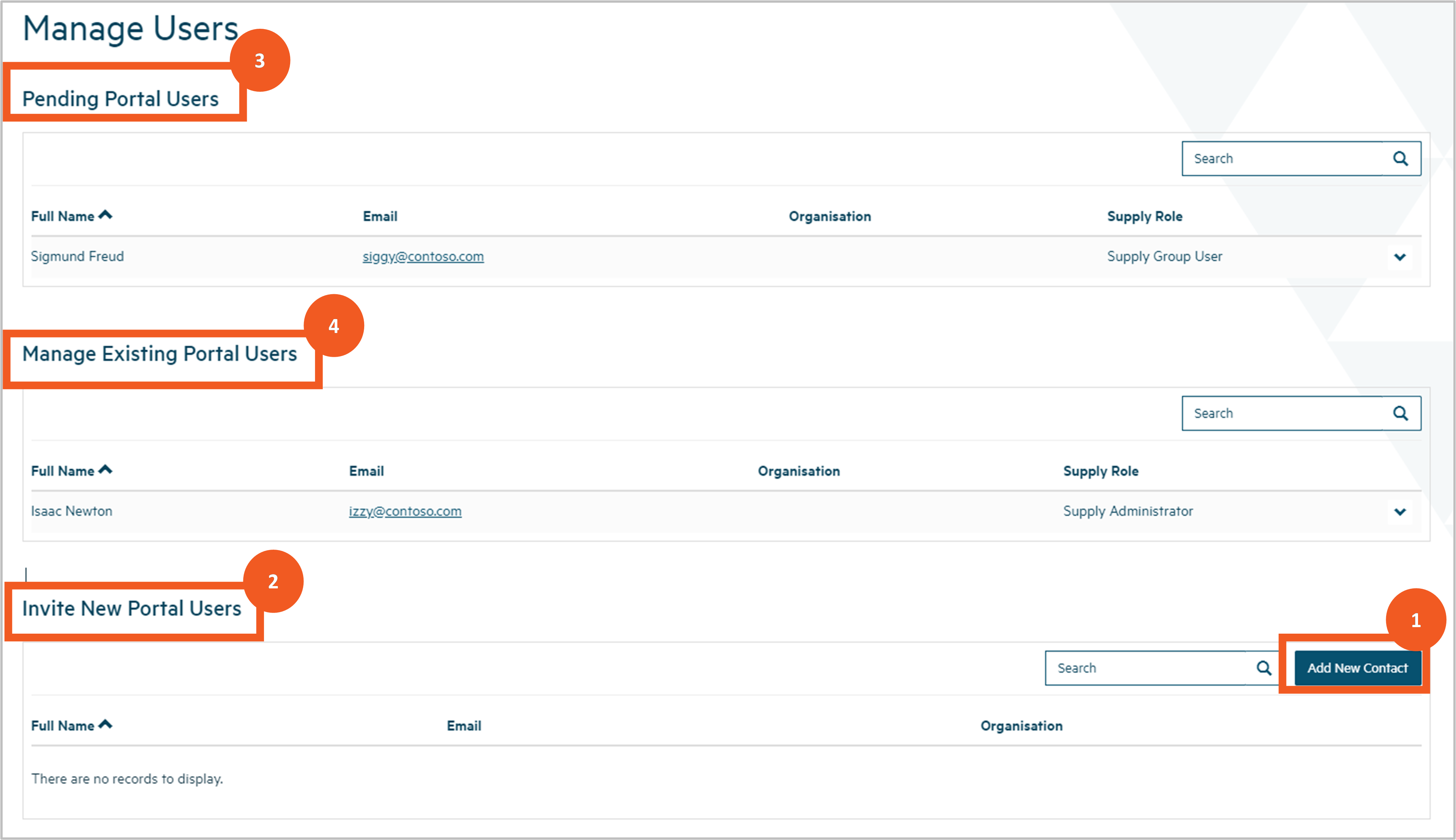
Create a new contact
Step 2
To add a new person to your supply group and invite them to set up a portal account, click Add New Contact.

Step 3
You’ll be taken to a screen where you can enter the contact details of the person, including their name, email address, phone number and physical and/or postal addresses.
Assign a supply role for the user - either:
- Supply Group Administrator, giving them the same rights you have: being able to update any data or submit any records to the Authority and invite and manage other users, for any supply within the supply group.
- Supply Group User, giving them the rights to update data and submit records to the Authority, but not to manage users, for any supply within the supply group.
- Supply Read Only, allowing them to view data withing the supply group but not update it.
Complete the details and click Next. Any errors (e.g. missing mandatory data or data in an invalid format) will be displayed, allowing you to correct the errors and click Next again.
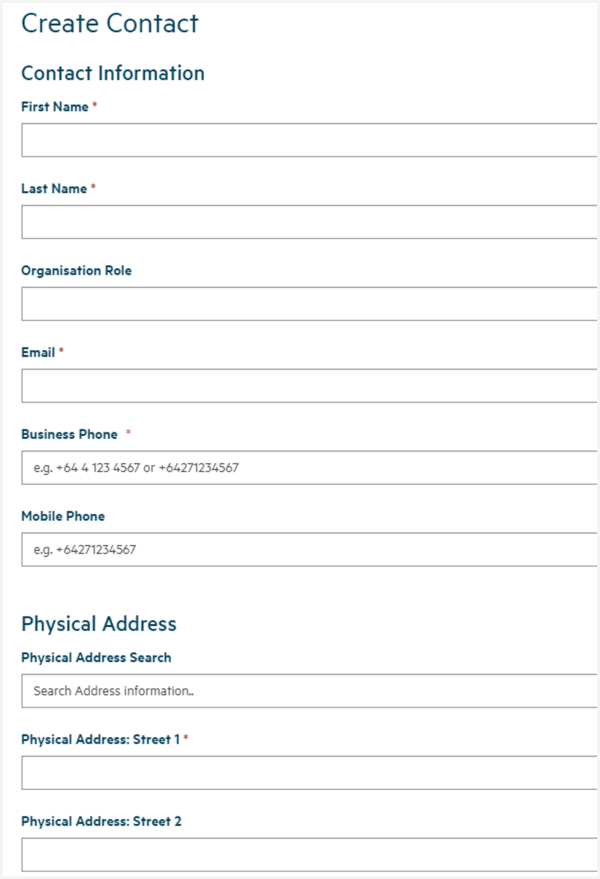
Step 4
You’ll be taken to a screen where you can confirm the access requirements for your new contact.
Confirm (and correct if necessary) their name and supply role, then add or remove supply groups that the new contact will have access to.
Click the Invite and Assert Identity checkbox. In doing so you are asserting that the person whose email the invitation is being sent to is the person you want to grant access to. This means the person will not need to confirm their identity when they set up their user account, which is a step that will be added to Hinekōrako in the future.
Click Submit and an invitation email will be sent to the person’s email address, including a link that, when clicked, will start the process by which they will create their user account. See the Establish supply portal and RealMe® account guidance above for an explanation of that process.
You'll be returned to the Manager Users page and should now see the person in the Pending Portal Users list.

Invite a new portal user
Step 5
Contacts who have one or more supply group relationships in the current supply group or supply relationships with one or more supplies in the current supply group, but do not have a Hinekōrako user account, can be invited to create a user account. These contacts are shown in the Invite New Portal Users list.
Find the person you want to invite to become a portal user and then click Invite User from the dropdown arrow at the end of their row in the list they appear in.

Step 6
You’ll be taken to a screen where you can see the contact details of the person and the option to choose which role the user will have once they have set up their portal account.
1. If you want the user to have access to all of the supplies in the supply group you administer, give them one of the following roles:
- Supply Group Administrator, giving them the same rights you have: being able to update any data or submit any records to the Authority and invite and manage other users, for any supply within the supply group.
- Supply Group User, giving them the rights to update data and submit records to the Authority, but not to manage users, for any supply within the supply group.
- Supply Read Only, allowing them to view data withing the supply group but not update it.
Select which supply groups you want them to have access to by adding or removing supply groups you are administrating.
2. If you want the user to have access to only certain supplies in the supply group you administer, give them one of the following roles:
- Supply Administrator will give them the rights to update any data or submit any records to the Authority and invite and manage other users for the specific supplies you select.
- Supply User will give them the rights to update data and submit records to the Authority for the specific supplies you select, but not to manage users.
- Supply Read Only will allow them to view data for the specific supplies you will select but not update it.
Select which supplies you want them to have access to in the portal by adding or removing supply access using the dropdown arrow at the end of the row for each supply. The supplies listed are those the person has a supply relationship with. If there are no such relationships, you can set them up following the instructions in the Edit a supply guidance.
3. Click the Invite and Assert Identity checkbox. In doing so you are asserting that the person whose email the invitation is being sent to is the person you want to grant access to. This means the person will not need to confirm their identity when they set up their user account, which is a step that will be added to Hinekōrako in the future.
4. Click Submit.
This will send an invitation email to the person’s email address, including a link that, when clicked, will start the process by which they will create their user account. See the Establish supply portal and RealMe® account guidance above for an explanation of that process.
You'll be returned to the Manage Users page where you should now see the person in the Pending Portal Users list.
Supply roles
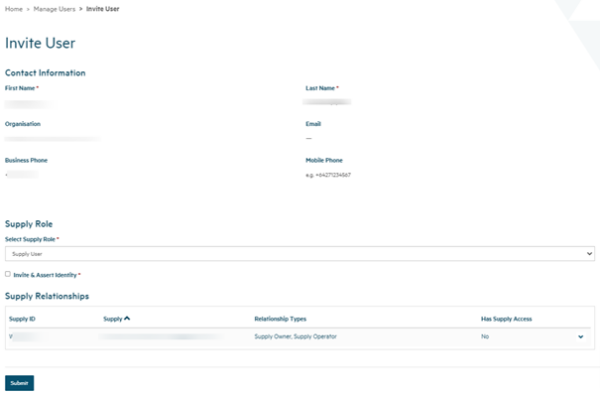
Supply group roles
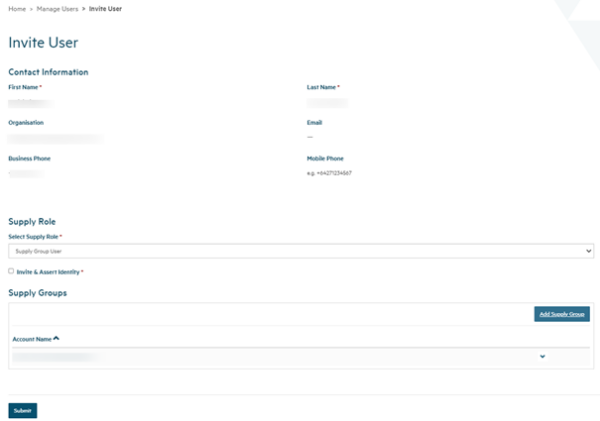
Resend an invitation
Step 7
If a person you've invited to create a portal account has lost their email invitation or has been unable to set up their account because the invitation has expired, you can resend the invitation by choosing Resend Invite from the dropdown arrow at the end of their row in the Pending Portal Users list. Invitations expire after 14 days.

Step 8
You’ll be taken to a page where you can:
- Check and change the role you want to give them. See Step 6 above for information on the roles.
- For roles of Supply Administrator, Supply User and Supply Read Only, check and change the supplies they will have access to. They can access only supplies they have a supply relationship with.
- For roles of Supply Group Administrator, Supply Group User and Supply Group Read Only, check and change the supply group(s) they will have access to. Only supply groups administered by the requesting Supply Group Administrator can be added to the invited user.
- Click Submit to send the new invitation email.
Managing existing users
To manage the access of an existing portal user, on the Manage Users page click on the dropdown arrow at the end of that user’s row in the Manage Existing Portal Users section and choose Edit Access.
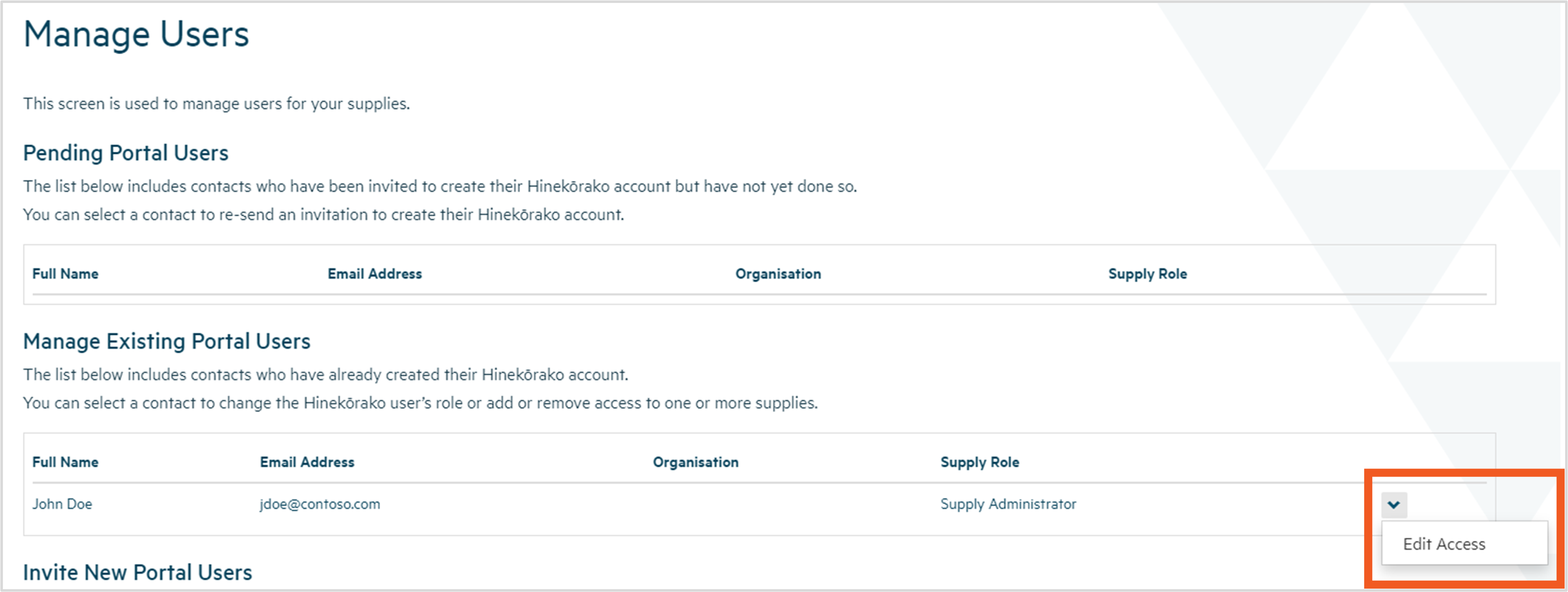
Step 10
You’ll be taken to a page where you can:
- View the contact details for the person. You cannot change their details here.
- Change the supply role OR supply group role for the user (see Step 6 for an explanation of each role).
- For the roles of Supply Administrator, Supply User and Supply Read-only, check and change the supplies they will have access to. They can access only supplies they have a supply relationship with.
- For roles of Supply Group Administrator, Supply Group User and Supply Group Read Only, check and change the supply group(s) they will have access to. Only supply groups administered by the Supply Group Administrator can be added or removed.
Make the required changes and click Submit. To remove the user’s access entirely remove each supply or supply group.
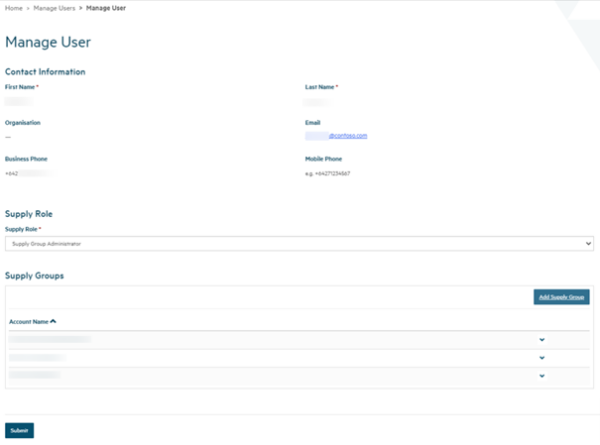
Viewing and managing your supply information
Viewing supply details
Download a pdf of this guidance: Viewing supply details (for all users)
This guidance explains how to view the details of a supply in Hinekōrako. This is how Supply Read Only users can see the details of a supply. This option is also available to all other users if they wish only to view, rather than update, the details.
Step 1
Log in to Hinekōrakooutbound then find the supply for which you want to view details on the My Supplies home page. It will be in one of the three lists on the page:
- In Progress Supply Registrations – either migrated supplies that have not yet been verified or new supplies that have not yet been submitted.
- Registered Supplies – supplies that have been verified or submitted and are now registered.
- Other Supplies – supplies that are not in either of the first two states, e.g. supplies that are being reviewed by the Authority.
If the supply isn't visible, it may be that you don't have access to that supply. Contact your Supply Group Administrator or the Authority.
To view the details of the supply, either:
- click on the Supply ID link, or
- choose Supply Details from the dropdown menu at the end of the supply row in the list.

Step 2
You'll be taken to a screen where you can see all the details of the supply, including lists of the supply components and relationships. Scroll down to see all details.
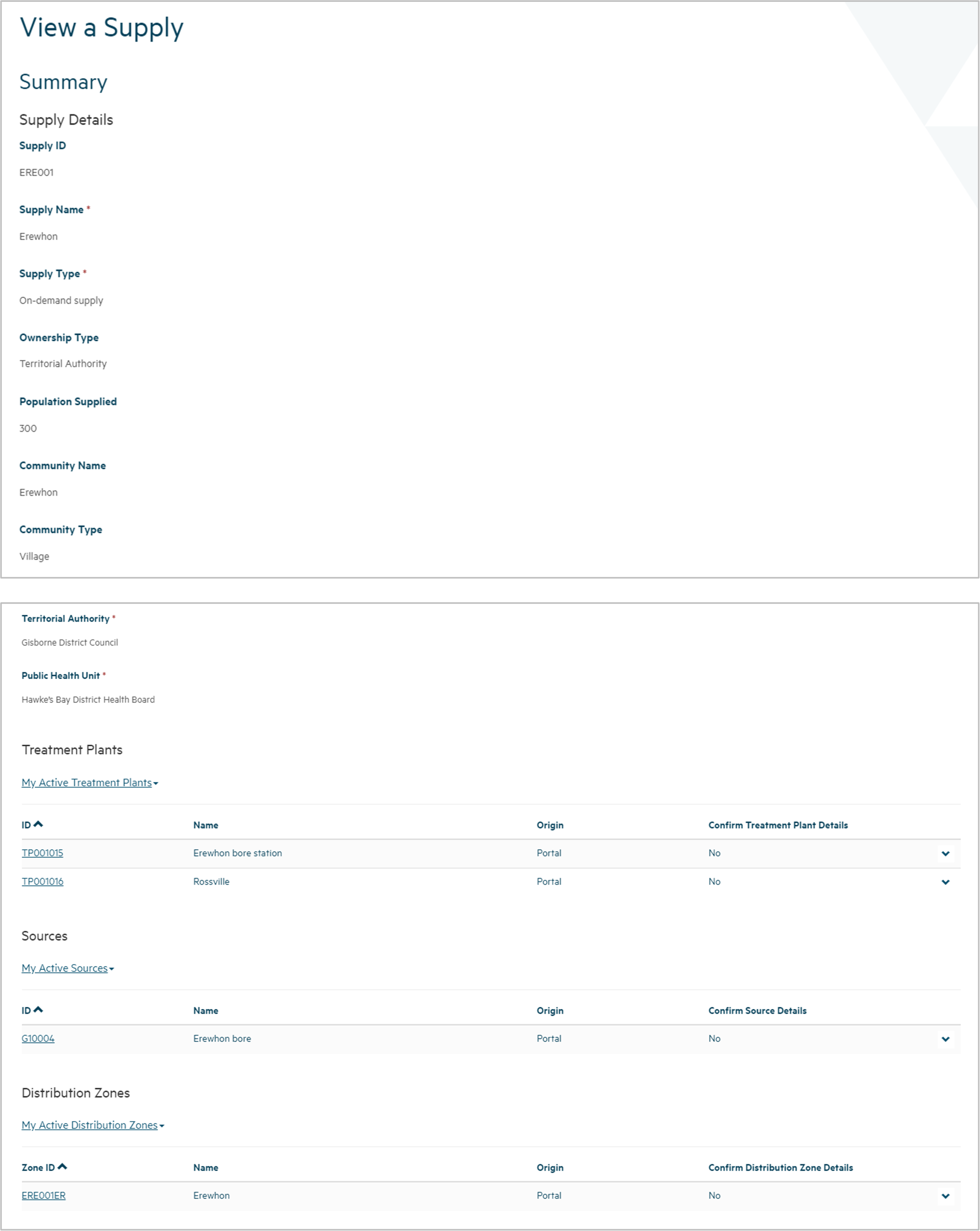
Step 3
You can view the details of any supply component or relationship by:
- clicking on the link on the first piece of data in the list, or
- opening the dropdown menu at the end of the row in the list and choosing View Details.
A pop up screen will then show you the details of the component or relationship.
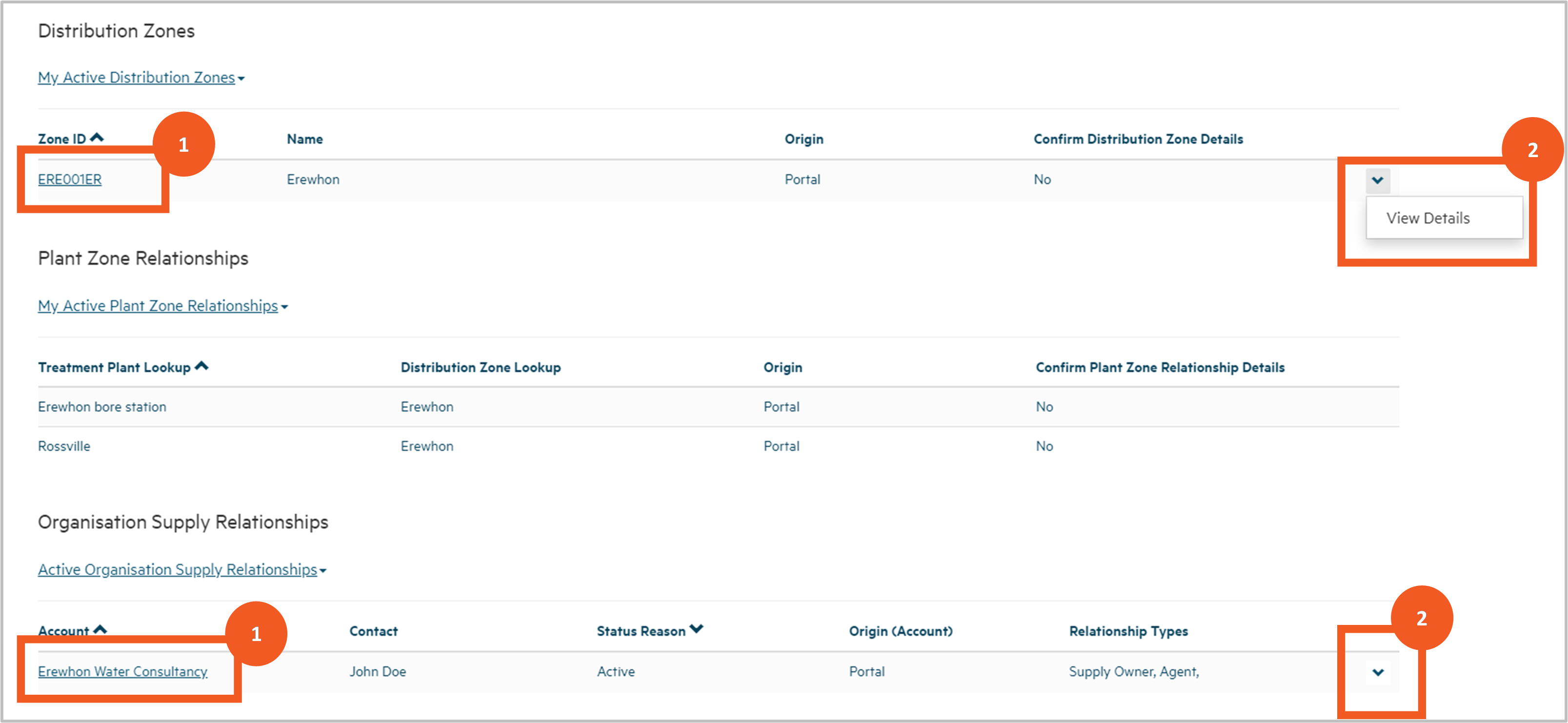
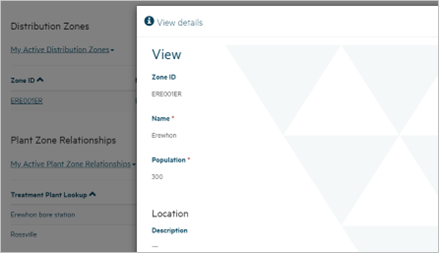
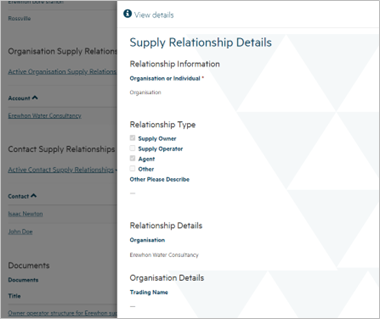
Step 4
You can view the document records that have been added to the supply by:
- clicking the document title in the list of documents, or
- opening the dropdown menu at the end of the row and choosing View Document Details.
This will open a pop up screen displaying the document details, including a link to the document itself. If you click on the link the document will download, allowing you to open it.

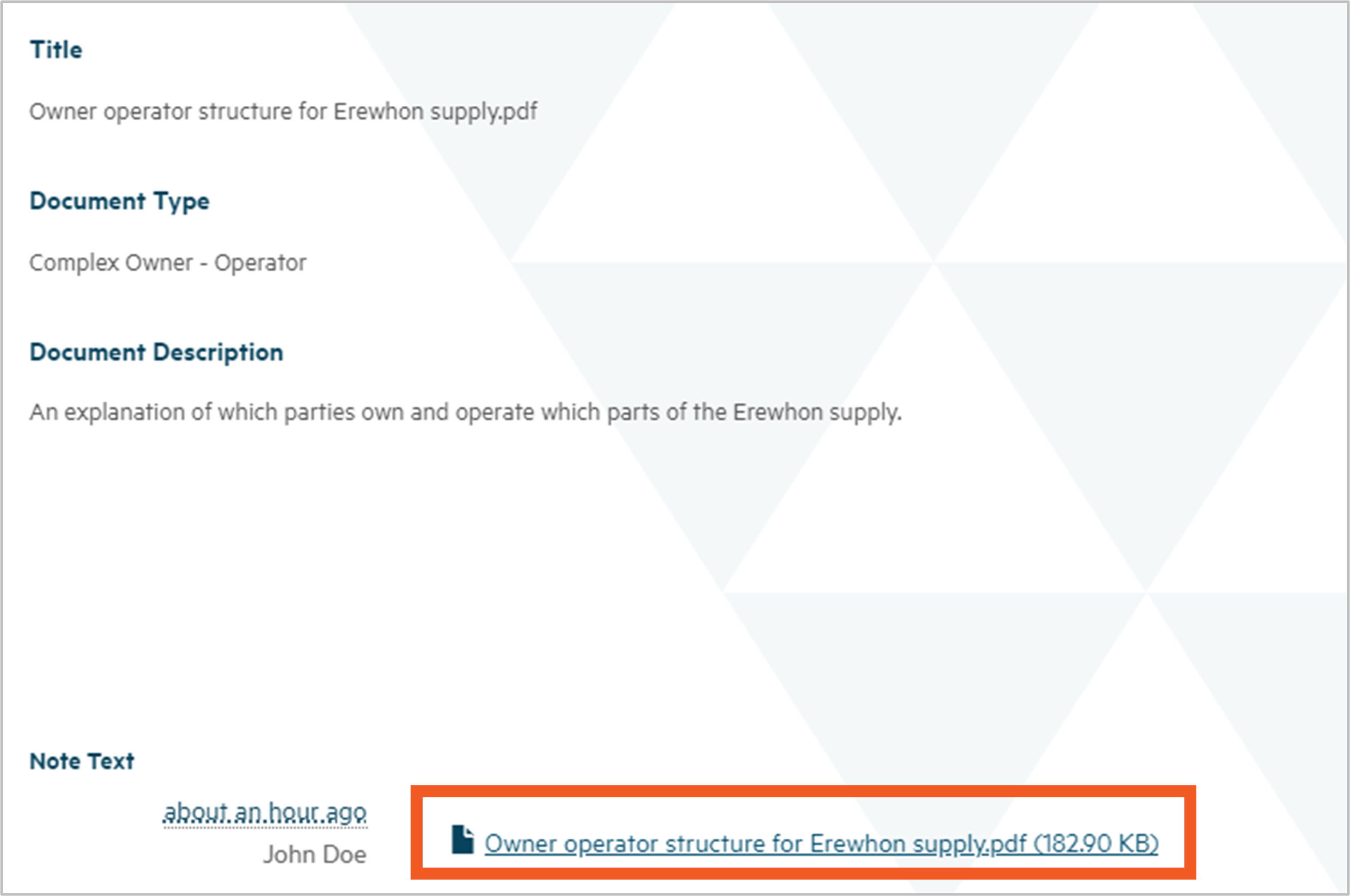
Step 5
When you've finished, you can return to the My Supplies page by clicking your browser back button or:
- clicking on that option on the top menu
- clicking the My Supplies link in the breadcrumb.

Editing a supply
Download a pdf of this guidance: Editing a supply in Hinekōrako
This guide explains how to update the details of a supply in Hinekōrako.
See also Understanding the data held about your supply in Hinekōrako, which explains the data you'll be updating. This will be referred to as the data reference guide throughout this guidance.
NOTE: If you need to complete a registration renewal, refer to the Registration renewals guide.
Editing a supply
You can edit only those supplies that are listed under the Registered Supplies table in the portal. If you want to edit a supply that is in the Other Supplies table, please contact us.
Supplies that are in the In Progress Supply Registrations table have not been fully registered.
Step 1: Accessing the edit form
Choose Edit Supply from the dropdown menu at the end of the supply’s row.

If the supply is not listed or the Edit Supply option not available, you may not have permission to perform this action. Contact your Supply Group Administrator or the Authority for assistance.
The instructions here are for the preferred method of locating the edit form. If you access the form from the supply’s Actions menu, you'll note that the form has four steps. You must click Next at the end of each step and click Submit on the last page, regardless of which step you edited. If Submit is not clicked, the supply won’t be updated on the public register.
Step 2: Editing the supply details
Review and update the details in the edit screen as required. Some fields cannot be edited, such as the Supply ID. For guidance on information you might need, refer to the data reference guide.
Step 3: Editing or removing the supply components or relationships
Supply components are the sources (abstraction points), water treatment plants and distribution zones of a supply. It also includes the relationship between these components (e.g. which abstraction point relates to which water treatment plant).
Supply relationships are the organisational relationships, such as the supply owner or operator; or contact relationships, such as the overall supply contact or registration contact.
More information on supply components and relationships can be found on the Registering your supply page.
Supply components and relationships can only be edited or removed by selecting either the Edit or Remove option from the drop down menu at the end of the component/relationship field. This will open the component/relationship details in a pop-up box.
Edit them as required, then click Submit to take you back to the main edit page.
If you're editing the supply relationships you may need to update who has access to the Hinekōrako portal, and what user role they are assigned. Refer to Understanding supply groups and user roles and Manage supply portal users for more information.
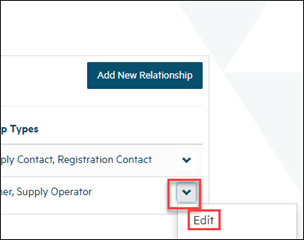
Step 4: Adding new supply components or relationships
Click the Add New… button in the component/relationship type box that you want to add to.
This will open the component/relationship details in a pop-up box.
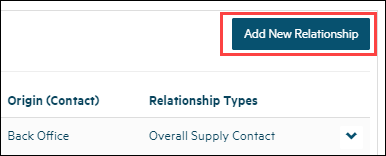
Complete the form, referring to the data reference guide as needed, then click Submit to take you back to the main edit page.
Step 5: Adding new drinking water safety plans (DWSP) or additional documents
Note: If the supply uses an Acceptable Solution, serves a population of less than 26 or has a General Exemption, a DWSP is not required.
Before a DWSP can be added, you'll need to describe the key changes to the plan since the previous lodgment. This information is mandatory, so if you're adding the first DWSP, you should write ‘First lodgment’ or similar.
Check and tick the confirmation box, then click Next.
You'll now be able to upload the DWSP and any other supporting documents by clicking Upload Document. There are certain file types that cannot be uploaded, such as .dll. If your file type is not supported, you'll get an error message.
Check and tick the confirmation box, then click Submit to take you back to the main edit page.
If you need to add a supporting document to an existing DWSP, select Upload documents from the dropdown menu at the end of the DWSP field.
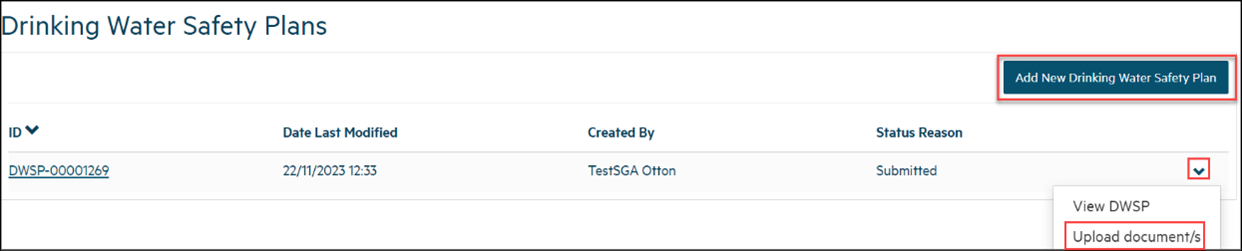
Step 6: Further information
You'll need to confirm if an Acceptable Solution has been implemented and whether you wish to suppress any supply information from the public register.
Refer to the data reference guide and information on the Acceptable Solutions page of this website,
Step 7: Submitting the changes
Check through the information you've provided, then click Submit at the bottom of the form. This step needs to be completed - even if the edits were made only in the pop-out component/relationship forms.
If there are any problems, you'll see an alert box pop up with a link to the field that needs to be corrected.
For more information on the fields, refer to the data reference guide.
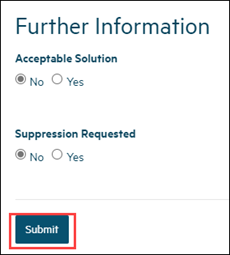
Step 8: Publishing the changes to the public register
After submitting the changes, Hinekōrako will check if you've requested the withholding of any details from the public register of drinking water supplies.
If so, the supply will have a status of Submitted and it will appear in your Other Supplies list in the portal. The Authority will review the supply details and contact you if more information is required.
If you haven't requested to withhold details from the public register, the supply status will change to Registered and the supply will be re-published in the public register. Details published in the public register are identified in the data reference guide.
Resuming an edit and timing out
Hinekōrako will time out after 30 minutes of inactivity.
If you resume editing and receive an error message stating that you don’t have the appropriate permissions to take that action, refresh your browser and log in again.
As the editing was interrupted, the supply will have moved to the In Progress Supply Registrations table. To continue editing, select Continue Registration from the dropdown list at the end of the supply row in the In Progress Supply Registrations table.
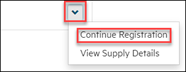
Renewing registration of a drinking water supply
Download a pdf of this guidance: Renewing registration of a drinking water supply
When you log into the Hinekōrako portal, a blue banner at top of the screen will alert you to any renewals due in the next 30 days and any overdue annual renewals.
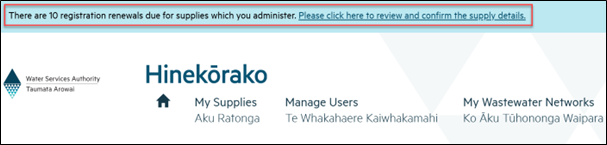
Use either of the processes described below to renew your registration.
Accessing the annual renewal form
Unless you've adopted an Acceptable Solution or your supply serves a population of under 26, you'll need a drinking water safety plan (DWSP) for your supply.
If you don't have a DWSP already saved to Hinekōrako, make sure you have one ready to upload before you start your renewal.
Option 1
If you want to view the supplies that have renewals due, click the link in the blue banner to view the renewals table.
Use the dropdown menu at the end of the supply row to select Complete Registration Renewal.
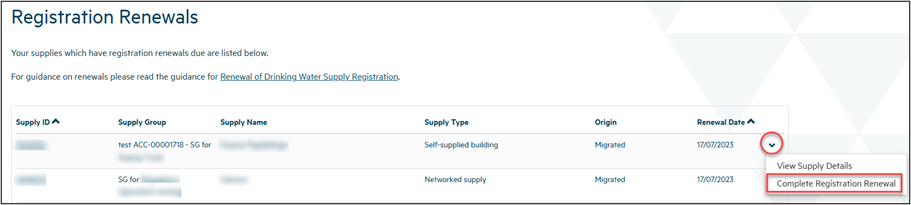
Option 2
The In Progress Supply Registrations and Registered Supplies table also has the same dropdown menu for each supply. The Complete Registration Renewal option will be visible only for supplies that are within 30 days of their renewal date or have an overdue renewal.
Note that this option is not available for supplies showing in the Other Supplies table. If a renewal is due for any supply that has a supply status of Submitted, please use Option 1.
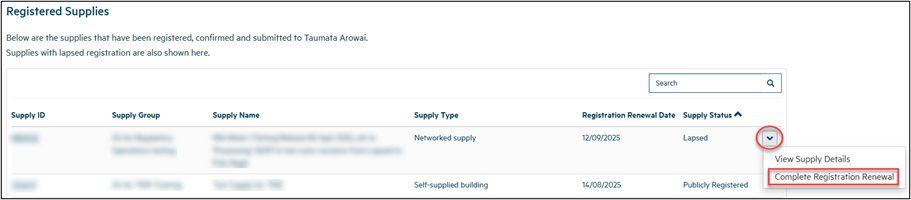
Completing the renewal form
Review the information in the renewal form. If you need to make updates, you can do this by editing the fields on this page as you go.
Any field marked * is a required field.
Editing supply components and relationships
If there have been any changes to your drinking water supply components (sources, treatment plants, etc.) or supply relationships, use the dropdown menu options to edit or remove records, or add new ones using the Add New buttons in the renewals form.
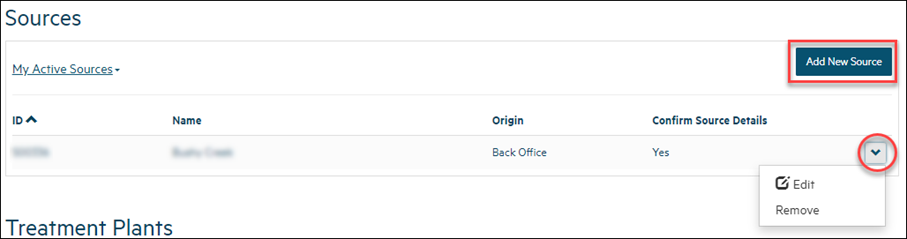
The Add New buttons will pop out another form for you to complete with the new details. Once you click Submit at the bottom of the form it will close and you will be able to continue with the annual renewal.
Editing your drinking water safety plan (DWSP)
Unless you've adopted an Acceptable Solution or your supply serves a population under 26, you'll need to have a DWSP.
Use the dropdown menu to view the existing DWSP or upload additional documents. If you need to upload a DWSP, use the Add New Drinking Water Safety Plan button.
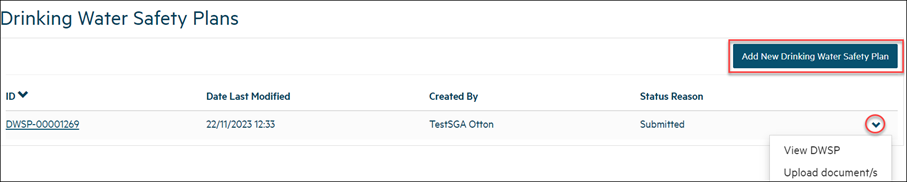
If details of your supply have been withheld from the public register of drinking water supplies and you would like that to continue, select Yes.

Confirming the renewal
If you haven’t adopted an Acceptable Solution, you'll need to confirm (by checking the boxes) that the DWSP and supply registration details are accurate and up to date in the Confirmation section.
If you have adopted an Acceptable Solution, you will not be required to confirm that you have a DWSP in place.
Click Submit.
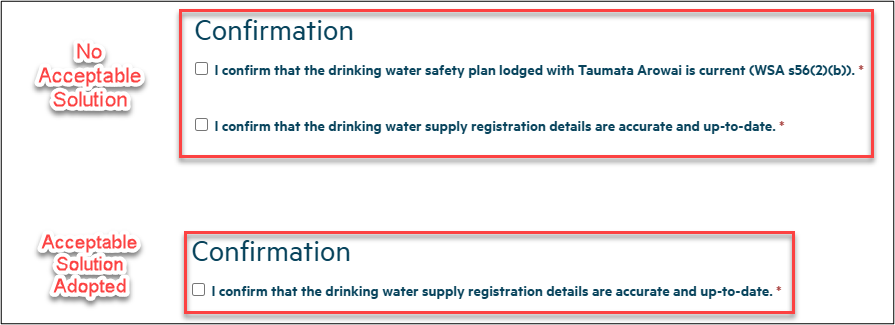
Managing drinking water safety plans
Download a pdf of this guidance: Managing drinking water safety plans
This guide explains how to provide and then view the drinking water safety plan (DWSP) for your supply in Hinekōrako.
Before you provide your DWSP you will need to have either confirmed your migrated supply or registered your new supply with the Authority. Your supply details need to be up to date - so please check before starting the process.
There are a number of details to enter, as prompted, before uploading and submitting your DWSP documents.
Starting the process
Step 1
Log in to Hinekōrakooutbound then find the supply for which you want to provide your DWSP from the list on the My Supplies home page.
Choose View Supply Details from the dropdown menu at the end of the supply row in the list.
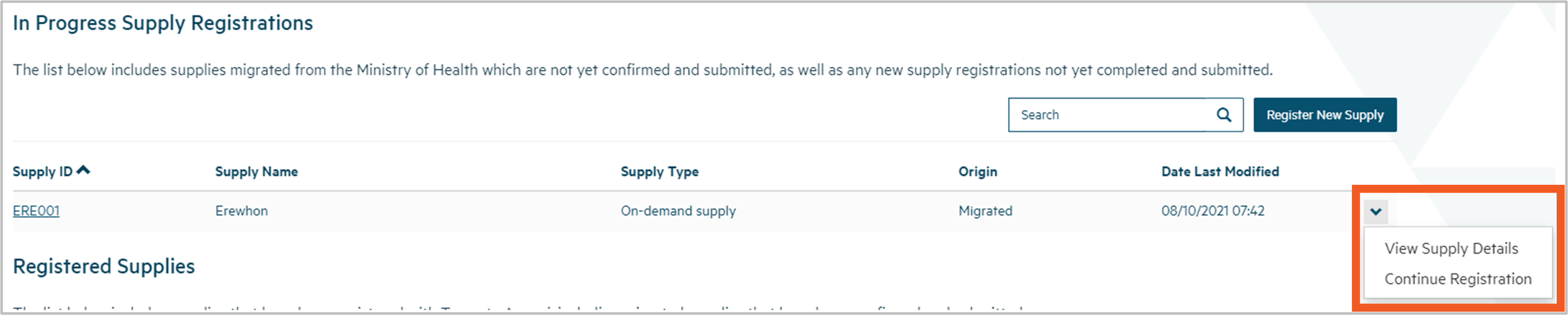
Step 2
You'll be taken to the View a Supply screen. Select View/Add Drinking Water Safety Plans from the menu on the left.
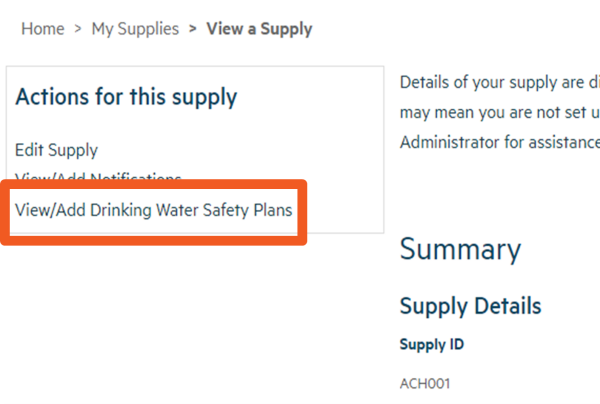
Step 3
You'll be taken to the Drinking Water Safety Plans page. On this page, there are three categories:
- Draft Drinking Water Safety Plans
- Submitted Drinking Water Safety Plans
- Superseded Drinking Water Safety Plans.
Any items listed in Draft Drinking Water Safety Plans can be viewed, edited or deleted by clicking on the small down arrow at the end of the row and making the appropriate selection.
Any items listed in Submitted Drinking Water Safety Plans can be viewed, have documents uploaded or closed and superseded by clicking on the small down arrow at the end of the row and making the appropriate selection.
On this page, you can also choose to Add New Drinking Water Safety Plan for your supply.
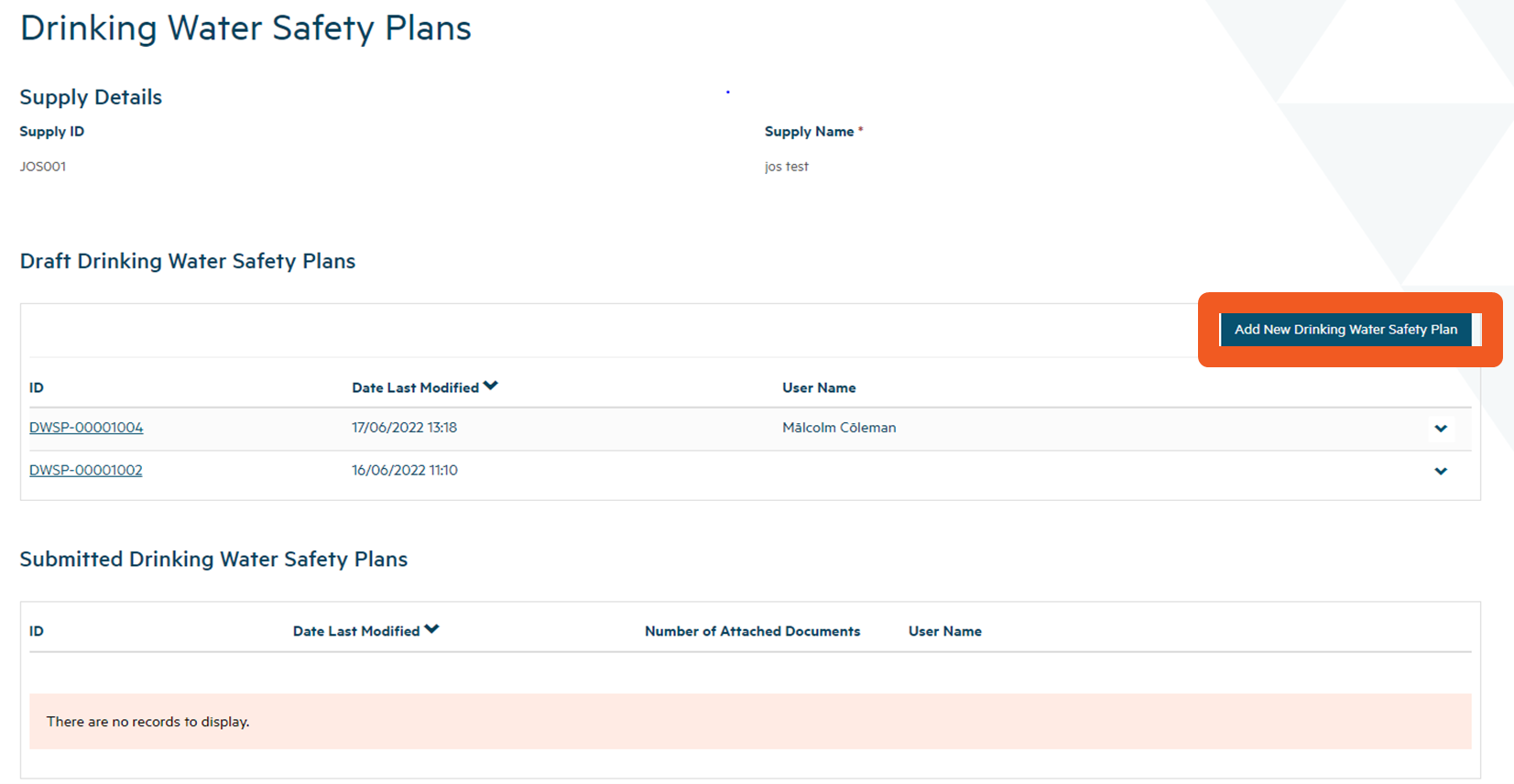
Creating a drinking water safety plan
Step 4
On this page, you provide some details about your plan and click Next to upload the DWSP documents.
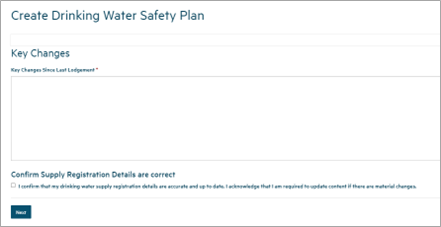
Document upload
Step 5
Follow these steps to upload the DWSP and supporting documents:
- Click Upload Document. This will open a pop-up screen where you can enter details of the document.
- Choose the type of document. Choose Drinking Water Safety Plan Supporting Document if no other type fits. You need to upload at least one document with the type = Drinking Water Safety Plan.
- Describe the document (optional) if you think it will help us better understand its contents.
- Click Choose File and then browse to find and upload the files you want to add. Some file types can't be uploaded for security reasons and the maximum file size is 30Mb.
- Click Submit.


Once you’ve uploaded the first file you can repeat the process to add other documents, if need be.
Once you’ve uploaded a document you can:
- view its details by clicking the link in the Title column.
- remove it by choosing Remove Document from the dropdown at the end of the row or update the document details by choosing Edit Document Details from the dropdown at the end of the row.
If you upload the incorrect document, you'll first need to choose Remove Document and then click Upload Document to fix the problem.

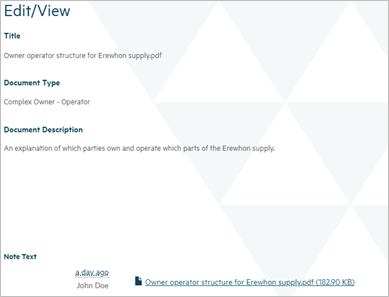
Step 6
Once you've completed all the information on this screen and uploaded your documents, click Submit. You’ll be taken back to the Drinking Water Safety Plans screen.
You can return to the My Supplies screen by clicking the menu option at the top of the page. From there you can select another of your supplies to Create Drinking Water Safety Plan.

Monitoring and reporting
Submitting your Drinking Water Quality Assurance Rules reports using the Hinekōrako webform
Download a pdf of this guidance: Submitting your Drinking Water Quality Assurance Rules reports using the Hinekōrako webform
This guidance will help you submit your Drinking Water Quality Assurance Rules (the Rules) reports using the webform in Hinekōrako. Currently, only suppliers reporting at levels 1 or 2 can submit reports using the webform. If you're reporting against level 3 rules, you'll need to submit through either an Excel or API upload. Each person reporting using API will need a personal API key, generated from the Reporting section in Hinekōrako.
Accessing the Rules reporting webform
Step 1
Log in to Hinekōrakooutbound using your RealMe® login details.
Step 2
From the Reporting dropdown menu, select DWQAR Reporting.
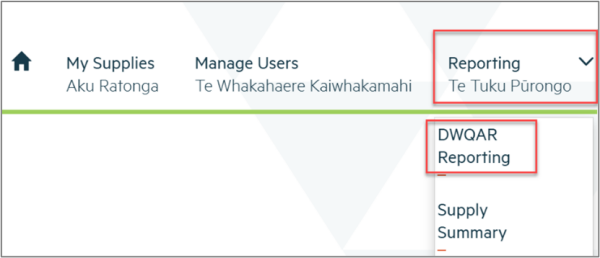
Step 3
The link to the webform can be found by selecting Report via Webform. There are separate reporting options for level 1 and level 2 supplies.


Completing Rules reporting using the webform
Step 4
Select the supply you're reporting on.
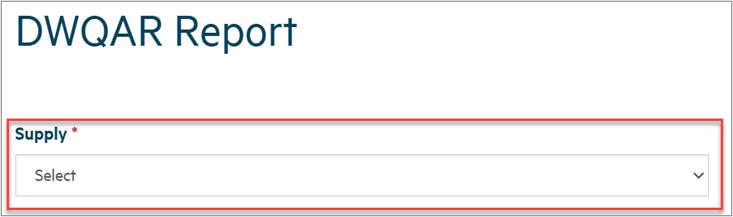
Step 5
The supply ID, type and population should all auto-populate. You'll need to select the Reporting Year and Reporting Quarter for which you're making a submission.
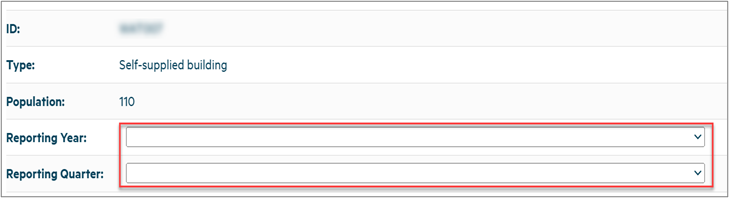
Step 6
Select which supply components the Rules reporting applies to.
As per Section 3.1 Compliance and Reporting in the DWQAR, if a supply component (e.g. a source or a treatment plant) was not operational in the reporting period, you're not required to demonstrate compliance for that component during that period. If a component was operating at any point during the reporting period, even for a few hours, then this component needs to demonstrate compliance during this operation and should be selected here for reporting.
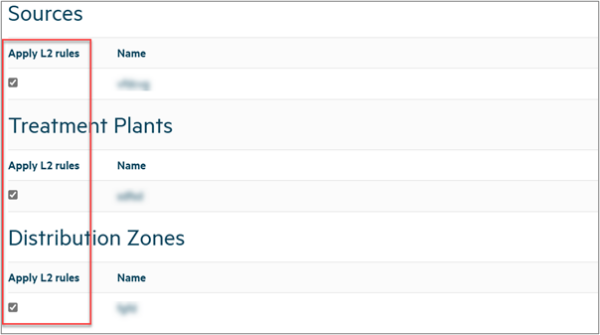
Step 7
Depending on what you are reporting against (source, treatment plant, and/or distribution zone), you'll need to complete the following actions:
Note that some rules have a Not Applicable option where the rule is not always required. Select Not Applicable only when the situation the rule applies to has not occurred. For example, you were not required to take any chlorine samples under rule T2.4.
Reporting against: |
Action |
| Source |
Complete all source questions
|
| Treatment plant |
Complete all treatment plant questions
|
| Distribution zone |
Complete all distribution zone questions
|
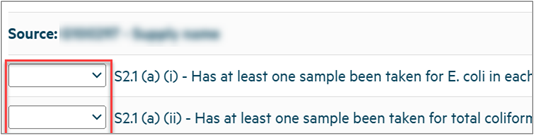
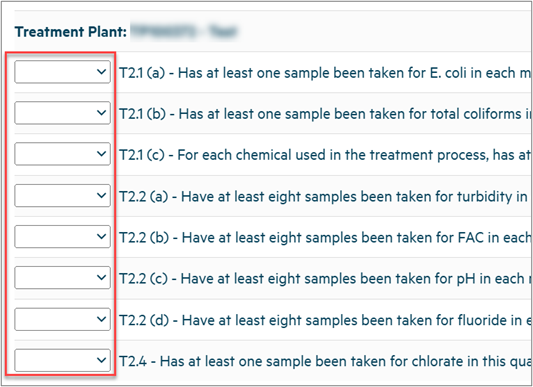
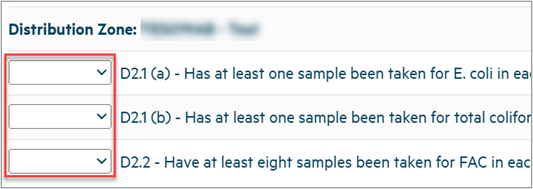
Note: Where reporting is required only annually, the webform will enable this to be reported in the last quarter (Q4) of the calendar year. When Q4 is selected, annually reported questions such as assurance rules will appear and will need to be reported against.
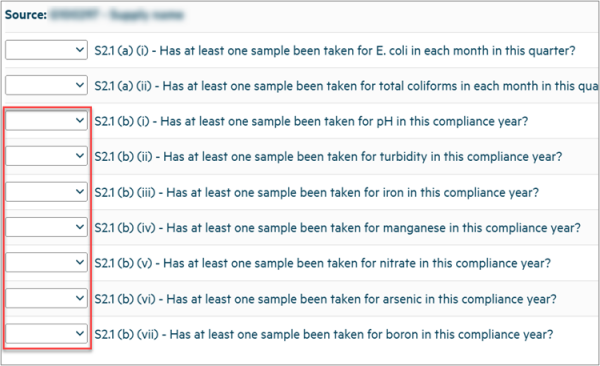
Step 8
Once all relevant questions have been answered, click Submit at the bottom of the form.
Step 9
Once the reporting has been submitted, it should show up in the reporting log with the status Submitted Successfully.
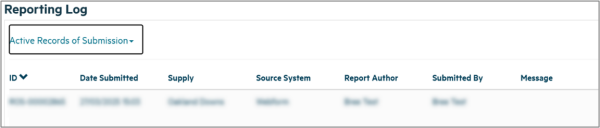
Monitoring water quality - supply summary table
Download a pdf of this guidance: Monitoring water quality - supply summary table
A supply summary table is available for each of your supplies. The information in the table aims to help you meet your drinking water quality obligations. You may see a banner at the top of the Hinekōrako homepage advising that a supply summary table is available to view.

To access the supply summary, either click the link in the banner or click the dropdown arrow next to Reporting and select Supply Summary.

The supply summary table shows the following, for each of your supplies:
- Status of the drinking water safety plan (DWSP).
- Presence or absence of protozoa and bacterial barriers.
- Whether residual disinfection is used.
- Confirmation of any submitted rules reports.
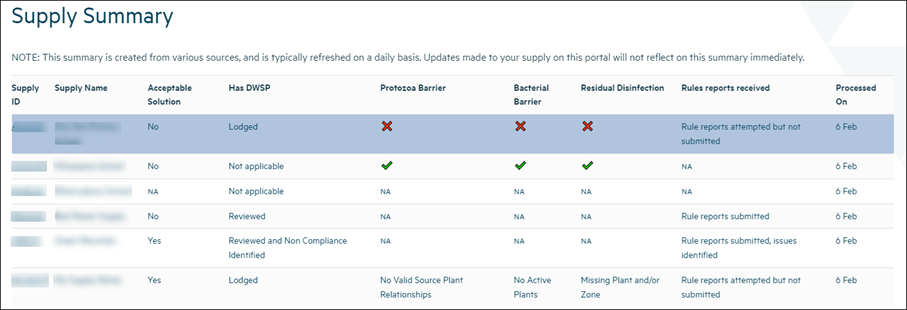
The information in the supply summary may be used to report on your supply in our annual Drinking Water Regulation Report. It's therefore important to ensure all your information in Hinekōrako is correct and up to date.
Information in each column
This section describes what each column in the supply summary table means. You can display further information by hovering over a tick or cross in the table.
Note:
- a 🗸 generally indicates that a requirement applies and is satisfied
- a × generally indicates that a requirement applies and is not satisfied
- NA (not applicable) generally indicates that the application of a requirement, or whether a requirement is satisfied, can’t be determined on the basis of the current registered information for the supply.
Acceptable Solution
This column shows whether a supply is registered as having adopted an Acceptable Solution. This is displayed as Yes, No or NA (Not Applicable – General Exemption applies).
Drinking water safety plans (DWSP)
This column shows the status of your DWSP and is displayed as one of the following:
- Lodged. The supply has an active DWSP.
- Not Lodged. No active DWSP could be found for the supply. This will show as × in the table.
- Reviewed. The supply has an active DWSP that has been reviewed by the Water Services Authority - Taumata Arowai.
- Reviewed and Non-compliance Identified. The supply that has been reviewed by the Water Services Authority - Taumata Arowai and non-compliance was identified. If you need further information on the nature of the non-compliance, contact us at info@taumataarowai.govt.nz.
- Not Applicable. A DWSP does not appear to be required as the supply is using an Acceptable Solution or a General Exemption is in place.
Protozoa barrier
This column indicates whether your supply is registered as having or lacking a protozoa barrier and is displayed as one of the following:
- Has protozoa barrier. All sources that appear to require protozoal treatment have source-plant relationship/s with treatment plant/s which have at least one form of treatment which may be suitable for removal of protozoa. This will show as a 🗸 in the table. This status does not reflect determination of compliance nor the effectiveness of the treatment plant to achieve the required protozoal removal.
- Lacks protozoa barrier. At least one source that appears to require protozoal treatment has been identified as having a source plant relationship to a treatment plant that does not appear to have a treatment process suitable for removal of protozoa. This will show as a × in the table.
- No valid source plant relationships. There are no active source-plant relationships recorded against the supply or the supply does not have a source-plant relationship with components owned by other supplies.
- Not applicable. The supply relies on either an Acceptable Solution or a General Exemption, or is a water carrier or linked supply, or all source/s of this supply do not appear to require protozoal treatment, e.g., source/s registered as Class 1 or Interim Class 1 according to the Drinking Water Quality Assurance Rules (the Rules). The supply may or may not require treatment of protozoa, but this cannot be determined from the registered information for the supply and the summary records this requirement as not applicable. This will show as NA in the table.
Bacterial barrier
This column indicates whether your supply is registered as having or lacking a bacterial barrier and is displayed as one of the following:
- Has bacterial barrier. All treatment plants associated with the supply appear to have chlorination, UV or ozone treatment. This will show as a 🗸 in the table. This status does not reflect determination of compliance nor the effectiveness of the treatment plant to achieve the required bacterial removal.
- Lacks bacterial barrier. At least one treatment plant does not have chlorination, UV or ozone treatment. This will show as a × in the table.
- No active plants. An active treatment plant could not be found to evaluate.
- Not applicable. The supply relies on either an Acceptable Solution or General Exemption, or is a water carrier or linked supply. The supply may or may not require treatment of bacteria, but this cannot be determined from the registered information for the supply and the summary records this requirement as not applicable. This will show as NA in the table.
Residual disinfection
This column indicates whether your supply is registered as having or lacking residual disinfection and is displayed as one of the following:
- Has residual disinfection. All treatment plants associated with the supply have chlorination and all distribution zones have implement residual disinfection. This will show as a 🗸 in the table. This status does not reflect determination of compliance nor the effectiveness of the residual disinfection which has been implemented.
- Lacks residual disinfection. At least one treatment plant does not have chlorination or a distribution zone has not implemented residual disinfection. This will show as a × in the table. Some supplies may have a residual disinfection exemption. This status does not reflect whether a residual disinfection exemption has been granted.
- Missing plant and/or zone. An active treatment plant or distribution zone could not be found to evaluate.
- Not applicable. The supply has either an Acceptable Solution or a General Exemption, or is a water carrier, linked supply, community drinking water station or self-supplied building. The supply may or may not require residual disinfection, but this cannot be determined from the registered information for the supply and the summary records this requirement as not applicable. This will show as NA in the table.
Drinking Water Quality Assurance Rules (the Rules) reports received
This column indicates whether or not you have submitted a report on the Rules.
Read the Rules to understand more about your requirements to report here: Drinking Water Quality Assurance Rules.
- Rule reports submitted. Rule reports have been submitted for the previous year. This status does not reflect a determination of compliance with the requirements of the Rules.
- Rule reports submitted, issues identified. Rule reports have been submitted for the previous year, but issues related to completeness, consistency and/or data quality have been identified. Please check that all applicable Rules have been reported on as outlined in in the Drinking Water Quality Assurance Rules.
- Rule reports attempted but not submitted. Our record of submissions indicates you have attempted to submit Rule reports but none has been successfully submitted.
- No Rule reports submitted. No Rule reports have been submitted in the previous year and no attempts are shown in our record of submissions. Note: Some supplies are required to follow the Rules but do not have any reporting requirements.
- Not applicable. The supply either uses an Acceptable Solution or is under a General Exemption. This will show as NA in the table.
How to update this information
Updating supply information
Click on the Supply ID to navigate to the supply. From there, select Edit from menu on the left and update your supply details. Guidance on editing a supply can be found in Editing a supply.
Submitting DWQAR reports
From the Hinekōrako dashboard, click on the Reporting tab at the top of the screen and select DWQAR Reporting.
Notifications
Creating and submitting a supply notification
Download a pdf of this guidance: Creating and submitting a supply notification
This guidance is for all Hinekōrako users except read-only users. It explains how to submit a notification to the Authority relating to one of your drinking water supplies.
There are two categories of supply notification:
- Risk to drinking water safety or quantity.
- Stop, limit or reduce supply or change ownership.
Choose the notification category
Step 1
Go to the list of notifications for the supply for which you need to submit a notification. For guidance on how to do this, see Find and view a notification.
Click Create above the list of draft notifications.
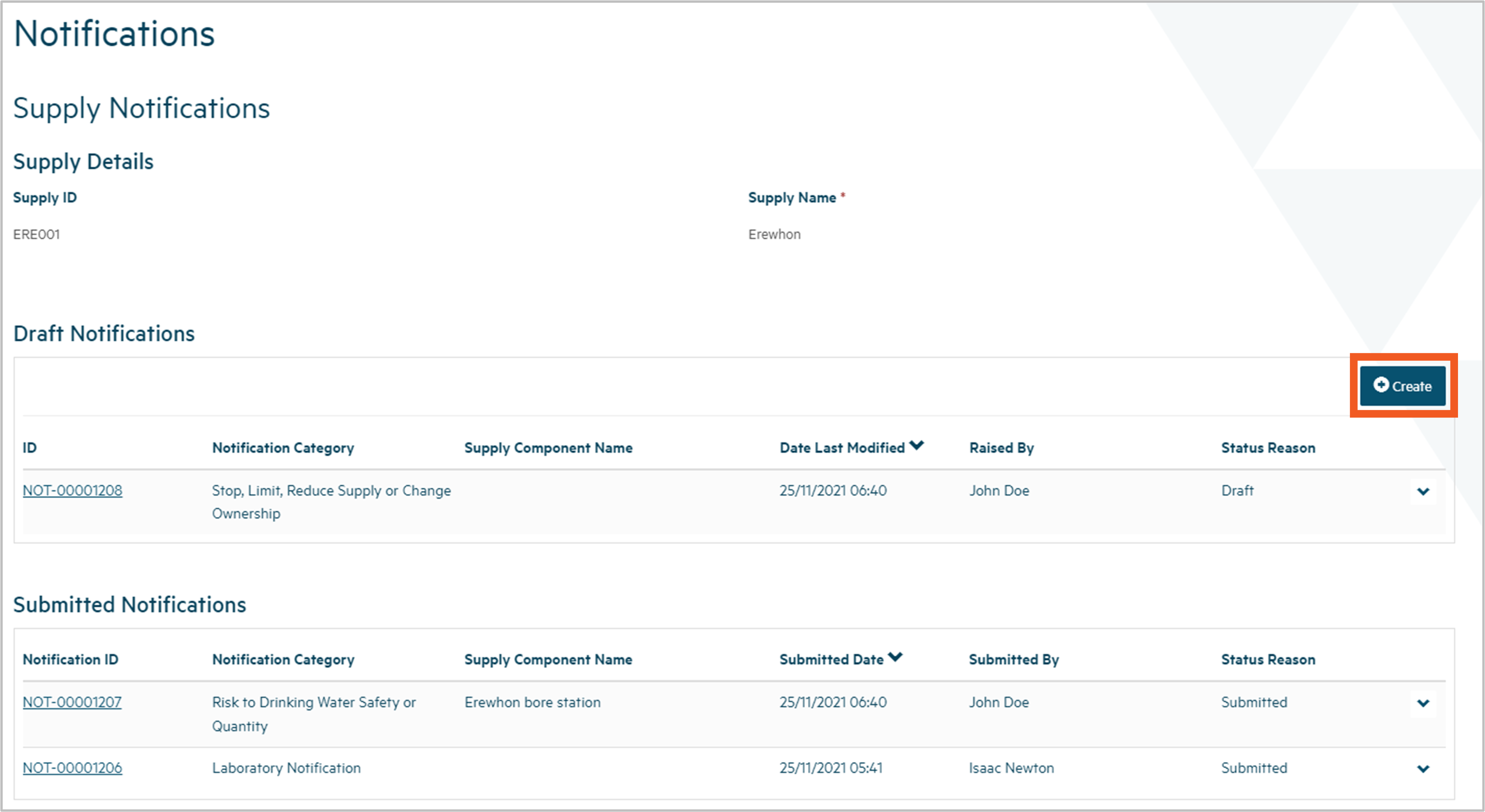
Step 2
You'll be taken to a screen that allows you to choose which of the two supply notification categories your notification is for:
- Risk to drinking water safety or quantity: A notification of one or more of the following:
- Drinking water doesn’t comply with Standards, including MAV exceedance as found by a laboratory test.
- Drinking water is, or may be, unsafe.
- Ability to maintain sufficient water is at imminent risk.
- Planned restriction or supply interruption longer than 8 hours.
- Unplanned restriction or supply interruption longer than 8 hours.
In future, once the Authority’s list of Notifiable Risks and Hazards is confirmed, this notification category will include notification of one or more of those risks or hazards.
- Stop, limit or reduce supply or change ownership: A notification of one or more of the following:
- The intention to stop supplying drinking water.
- The intention to limit connections to a supply.
- The intention to reduce or limit volume supplied.
- The intention to change ownership of a supply.
To proceed:
- select the appropriate category for your notification
- add your own reference for the notification, if you wish
- click Next.
If you've chosen the notification category Risk to drinking water safety or quantity, go to Step 3. If you've chosen the notification category Stop, limit or reduce supply or change ownership, go to Step 10.
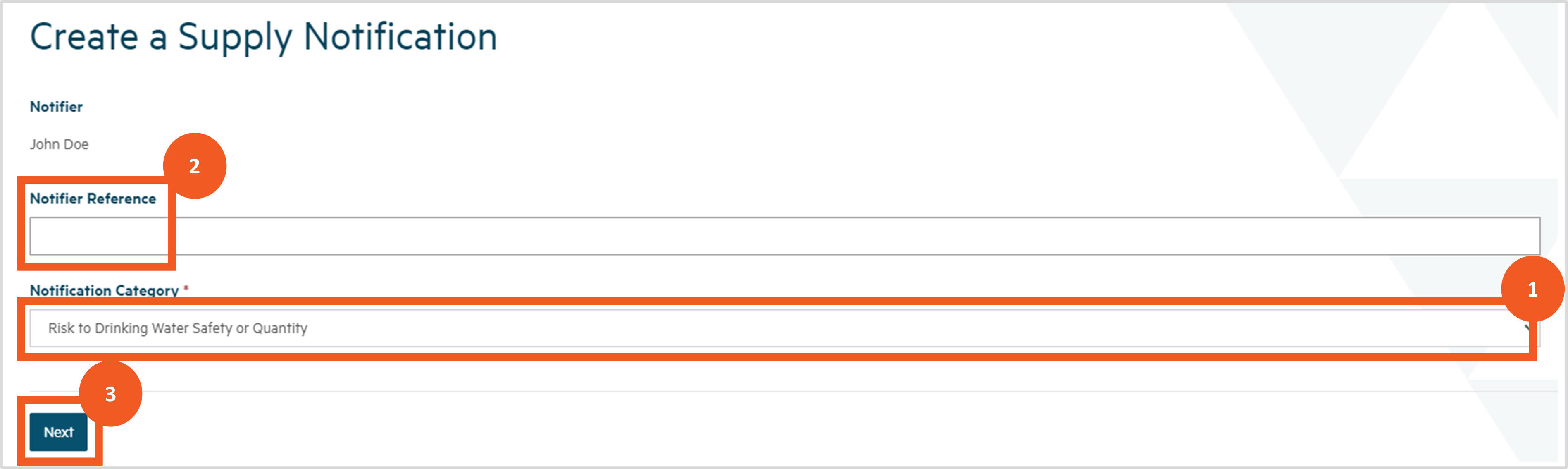
Complete the details for a risk to drinking water safety or quantity notification
Step 3
You'll be taken to a screen where you can complete the details for a risk to drinking water safety or quantity notification.
At the top of the page is a list of check boxes:
- Water is Non-Compliant.
- Drinking Water is or May Be Unsafe.
- Ability to Maintain Sufficient Water at Imminent Risk.
- Unplanned Restriction or Interruption Longer than 8 Hours.
- Planned Restriction or Interruption Longer than 8 Hours.
The core of the notification will be sections containing:
- your explanation of the event that has given rise to the need for the notification
- your explanation of the response you have planned for that event.
Depending on which of the above boxes you check, other sections may be added:
- If you check Water is Non-Compliant, a section appears in which you can detail the non-compliance.
-
If you check Unplanned Restriction or Interruption Longer than 8 Hours, a field appears in which you can record the duration of the restriction.
- If you check Planned Restriction or Interruption Longer than 8 Hours, a field appears in which you can record the duration of the restriction.
Check the boxes that apply to your notification.
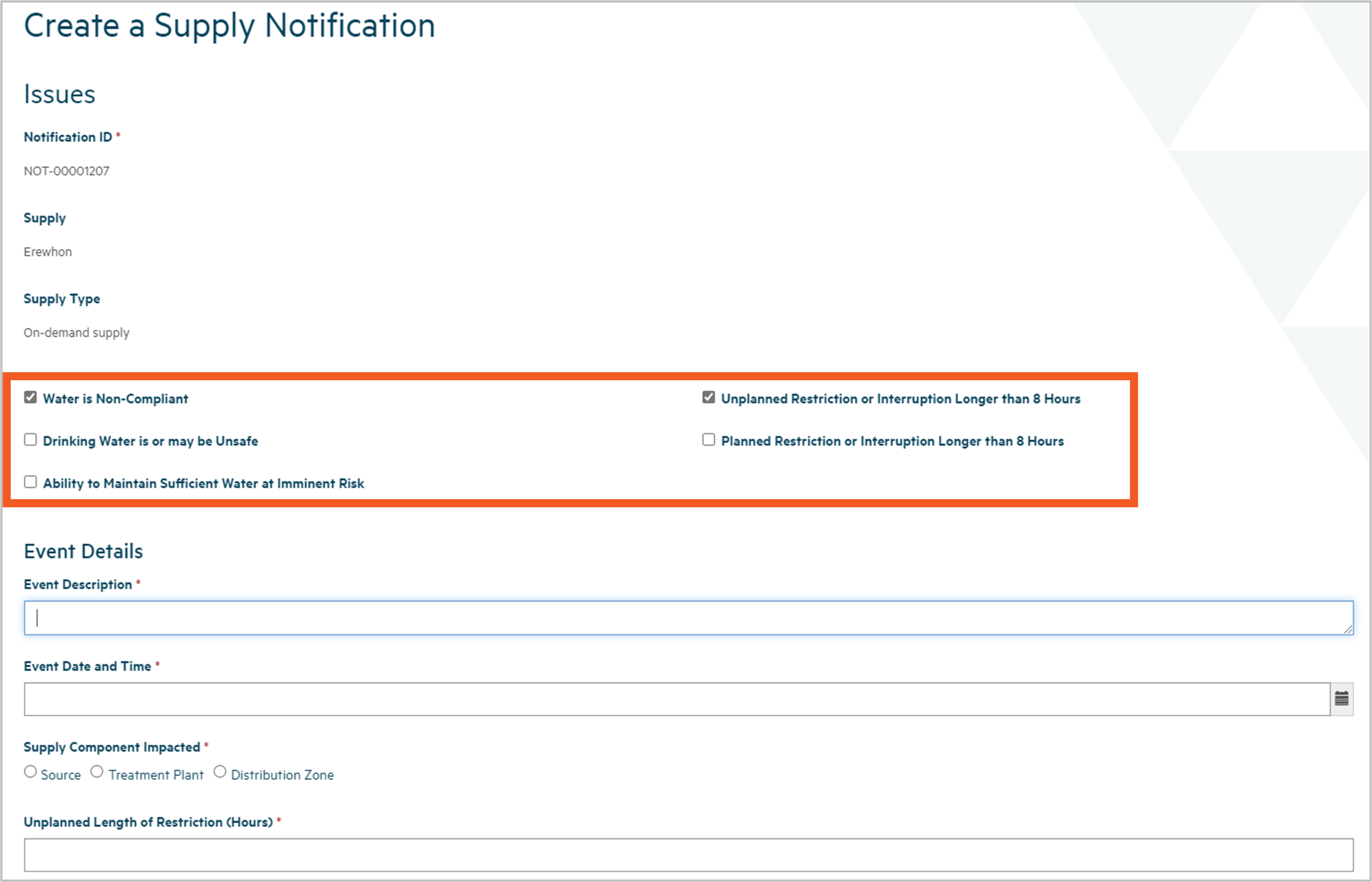
Step 4
Scroll down the screen and complete:
- the Event Description, providing enough information for us to understand what happened and how it caused the issues you are notifying us about
- the Event Date and Time, specifying exactly when the event occurred.
To specify the date and time:
- click on the calendar icon to the right of the field
- select the month and date from the calendar that pops up
- click on the clock icon at the bottom of the calendar
- select the time and click Enter.
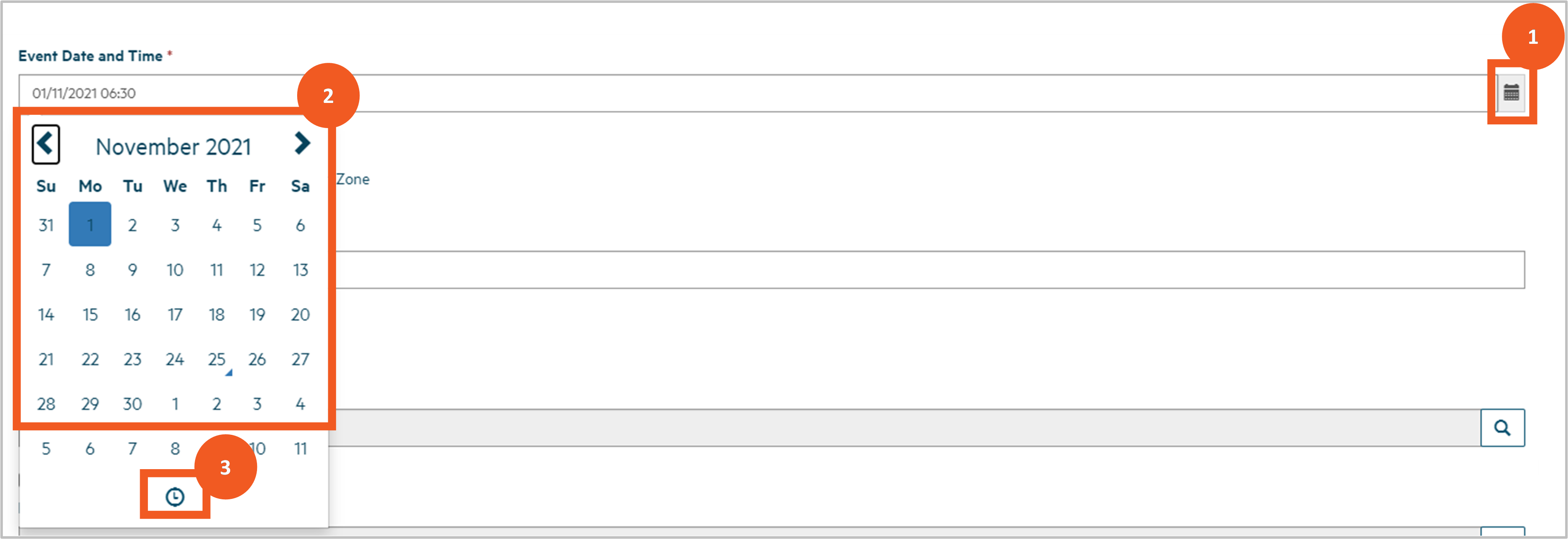
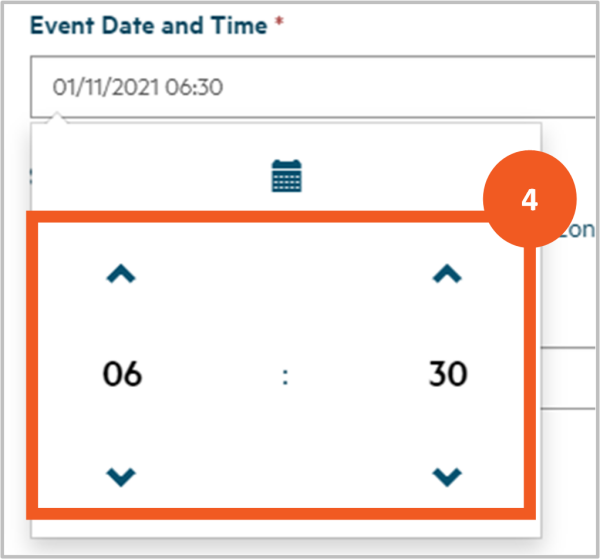
Step 5
Scroll further down to advise the component of the supply where the event occurred:
- Choose either Source, Treatment Plant or Distribution Zone.
- A field allowing you to look up the source, treatment plant or distribution zone will appear. Click on the magnifying glass and select the relevant component from the list in the pop-up window.
- If there are many components of the type you select, you can filter by entering the component ID or the first few letters of its name in the search field and clicking the magnifying glass.
If the event occurred in more than one component, indicate the the primary location and detail the other components in the Event Description field.
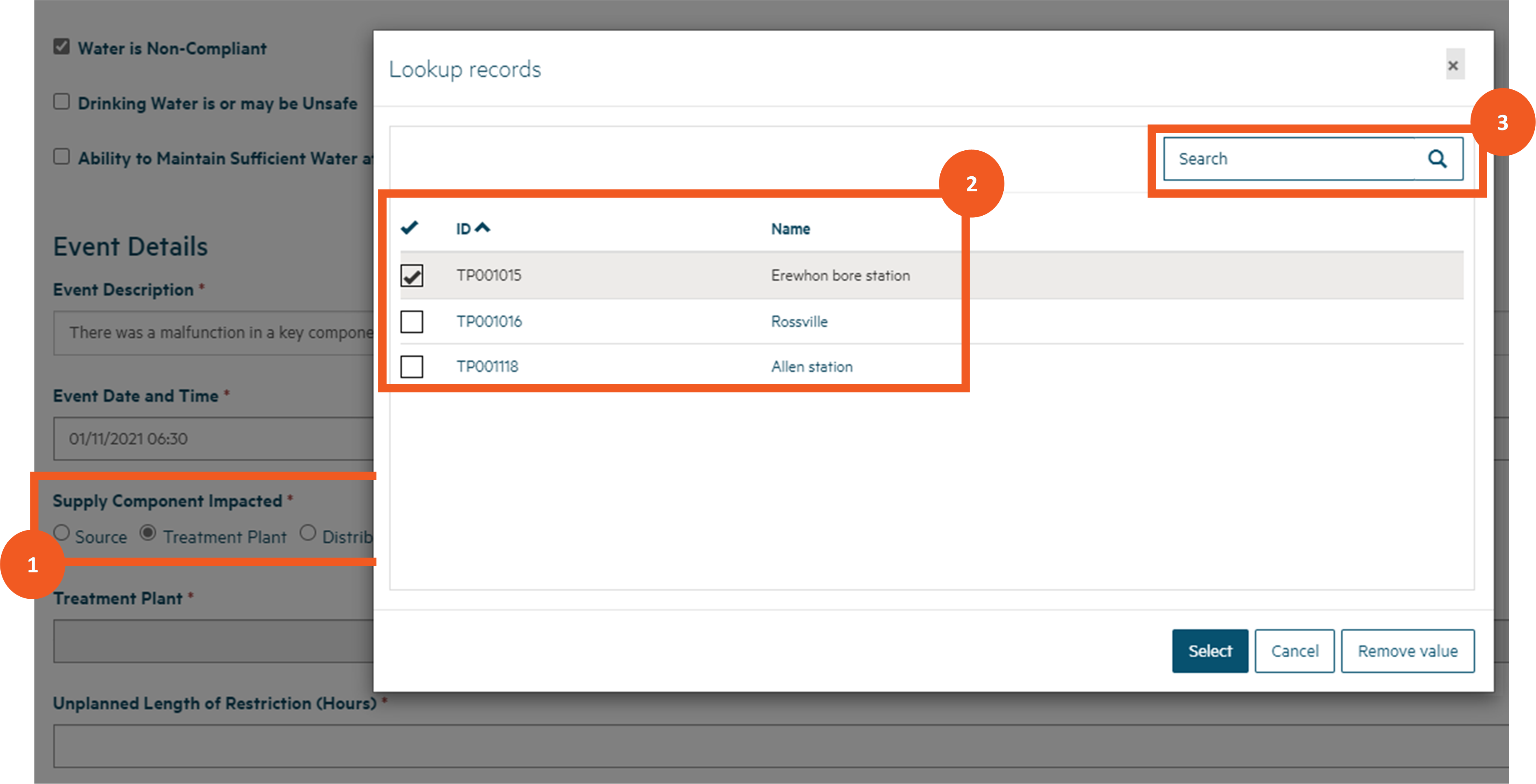
Step 6
Scroll down further to complete other details relating to the event based on the boxes you checked (e.g. populate the duration of the unplanned restriction if you checked that box and complete the Water Non-Compliant Details section if you checked that box).
The Water Non-Compliant Details section caters for three scenarios:
- A laboratory has already notified the Authority that their test results have shown that a sample of water from your supply contains levels of determinands that exceed the Maximum Acceptable Value (MAV). This is the default scenario.
- You have received test results from the laboratory but the laboratory has not notified the Authority.
- You know that your water is non-compliant but there are no laboratory results to support this.
In the case of the first scenario:
- Look up the testing laboratory by clicking on the magnifying glass and then selecting the lab from the list displayed. You can filter the list by typing the first few letters of the laboratory's name in the search field and clicking on the magnifying glass.
- Keep the Laboratory has Notified the Authority box checked.
- Look up the laboratory notification submitted by the lab for this event by clicking on the magnifying glass and then selecting the notification from the list submitted by the laboratory you selected for this supply.
- Add any comments relating to the non-compliance of your water. You can expand the Comments field by clicking and dragging the grey triangle at the bottom right of the field.
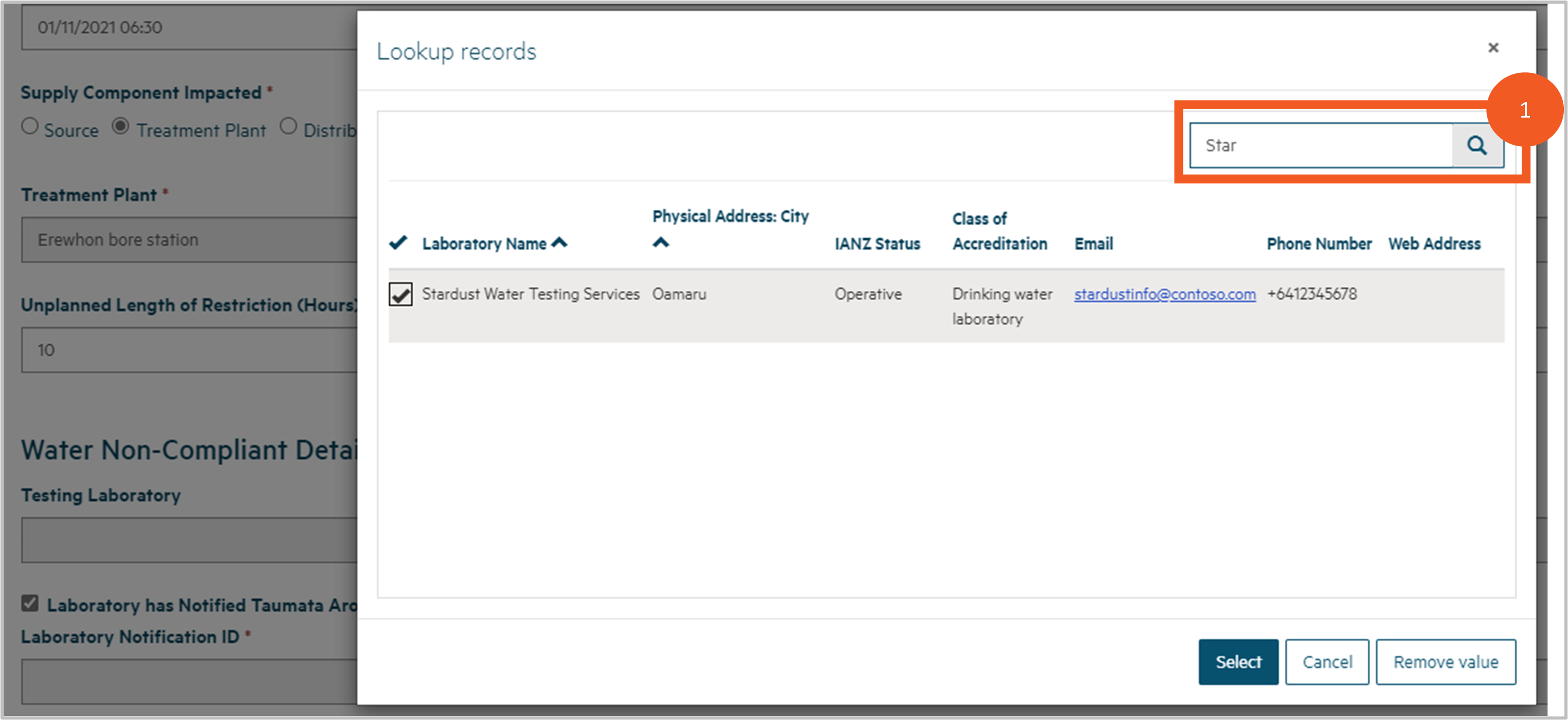
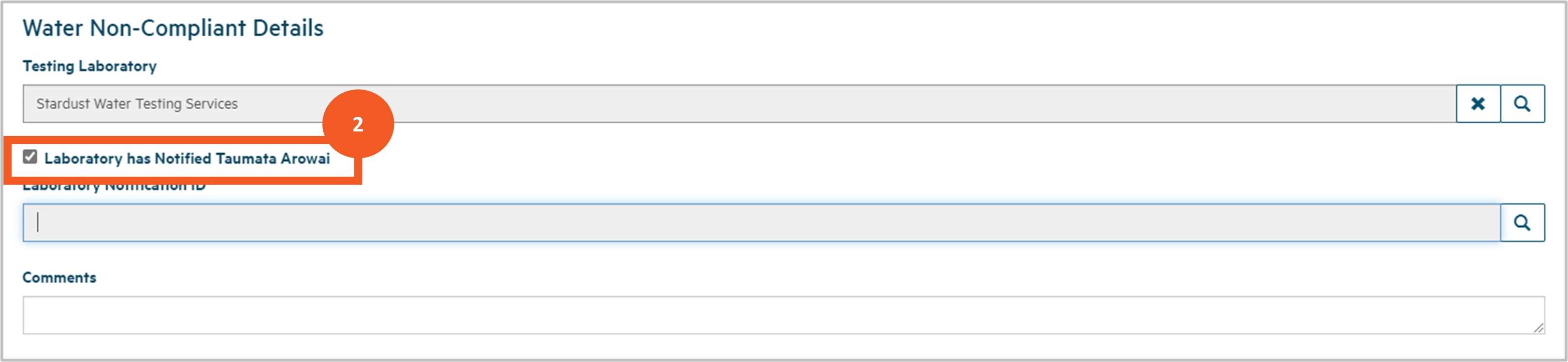
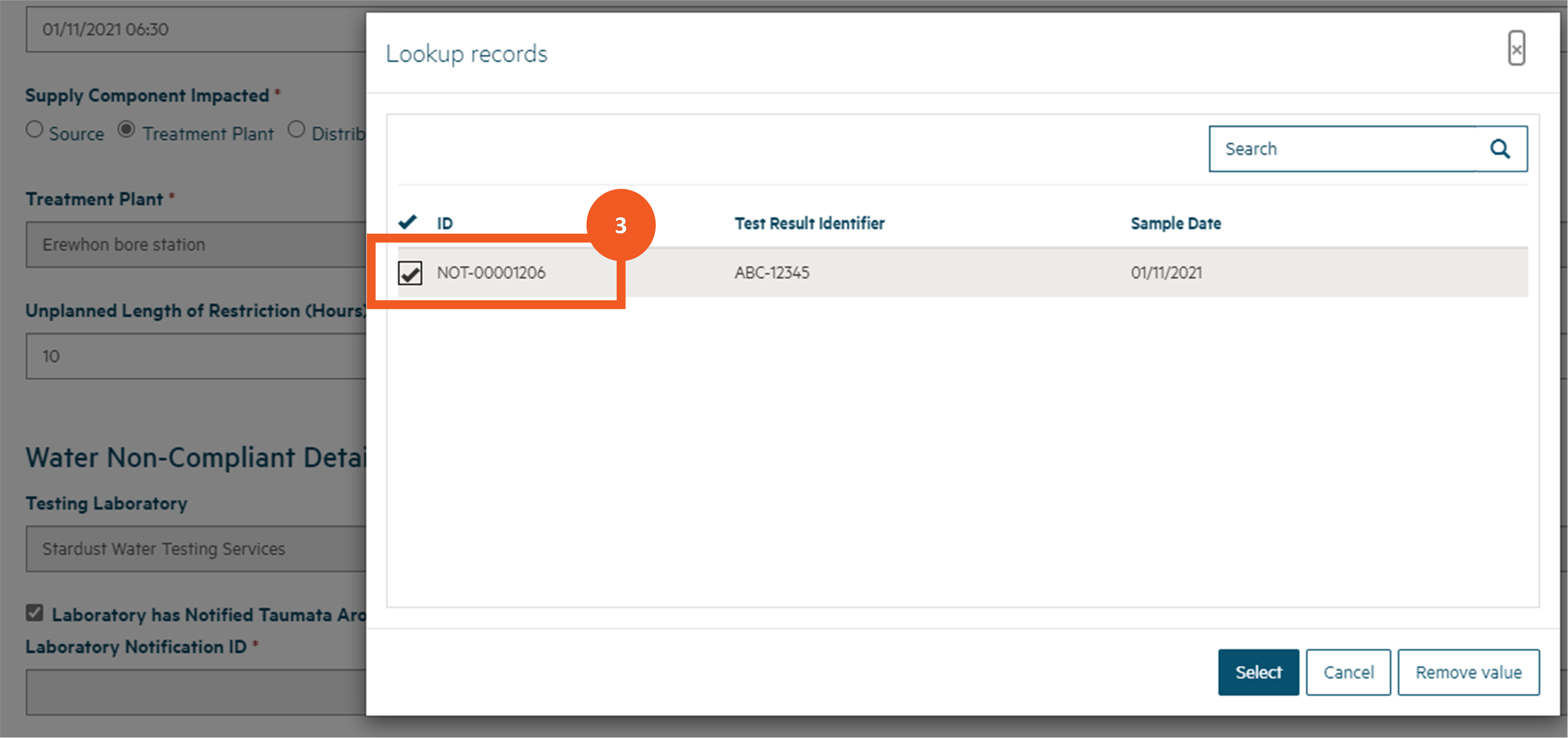

Step 7
If the lab has not notified us, but you have the test results:
- look up the Testing Laboratory by clicking on the magnifying glass and then selecting the lab from the list displayed
- uncheck the Laboratory has Notified the Authority box checked but keep the I have Laboratory Test Results box checked
- add the lab’s Test Result Identifier and the Sample Date.
For each test result you want to include: - click on Add Result.
- look up the Determinand by clicking on the magnifying glass at the right of that field, then selecting the determinand from the list and clicking Select. You can filter the list by typing the first few letters of the determinand name in the search box and clicking that magnifying glass. Start your search text with a * to search for text in the middle of the determinand name.
- enter the test result Value for the determinand.
- click Submit. If there's any problem with the data you have submitted, one or more messages will be displayed at the top of the screen (e.g. missing mandatory data). If this happens, correct the errors and click Submit again.
In particular, Hinekōrako checks the test result value to determine these factors:
- Whether the value is below the Maximum Acceptable Value for the determinand. If it is, this message will be displayed: "The Determinand MAV was not exceeded and notification is not required in this case". The Authority does not need to be notified of this result, although Hinekōrako will not prevent the result being included in your notification.
- Whether the value is above the threshold for the notification to be considered critical. If it is, this message will be displayed: “This lab result is assessed as critical and urgent response will be actioned". This is a chance for you to check that the value entered is correct, because if the test result is submitted, Authority staff will be alerted and a critical priority response will be triggered.
- Whether the value is above the MAV and below the critical threshold. If it is, this message will be displayed: "This lab result is above the Determinand MAV and is notified".
Note: The heading ‘The form could not be submitted …’ is standard. In the case of the above three checks, they are warnings or confirmations only. If you click Submit again the test result will be saved.
8. Add any comments relating to the non-compliance of your water. You can expand the Comments field by clicking and dragging the grey triangle at the bottom right of the field.
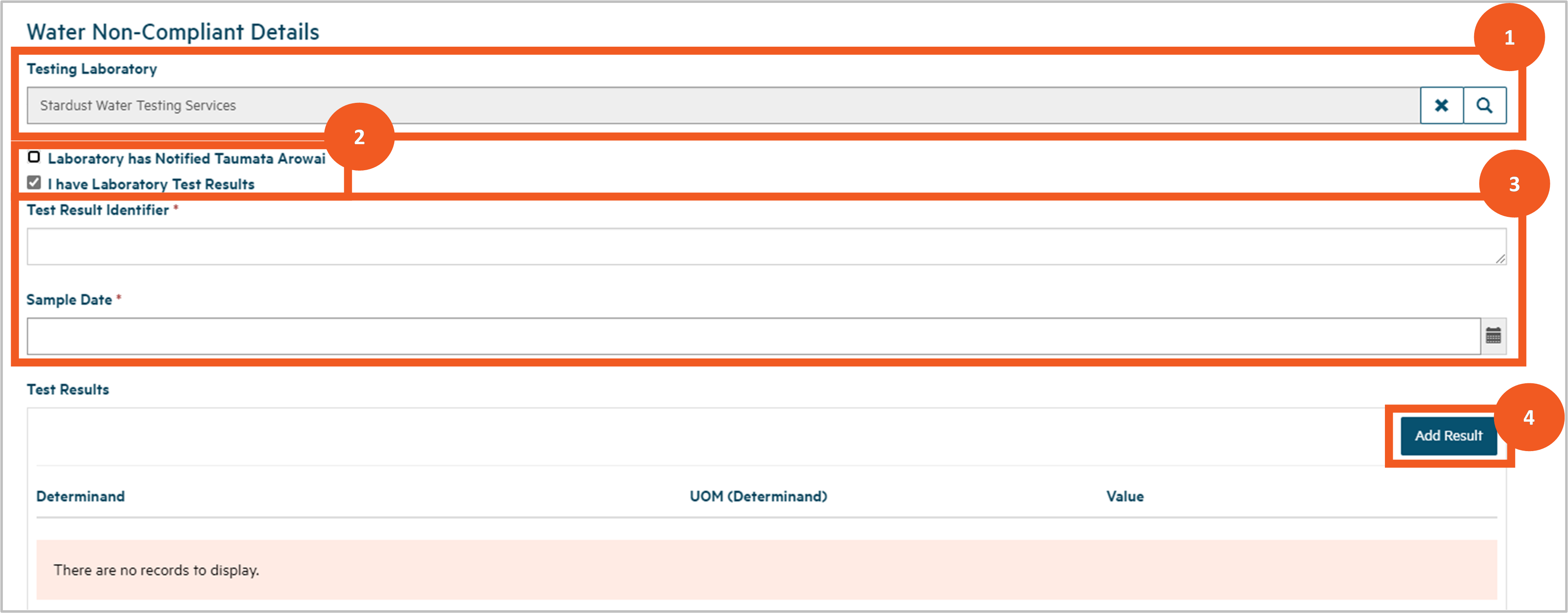
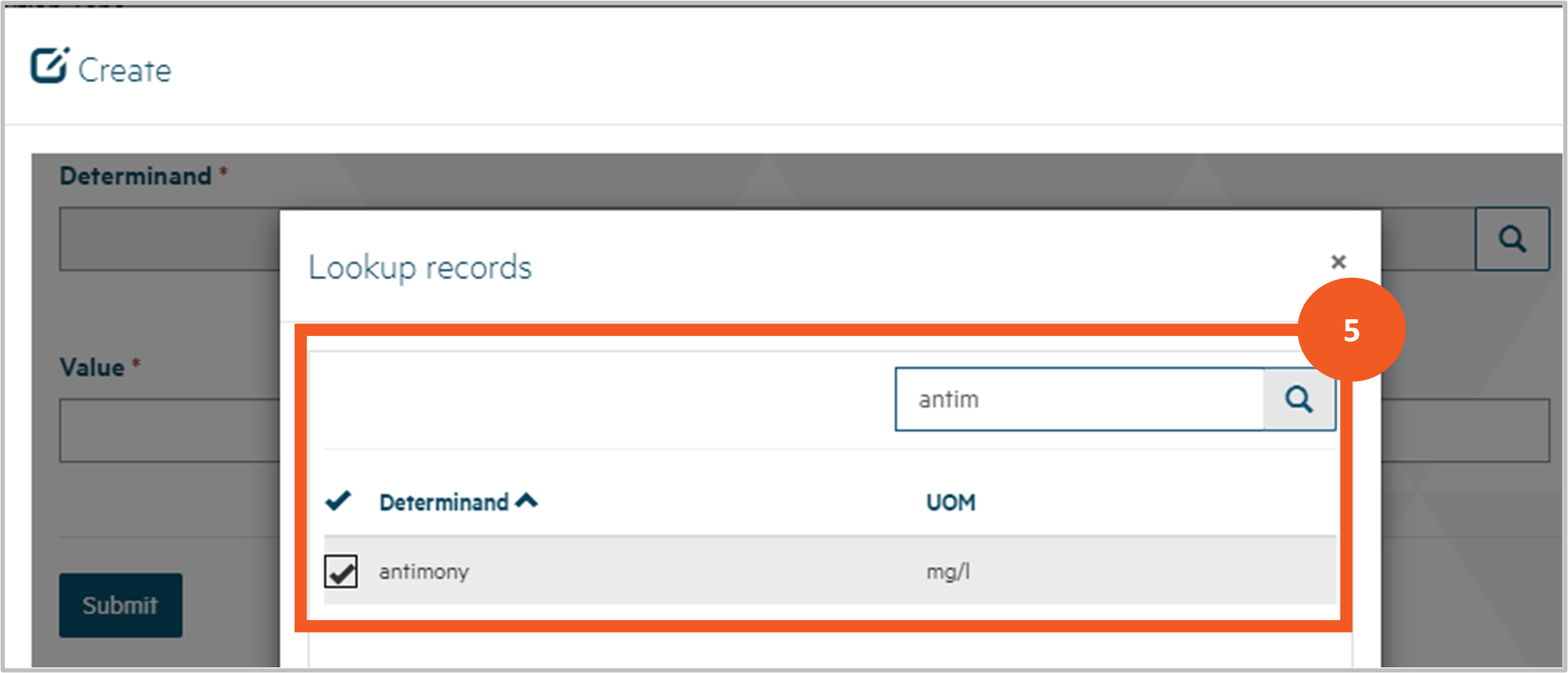


Step 8
If the lab has not notified us and you do not have laboratory test results:
- look up the Testing Laboratory if you have sent a sample to them or leave it blank if you have not
- uncheck the Laboratory has Notified the Authority and I have Laboratory Test Results boxes.
- provide the details of the non-compliance in the Comments field. You can expand the field by clicking and dragging the triangle at the bottom right of the field.

Step 9
Scroll down further to complete the details of your planned response to the event:
- Provide an explanation of your response, referencing your Drinking Water Safety Plan, in the Planned Response Description field. You can expand the field by clicking and dragging on the triangle at the bottom left of the field. Check Planned Response Includes an Unplanned Supply if you intend providing drinking water to consumers via an otherwise unplanned supply.
- If you checked the Planned Restriction or Interruption Longer Than 8 Hours box at the top of the screen, add the planned duration of that restriction.
- Click Next.
Hinekōrako will check for any errors (e.g. missing mandatory data) and display relevant messages at the top of the screen.
Correct the data and click Next again.
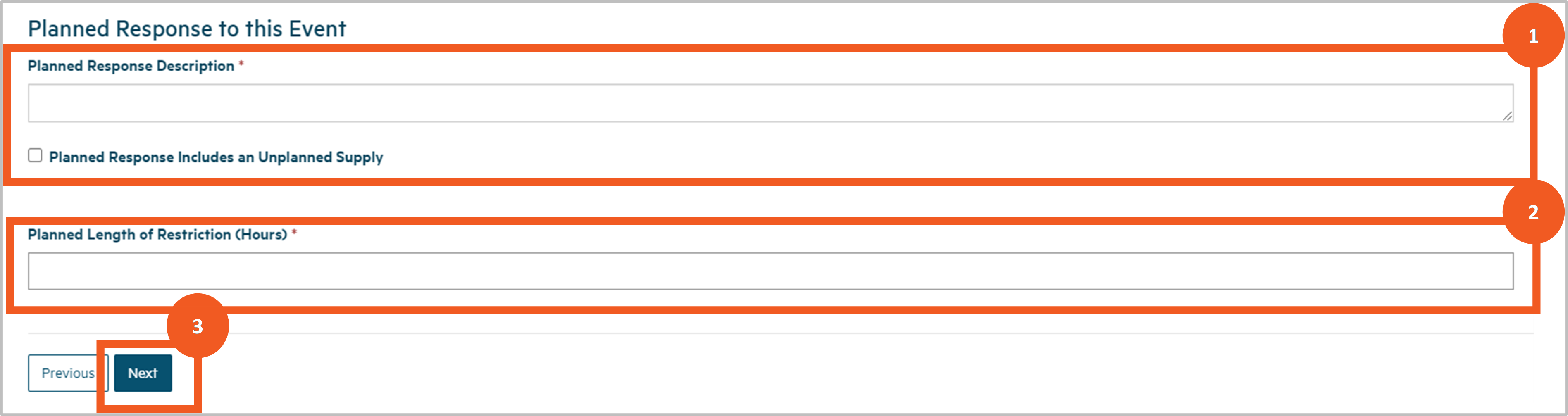
Complete the details for a Stop, Limit or Reduce Supply or Change Ownership notification
Step 10
If you chose the Stop, Limit or Reduce Supply or Change Ownership notification category, you'll be taken to a screen where you can complete the relevant details.
At the top of the page is a list of check boxes:
- Intention to Cease Water Supply to Customers.
- Intention to Cease Being Owner of Supply.
- Intention to Limit Connections to Supply.
- Intention to Reduce or Limit Volume Supplied.
Check the boxes that are relevant to your notification.
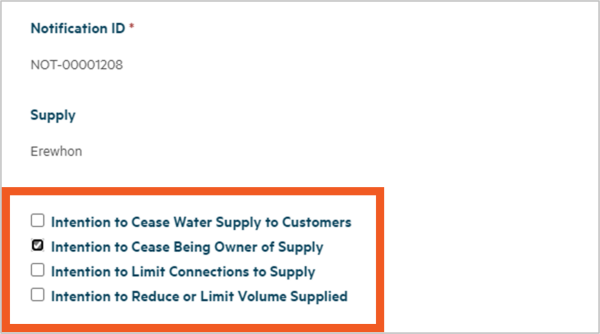
Step 11
Scroll down to complete the details of the change:
- Your explanation of the intended changes in the Change Description field.
- The date the intended change will occur in the Change Date field.
- If you checked the Intention to Cease Being Owner of Supply box, the Ownership Being Transferred box is displayed. If the ownership of the supply is being transferred to someone else, check this box.
- If you checked the Ownership Being Transferred box, the New Supply Owner Details box appears. Provide all the details you have of the intended new owner, including contact details.
Click Next. Hinekōrako will check for any errors (e.g. missing mandatory data) and display relevant messages at the top of the screen. Correct the data and click Next again.
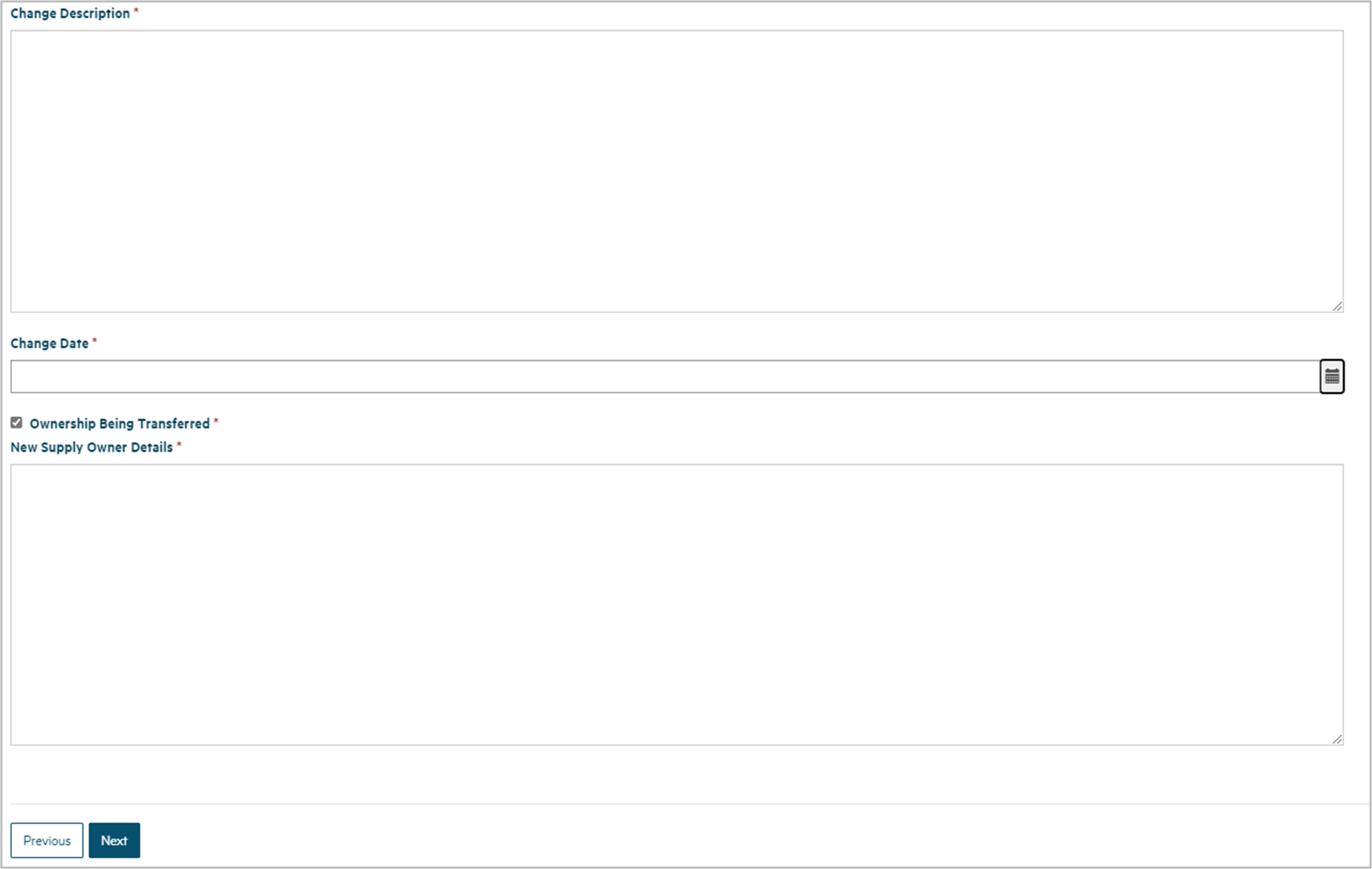
Step 12
When you've completed the details of either category of notification you'll be taken to the final screen where you can upload relevant documents.
Some file types can't be loaded for security reasons and the maximum file size is 30Mb.
Follow these steps to upload a document:
- Click Upload Document in the Supporting Documents section.
- Select the document type - either Supplementary Notification Documents or Laboratory Notification Drinking Water Test Results.
- Provide a description of the document (optional) if you think it will help us understand its contents better.
- Click Choose File and then browse to find and upload the files you want to add.
- Click Submit.
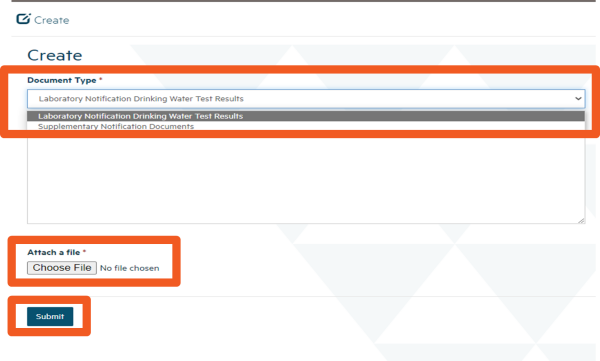
Step 13
Once you’ve uploaded the first file you can repeat the process to add other documents, if need be.
If you upload the wrong document, select Remove Document from the dropdown list at the end of the document row and then click Upload Document to add the correct one.
If you want to update the document description, choose Edit Document Details, which will open the Upload Document pop-up screen again and allow you to make the change.
When Editing Document Details, you'll see the read only Malware Scan field showing the results of our virus check. If the virus check detects a problem, a message to that effect will be displayed here and the document will have been removed. You cannot save the notification when there's a document record with no document, so you'll need to remove the document record before saving.


Step 14
Once you've uploaded all the documents you wish to include, click Submit. You’ll be returned to the Notifications screen with the notification included in the list of Submitted Notifications
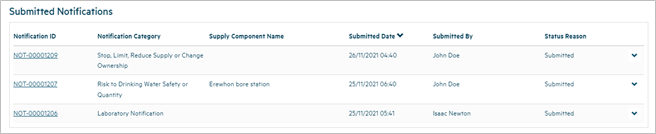
Log in again if you have timed out
Step 15
For your security, Hinekōrako will time out after 30 minutes of inactivity.
If you return to a Hinekōrako screen after it has timed out, as soon as you attempt to move to a different page Hinekōrako will send you to RealMe® to log in again. If you're in the middle of completing the notification form, if you attempt to keep working on that form you may receive error messages relating to permissions and other system related issues.
If you experience these errors, click on any top menu option and then log in again via RealMe®. Unfortunately, although the notification will be saved as a draft (see the next section), Hinekōrako will not have saved any changes you made to the page you were on. You should therefore be prepared to complete the notification without taking any breaks of 30 minutes or more. Have all the information you need at the ready, including any documents you need to upload.
Manage a draft notification
Step 16
If at any point in the process of creating or editing a notification you leave the screen, or if you are timed out of Hinekōrako due to 30 minutes of inactivity, the notification will have been saved as a draft.
Draft notifications are displayed in the first list on the Notifications screen. Continue working on a draft by clicking on the dropdown menu at the end of the row and choosing Edit Notification.
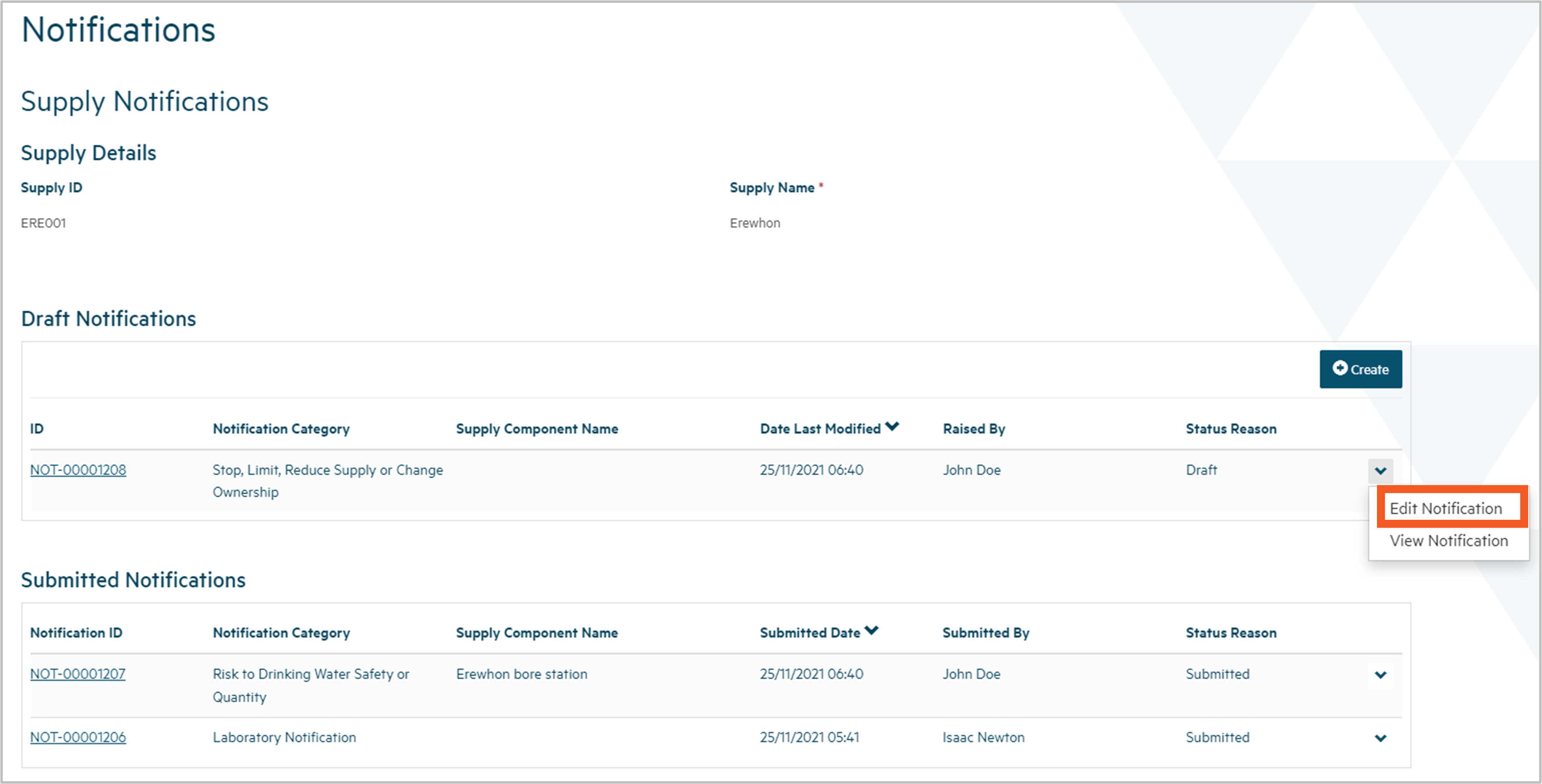
Step 17
If you Edit a notification, the system takes you to the first in a series of screens in the process of completing a notification. You can proceed through the screens as you would when creating a new notification, but the data entered previously will be showing.
Complete the data and submit the notification as described in the steps above.
The notification should now appear in the Submitted Notifications list.
Finding and viewing a supply notification
Download a pdf of this guidance: Finding and viewing a supply notification
This guidance explains how to find and view a notification made to the Authority relating to one of your drinking water supplies. The notification may have been submitted by a drinking water testing laboratory or by someone related to your supply.
Notifications have three categories:
- Laboratory notification.
- Risk to drinking water safety or quantity.
- Stop, limit or reduce supply or change ownership.
View the list of notifications related to a supply
Step 1
Log in to Hinekōrakooutbound to see a list of your supplies on the My Supplies page. If you're not on the My Supplies page you can go there by clicking My Supplies in the menu at the top of the page.
Your supplies will be in one of three lists:
- In Progress Supply Registrations, for all registrations migrated but not yet confirmed or started and not yet finished.
- Registered Supplies, for all confirmed migrated registrations and submitted new registrations.
- Other Supplies, for registrations with any other status (e.g. de-registered supplies).
Find the supply for which you wish to view notifications and select View Supply Details from the dropdown menu at the end of the row.
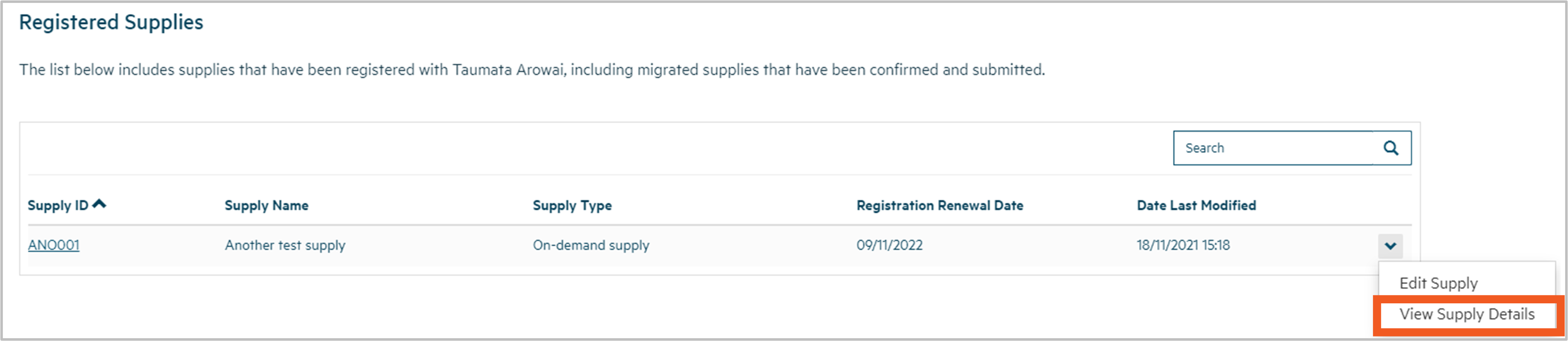
Step 2
You'll be taken to a screen showing the details of the supply. There will be one or more actions you can take in relation to the supply showing in a list to the left.
Click View/Add Notifications.
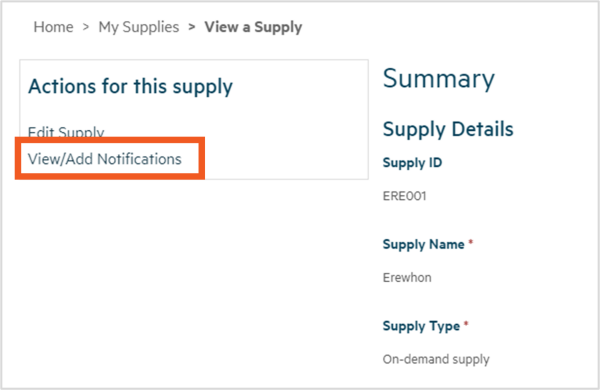
Step 3
You'll be taken to a screen that lists any previously submitted notifications relating to the supply.
The list will include notifications submitted by you or someone else with access to your supply, as well as notifications submitted by a laboratory with test results for a sample from your supply.
The notifications are organised into two lists:
- Draft notifications that you or someone with access to your supply have started but not yet submitted.
- Supplier and laboratory notifications that have been submitted to the Authority.
You can view a notification from either list by clicking on the dropdown menu at the end of the relevant row and selecting View Notification.
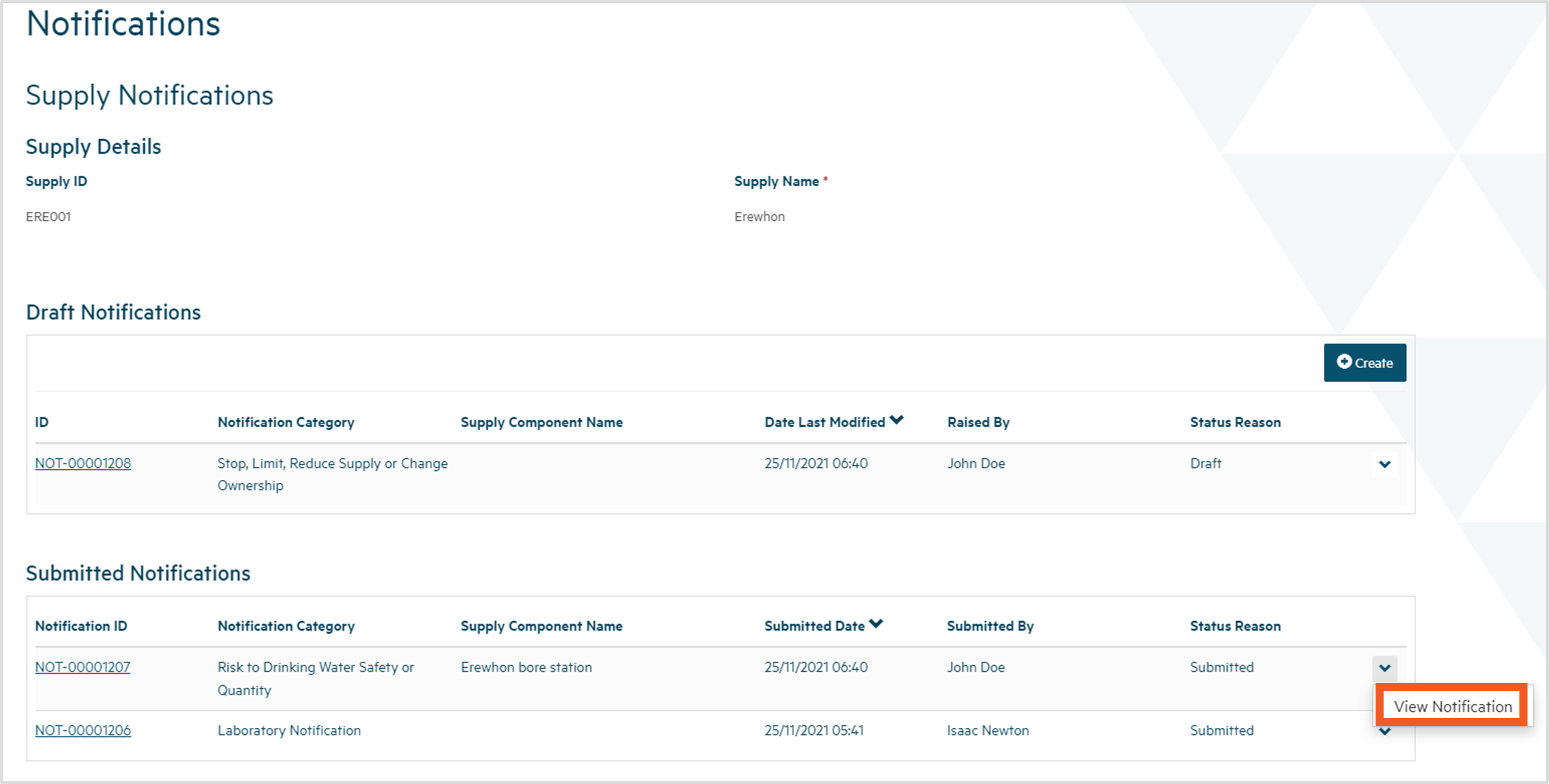
Step 4
You'll be taken to a screen showing the details of the notification. The details listed may differ depending on the options selected in the submission of the notification. For example, if you indicated that the laboratory has already notified the Authority of non-compliant water, the Notification ID of the laboratory notification will be displayed. However, if you provided the laboratory test results yourself, those test results will be displayed.
Scroll down to see all details.
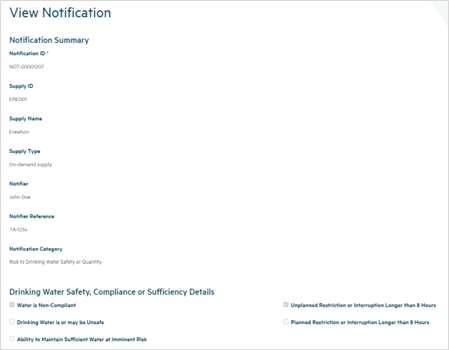
If any documents have been uploaded with the notification, you can view the record of one of those documents by:
- clicking the document title in the list of documents, or
- opening the dropdown menu at the end of the row and choosing View Document Details.
This will open a pop-up screen displaying the document details, including a link to the document itself. If you click on the link the document will download, allowing you to open it.


Step 5
When you've finished, you can return to the list of notifications by clicking your browser back button. Clicking on Notifications in the breadcrumb will not work in this instance due to the nature of the notification list page.